EN-27
MENU OPTIONS
Capture Menu
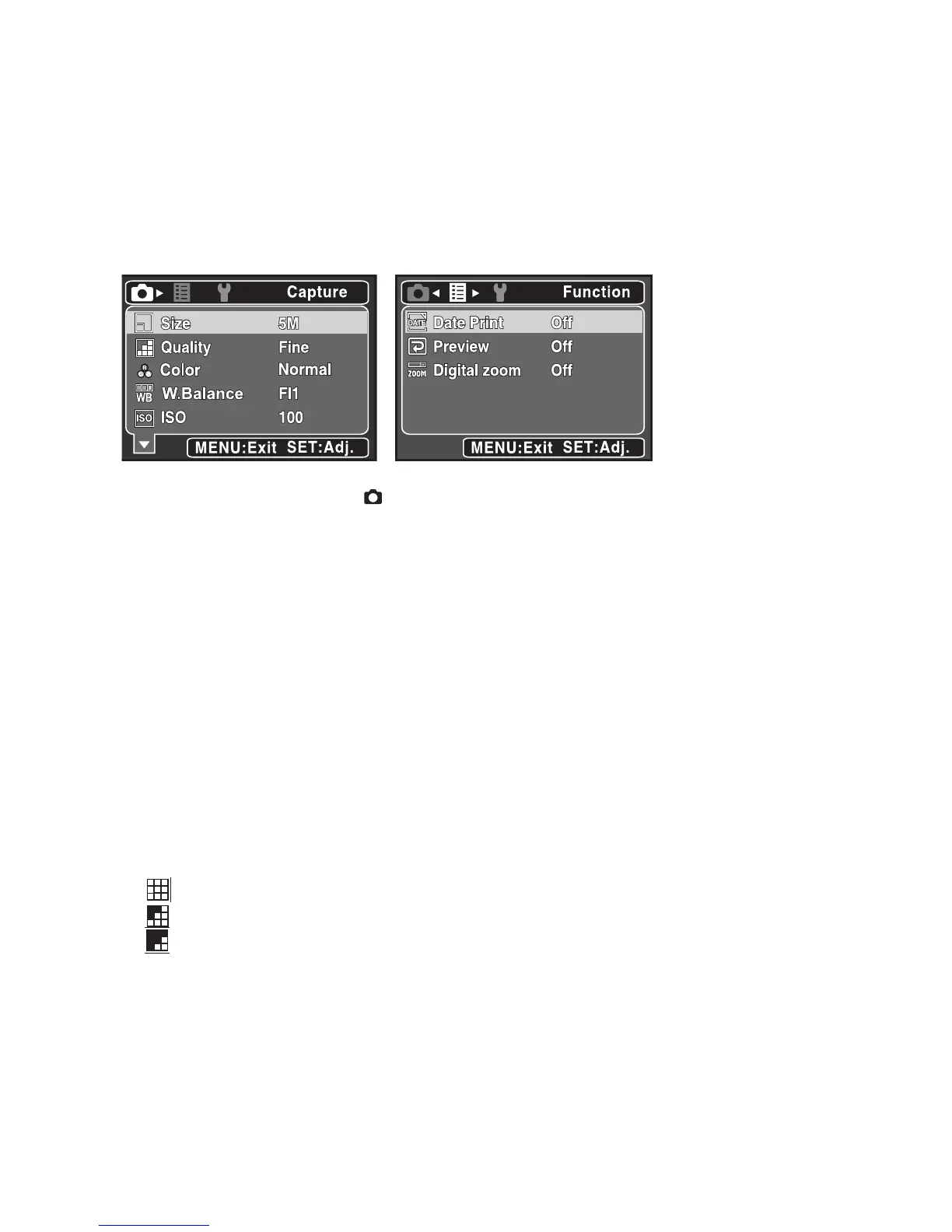
This menu is for the basic settings to be used when capturing still images.
1. Set the camera mode to [ ].
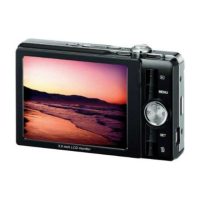
2. Press the MENU button, and select the [Capture] / [Function] menu with the e / f
button.
3. Select the desired option item with the c / d buttons, and press the SET button to
enter its respective menu.
4. Select the desired setting with the c / d buttons, and press the SET button.
5. To exit from the menu, press the MENU button.
Size
This sets the size of the image that will be captured.
* [5M] 5M (2560 x 1920 pixels)
* [3M] 3M (2048 x 1536 pixels)
* [1.2M] 1.2M (1280 x 960 pixels)
* [0.3M] 0.3M (640 x 480 pixels)
Quality
This sets the quality (compression) at which the image is captured.
* [ ] Fine
* [ ] Normal
* [ ] Economy
Color
This sets the color of the image that will be captured.
*
Normal / Vivid / Sepia / B&W
W. Balance
This sets the white balance for a variety of lighting conditions and permits images to
be captured that approach the conditions that are seen by the human eye.



 To Next Page