EasyManua.ls Logo

Hitachi VM-E338E - Chapter 5: Audio;Video Dubbing and TV Playback; Audio;Video Dubbing Procedure; Connecting for TV Playback

Hitachi VM-E338E
60 pages
Print Icon
To Next Page IconTo Next Page
To Previous Page IconTo Previous Page
Loading...
ZL—\a
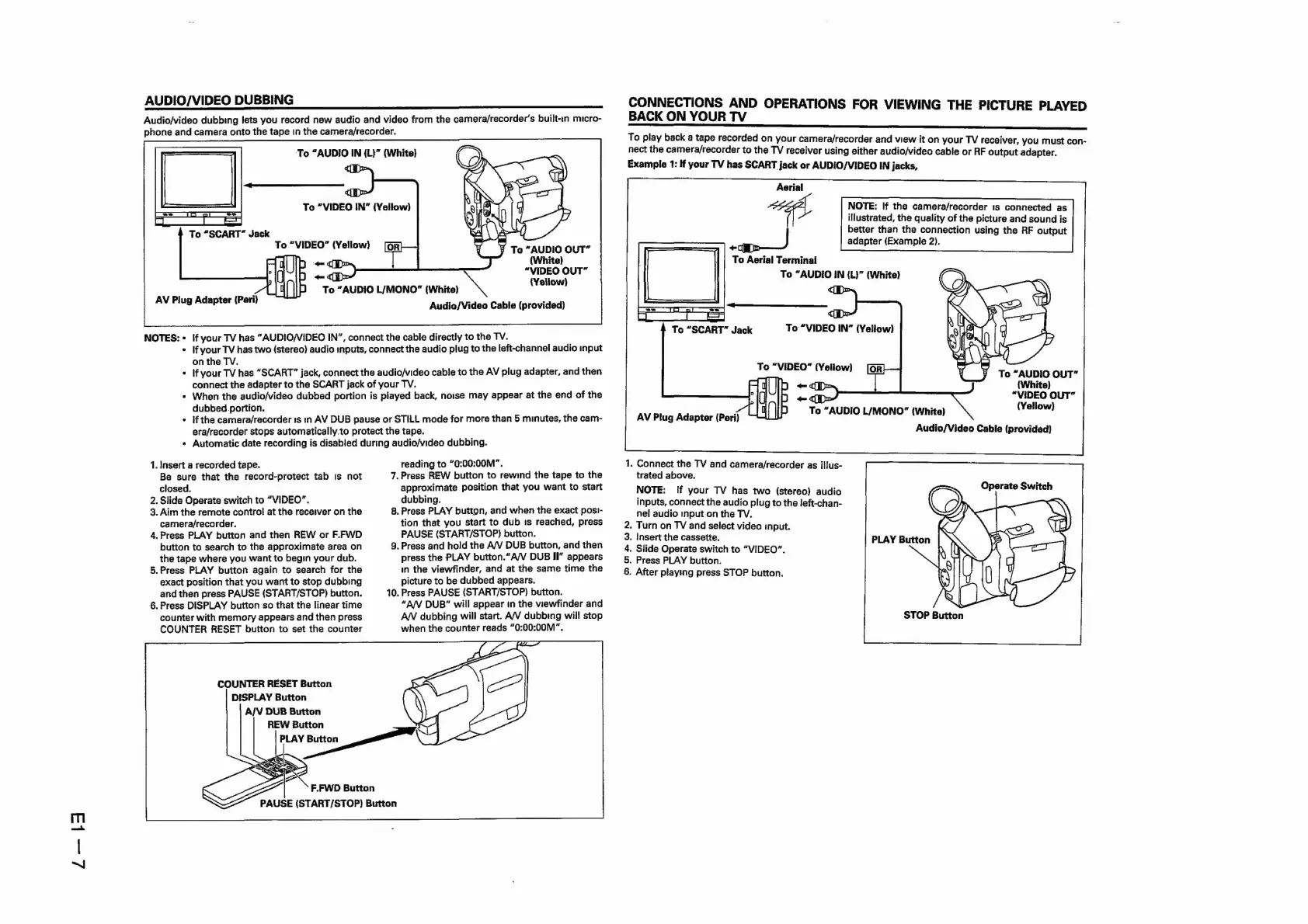
AUDIO/VIDEO
DUBBING
Audio/video
dubbing
lets
you
record
new
audio
and
video
from
the
camera/recorder’s
built-in
micro-
phone
and
camera
onto
the
tape
in
the
camera/recorder.
To
“SCART”
Jack
To
“VIDEO”
(Yellow)
¥
To
“AUDIO
OUT”
(White)
“VIDEO
OUT”
{Yellow}
Audio/Video
Cable
(provided)
NOTES:
«
If
your
TV
has
“AUDIO/VIDEO
IN”,
connect
the
cable
directly
to
the TV.
+
If
your
TV
has
two
(stereo)
audio
inputs,
connect
the
audio
plug
to
the
left-channel
audio
input
on
the
TV.
*
If
your
TV
has
“SCART”
jack,
connect
the
audio/video
cable
to
the
AV
plug
adapter,
and
then
connect
the
adapter
to
the
SCART
jack
of
your
TV.
*
When
the
audio/video
dubbed
portion
is
played
back,
noise
may
appear
at
the
end
of
the
dubbed
portion.
if
the
camera/recorder
1s
in
AV
DUB
pause
or
STILL
mode
for
more
than
5
minutes,
the
cam-
era/recorder
stops
automatically.
to
protect
the
tape.
+
Automatic
date
recording
is
disabled
during
audio/video
dubbing.
1.
Insert
a
recorded
tape.
Be
sure
that
the
record-protect
tab
is
not
closed.
2.
Slide
Operate
switch
to
“VIDEO”.
3.
Aim
the
remote
control
at
the
receiver
on
the
camera/recorder.
4.Press
PLAY
button
and
then
REW
or
F.FWD
button
to
search
to
the
approximate
area
on
the
tape
where
you
want
to
begin
your
dub.
5.Press
PLAY
button
again
to
search
for
the
exact
position
that
you
want
to
stop
dubbing
and
then
press
PAUSE
(START/STOP)
button.
6.
Press
DISPLAY
button
so
that
the
linear
time
counter
with
memory
appears
and
then
press
COUNTER
RESET
button
to
set
the
counter
COUNTER
RESET
Button
DISPLAY
Button
A/V
DUB
Button
F.FWD
Button
PAUSE
(START/STOP)
Button
reading
to
“0:00:00M”.
7.
Press
REW
button
to
rewind
the
tape
to
the
approximate
position
that
you
want
to
start
dubbing.
8.
Press
PLAY
button,
and
when
the
exact
posi-
tion
that
you
start
to
dub
ts
reached,
press
PAUSE
(START/STOP)
button.
9.
Press
and
hold
the
A/V
DUB
button,
and
then
press
the
PLAY
button.“A/V
DUB
II”
appears
in
the
viewfinder,
and
at
the
same
time
the
picture
to
be
dubbed
appears.
10.
Press
PAUSE
(START/STOP)
button.
“AN
DUB”
will
appear
in
the
viewfinder
and
AW
dubbing
will
start.
A/V
dubbing
will
stop
when
the
counter
reads
“0:00:00M”.
CONNECTIONS
AND
OPERATIONS
FOR
VIEWING
THE
BACK
ON
YOUR
TV
PICTURE
PLAYED
To
play
back
a
tape
recorded
on
your
camera/recorder
and
view
it
on
your
TV
receiver,
you
must
con-
nect
the
camera/recorder
to
the
TV
receiver
using
either
audio/video
cable
or
RF
output
adapter.
Example
1:
If
your
TV
has
SCART
jack
or
AUDIO/VIDEO
IN
jacks,
NOTE:
If
the
camera/recorder
1s
connected.
as
illustrated,
the
quality
of
the
picture
and
sound
is
better
than
the
connection
using
the
RF
output
adapter
(Example
2).
eed
To
Aerial
Terminal
To
“AUDIO
IN
(L)”
(White)
To
“AUDIO
OUT”
{White)
“VIDEO
OUT”
(Yellow)
AV
Plug
Adapter
(Peri)
1.
Connect
the
TV
and
camera/recorder
as
illus-
trated
above.
NOTE:
If
your
TV
has
two
(stereo)
audio
inputs,
connect
the
audio
plug
to
the
left-chan-
nel
audio
input
on
the
TV.
.
Turn
on
TV
and
select
video
input.
.
Insert
the
cassette.
.
Slide
Operate
switch
to
“VIDEO”.
.
Press
PLAY
button.
.
After
playing
press
STOP
button.
Omar
why
STOP
Button

Related product manuals