SecurView
®
DX Tomosynthesis Imaging
Quick Reference Guide
© 2017 - 2019 Hologic Inc. Printed in the USA. This manual was originally written in English.
Hologic, SecurView, and associated logos are trademarks and/or registered trademarks of Hologic, Inc., and/or its subsidiaries in
the United States and/or other countries. All other trademarks, registered trademarks, and product names are the property of
their respective owners.
This product may be protected by one or more U.S. or foreign patents as identified at www.Hologic.com/patents.
Hologic, Inc.
877.371.4372
For more information about
Hologic products and services,
visit www.hologic.com.
MAN-04945 Revision 003, Page 2 of 2
To tag reconstructed slices:
Display the slice, then:
• Press Spacebar, or
• Right-click the image and from the Pie menu select Tag Tomo Images.
Note: Slab thickness must be set to 1 slice to allow tagging.
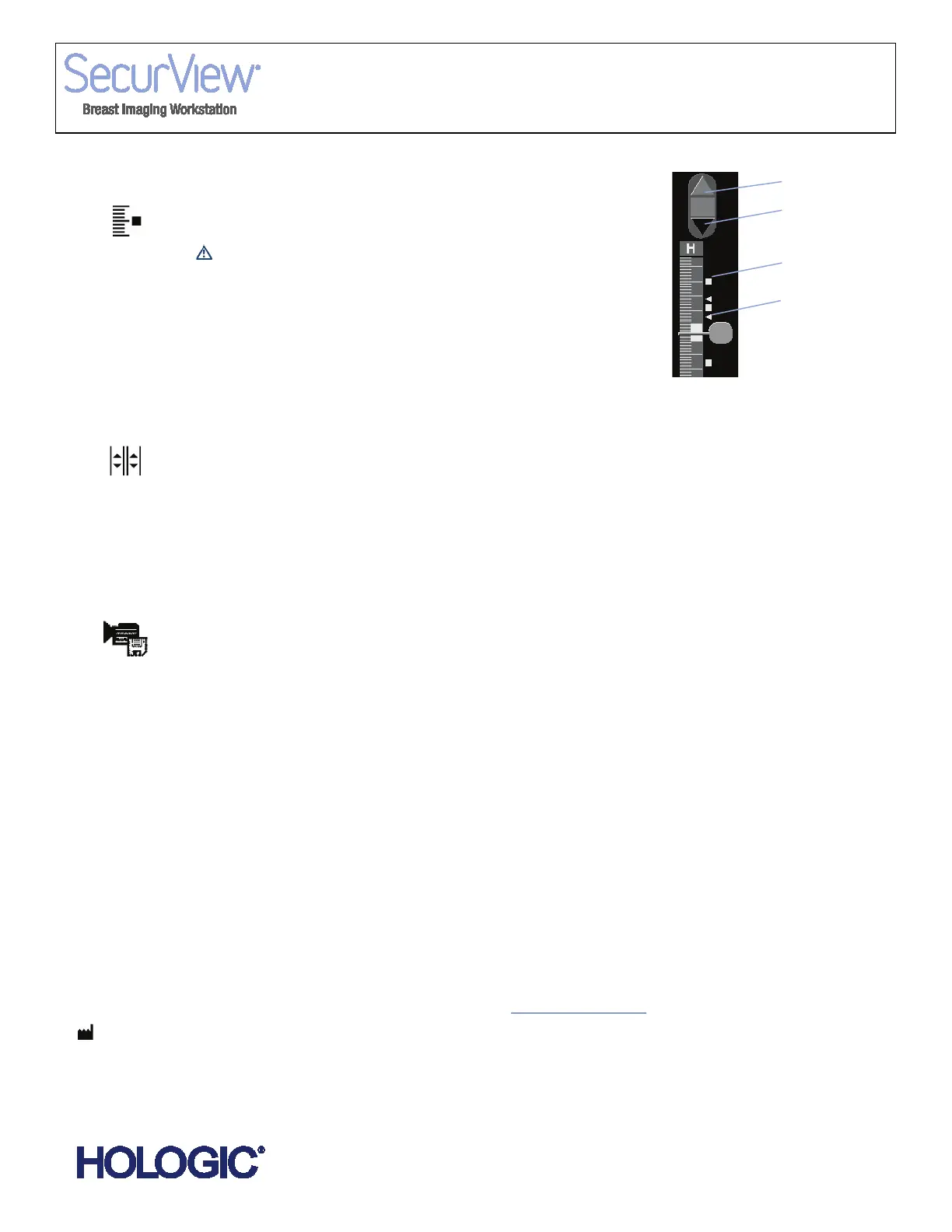
To display the next or previous tagged slice:
Click Arrow Up or Arrow Down on the navigation tool.
To remove a tag:
Display the tagged slice and press Spacebar (or select Tag Tomo Images
again).
To link tiles for scrolling:
Display images to be linked. The displayed images must be of the same type,
either reconstructed slices or projections.
1 Right-click the image and select Link Tile from the Pie menu.
2 Repeat for each tile to be linked. The Link Tile indicator appears on each
linked tile.
3 To scroll linked tiles:
• Rotate the mouse wheel, or
• Move the slider handle for a linked tile, or
• Start Cine mode.
To export a movie of tomosynthesis images:
1 Right-click a reconstruction or projection image to open the Pie menu,
then point to Image Tools to open the second Pie menu.
2 Click Export Movie to open the Export Movie dialog.
3 Make selections in the dialog and click Export.
4 Select path, enter a movie filename, and confirm.
To export Tiff images:
1 Tag the desired mammography reconstruction slice(s) or projection
image(s) as explained above.
2 Press
[E] (for Export), select ‘Tiff’, and click Export.
3 Browse to the desired folder and click OK. SecurView exports all images
currently tagged on the two displays.
Tag Tomo Images
Export Movie
Link Tile












 To Previous Page