-13-
10.1 Download App
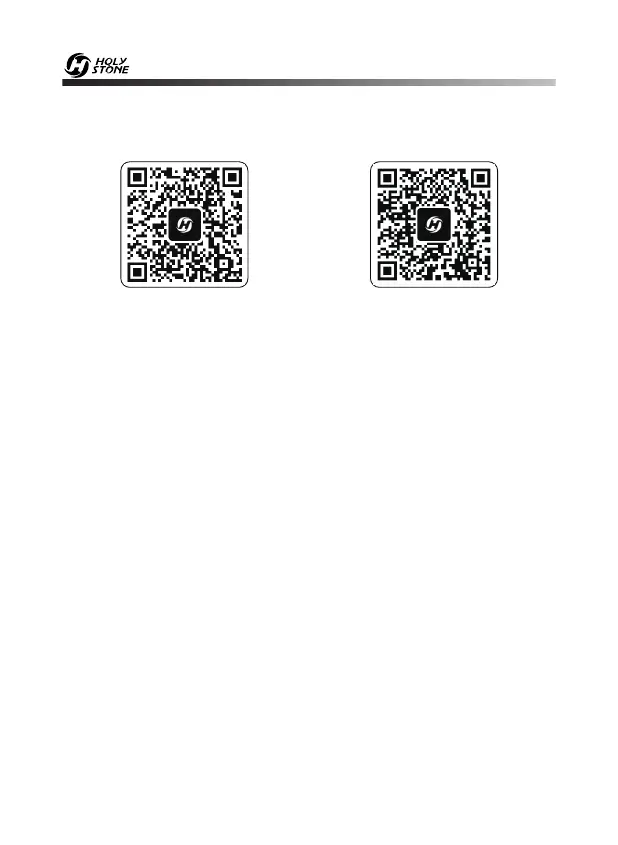
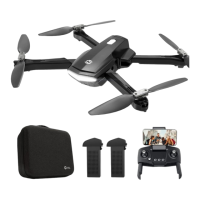
Scan the QR code, corresponding to either App Store™ or Google Play™
Store, and download the HS FPV V4 app for free.
Required Operating Systems: iOS 9.0 or later/Android 5.0 or later
iOS Android APP on Google play
10.2 Connect to Wi-Fi
10.0 USING THE APP
Attention: Because the Wi-Fi network created by the drone cannot access
the Internet, your phone may inform you in various ways, like saying the
connection isn't secure, or there is no internet connection, etc. Please
ignore these messages. Or, in the case of getting Pop-ups, choose the
option that allows you to stay with the current Wi-Fi.
Connect your phone to the Wi-Fi network created by the drone. You can
check the drone’s status on the HS FPV V4 App.
① Make sure to turn off Bluetooth, Mobile Data, and VPN. Enter your
phone’s Wi-Fi settings and click Wi-Fi to search for the Wi-Fi of the
drone.
(Make sure to turn on the drone before going to the Wi-Fi settings on your
phone)
② Select the Wi-Fi network: HolyStone-******.
③ Wait for a couple of seconds for your phone to connect to the
drone’s Wi-Fi.
④ Enter the HS FPV V4 application.
> The connection between your phone and the drone is established
automatically.


 To Next Page