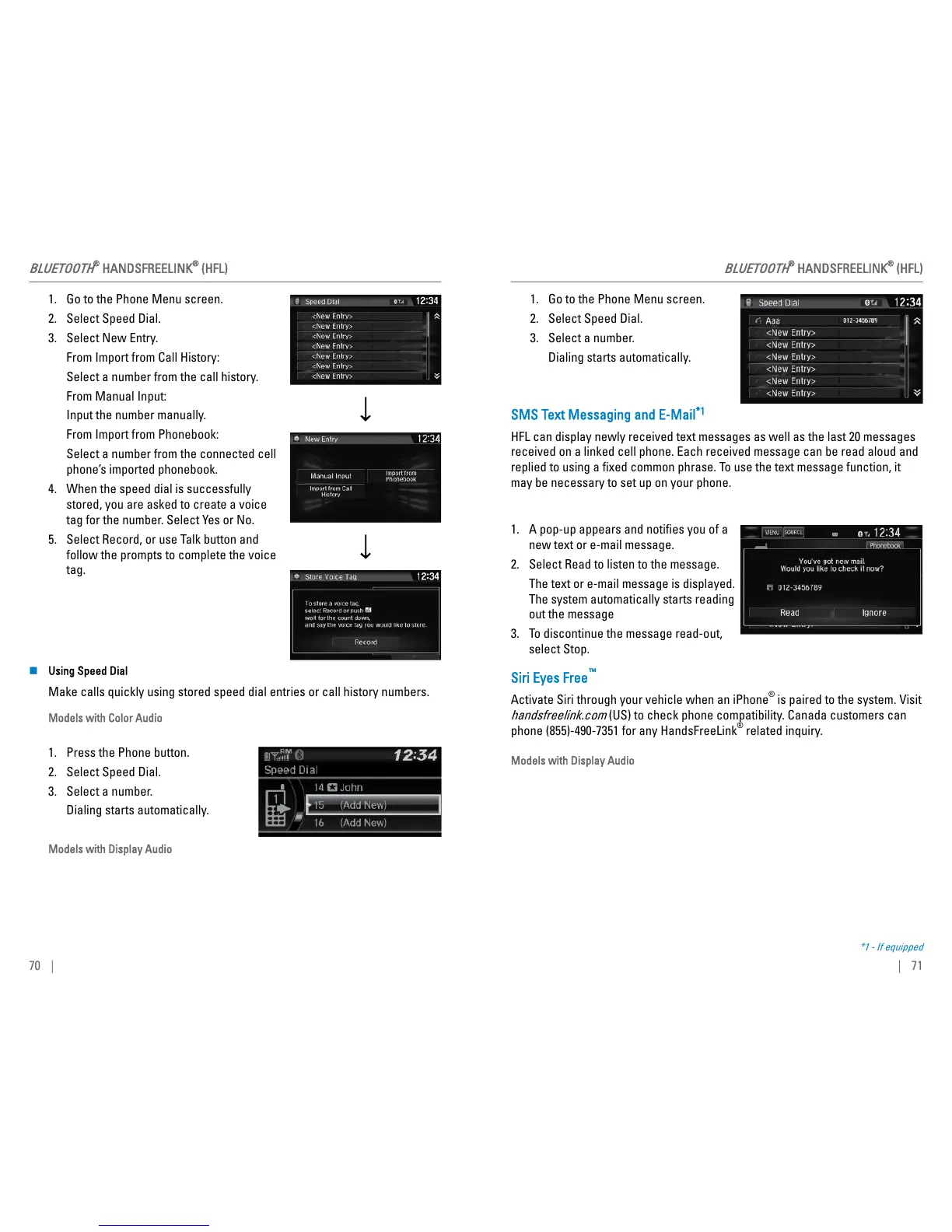
1. Go to the Phone Menu screen.
2. Select Speed Dial.
3. Select New Entry.
From Import from Call History:
Select a number from the call history.
From Manual Input:
Input the number manually.
From Import from Phonebook:
Select a number from the connected cell
phone’s imported phonebook.
4. When the speed dial is successfully
stored, you are asked to create a voice
tag for the number. Select Yes or No.
5. Select Record, or use Talk button and
follow the prompts to complete the voice
tag.
n Using Speed Dial
Make calls quickly using stored speed dial entries or call history numbers.
Models with Color Audio
1. Press the Phone button.
2. Select Speed Dial.
3. Select a number.
Dialing starts automatically.
Models with Display Audio
BLUETOOTH
®
HANDSFREELINK
®
(HFL)
70 |
1. Go to the Phone Menu screen.
2. Select Speed Dial.
3. Select a number.
Dialing starts automatically.
SMS Text Messaging and E-Mail
*1
HFL can display newly received text messages as well as the last 20 messages
received on a linked cell phone. Each received message can be read aloud and
replied to using a fixed common phrase. To use the text message function, it
may be necessary to set up on your phone.
1. A pop-up appears and notifies you of a
new text or e-mail message.
2. Select Read to listen to the message.
The text or e-mail message is displayed.
The system automatically starts reading
out the message
3. To discontinue the message read-out,
select Stop.
Siri Eyes Free
™
Activate Siri through your vehicle when an iPhone
®
is paired to the system. Visit
handsfreelink.com
(US) to check phone compatibility. Canada customers can
phone (855)-490-7351 for any HandsFreeLink
®
related inquiry.
Models with Display Audio
*1 - If equipped
BLUETOOTH
®
HANDSFREELINK
®
(HFL)
| 71



 To Next Page