69-2715EF—07 16
Reconnecting your WiFi network
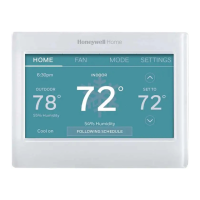
1 Touch SETTINGS.
2 Select Wi-Fi Setup.
3 Touch the name of the network you want to use. The
thermostat may display a password page.
4 To enter a password, touch characters to spell out
your home network password, then touch Done.
5 The thermostat displays “Connecting to your
network. Please wait...” then a “Connection
Successful” screen.
6 Touch Next.
• If your thermostat is registered, you will see your
signal strength and other status information.
Touch Done.
• If the screen displays “Register Online for Remote
Access,” follow instructions on page 18.
SETTINGS
Wi-Fi Setup
Disconnecting your WiFi network
1 Touch SETTINGS.
2 Select Wi-Fi Setup.
3 Touch Disconnect from Network. The thermostat will
display a question to confirm your selection.
4 Touch Yes to confirm that you want to disconnect
from the network. The thermostat will display the
WiFi Setup screen.
5 Touch OK to display the menu.
SETTINGS
Wi-Fi Setup
Disconnect from Network
OK
33-00593ES_A.indb 1633-00593ES_A.indb 16 9/20/2021 7:09:53 PM9/20/2021 7:09:53 PM


 To Next Page
 Loading...