1. Make sure Bluetooth is enabled on your mobile device
2. Search for Honeywell Home in the App Store or Google Play
3. Download the Honeywell Home app
Installation
Launch the Honeywell Home app
1. Launch the Honeywell Home
2. Create an account (if necessary), or sign in to your Honeywell Home Tap ADD DEVICE or the plus sign.
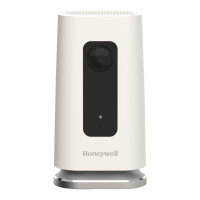
3. Select the C1 Wi-Fi Camera to install, then follow the instructions in the Honeywell Home app to name the camera and its
location
Connect the power cord
1. Remove the camera base and plug the power cord’s USB end into the
2. Reinsert the camera base and plug the camera into a power
3. Wait until the LED on the camera blinks blue (about 1 minute), then tap NEXT.
NOTE: If the LED turns solid red, it means the connection mode is timed out. Unplug the camera and plug it back in.
Connect
Connect to mobile device
1. Enable Bluetooth on your mobile
2. The app will look for the
For one camera, it will connect
For more than one camera, the app will prompt you to select one camera at an Each camera has a unique MAC ID printed on the
back. Use that ID to select the camera you want to connect.
3. A QR code will display in the To connect your camera to the app, hold the QR code approximately 3-8 inches (7-20 cm) from the camera
lens.






 To Next Page