EasyManua.ls Logo

Honeywell Dolphin CN85 - User Manual

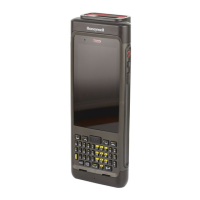
Honeywell Dolphin CN85
18 pages
Print Icon
To Next Page IconTo Next Page
Loading...
Dolphin™ CN85
powered by Android™
Quick Start Guide
CN85-A7-EN-QS Rev (a)
9/18
Question and Answer IconNeed help?

Do you have a question about the Honeywell Dolphin CN85 and is the answer not in the manual?

Summary

Mobile Computer Features

Install a microSIM Card; Install a microSD Card

microSD Card Installation Guide

Instructions for installing and formatting a microSD card into the device.

Install the Battery

Battery Installation Warning

Warning to use only the specified Honeywell Li-ion battery pack model CW-BAT.

Charge the Mobile Computer

Turn Power On;Off

Battery Swap Mode for Battery Replacement

About the Home Screen

Navigation and Function Buttons

Scan a Bar Code with the Scan Demo

Sync Data

Restart the Mobile Computer

Summary

Mobile Computer Features

Install a microSIM Card; Install a microSD Card

microSD Card Installation Guide

Instructions for installing and formatting a microSD card into the device.

Install the Battery

Battery Installation Warning

Warning to use only the specified Honeywell Li-ion battery pack model CW-BAT.

Charge the Mobile Computer

Turn Power On;Off

Battery Swap Mode for Battery Replacement

About the Home Screen

Navigation and Function Buttons

Scan a Bar Code with the Scan Demo

Sync Data

Restart the Mobile Computer

Overview

The Honeywell Dolphin CN85 is a mobile computer designed for various industrial applications, powered by the Android operating system. This quick start guide provides essential information for setting up and using the device, covering its features, initial setup, and basic maintenance.

Function Description

The Dolphin CN85 serves as a robust mobile computing solution, enabling users to perform tasks such as data collection, communication, and application execution in demanding environments. Its primary function is to provide a portable and connected platform for business operations, leveraging the versatility of the Android OS. The device is equipped with various input and output features to facilitate efficient data interaction and user experience.

Usage Features

The Dolphin CN85 offers a comprehensive set of features designed for ease of use and operational efficiency.

  • Physical Features:

    • Battery Status/Notification LED: Provides visual cues regarding the device's power status and incoming notifications.
    • Speaker and Microphone: Essential for audio communication, alerts, and voice commands.
    • Power Button: Used to turn the device on/off and access power options.
    • Aux Button: A customizable button that can be assigned various functions through the Key Remap feature in the Settings app, such as initiating push-to-talk (PTT).
    • Scan Button (Multiple Locations): Dedicated buttons for triggering the integrated scanner, located on the side and front of the device.
    • Scan Status LED: Indicates the status of scanning operations.
    • Touch Panel: The primary interface for interacting with the Android operating system and applications.
    • Keyboard (Model Dependent): Provides tactile input for data entry, with specific layouts varying by model.
    • I/O Connector: Used for charging and data communication with accessories.
    • Imager (LED / Laser Aperture): The component responsible for scanning barcodes, supporting both LED and laser technologies.
    • Camera Lens and Flash: Enables image capture for documentation or other applications.
    • Pressure Sensor: A sensor that can detect changes in pressure, potentially for environmental monitoring or specific application needs.
    • Laser Safety Label Location: Indicates the placement of safety information related to the laser imager.
    • Volume Buttons: Adjust the audio output level of the device.
    • microSIM/microSD Card Door: Provides access to the slots for installing microSIM and microSD cards.
    • IMEI Label Location: The location of the International Mobile Equipment Identity label on the device.
    • Battery Latch: Secures the battery in place.
    • Hand Strap: Enhances grip and reduces the risk of accidental drops during use.
    • Stylus and Tether: Provides a precise input method for the touch screen, especially useful for detailed tasks or when wearing gloves, with a tether to prevent loss.
  • Operating System Interaction:

    • Power On/Off: The device powers on by pressing and holding the Power button for approximately 3 seconds. To power off, press and hold the Power button until the options menu appears, then select "Power off."
    • First-Time Setup: Upon initial power-on, a Welcome screen guides users through setup, either by scanning a configuration barcode or using a manual wizard.
    • Sleep Mode: The device automatically enters sleep mode to conserve battery power during inactivity, turning off the display and locking the computer. It can be woken by pressing the Power button and unlocked by dragging an icon to the top of the display.
    • Adjusting Display Sleep Time: Users can customize the duration before the display goes to sleep by navigating through Settings > Display > Advanced > Sleep.
    • Home Screen Navigation: The Home screen features a Notification/Status Bar, Search Bar (with voice search capability), Home Screen Panel, access to all apps, Favorites Tray, and Navigation Buttons (Back, Home, Recent Apps).
    • Navigation and Function Buttons:
      • Back Button: Returns to the previous screen.
      • Home Button: Returns to the Home screen.
      • Recent Apps Button: Displays recently used applications, allowing users to switch between them.
      • Volume Buttons: Control the speaker volume.
      • Scan Buttons: Activate the integrated scanner for barcode reading.
      • Aux Button: Customizable for various functions, such as push-to-talk.
    • Provisioning Mode: After initial setup, provisioning mode is automatically turned off to enhance device security. This mode allows for configuration barcode scanning, autoinstall folders, and EZConfig access.
    • Barcode Scanning (Scan Demo): The device can scan barcodes using the integrated imager. Users can access the Scan Demo app (Demos > Scan Demo) to practice scanning. The decode results are displayed on the screen.
    • Sync Data: Files can be transferred between the CN85 and a computer via a USB charge/communication accessory. The device must be set to "Transfer files" or "Transfer photos (PTP)" mode from the Notifications panel to enable data transfer.

Maintenance Features

Proper maintenance ensures the longevity and optimal performance of the Dolphin CN85.

  • Battery Installation and Replacement:
    • The device ships with a rechargeable 3.85 VDC Li-ion battery.
    • It is crucial to use only Honeywell Li-ion battery pack model CW-BAT.
    • Before removing or installing the battery, the device should be powered off or placed in Battery Swap mode.
    • Battery Swap Mode: This mode places the computer in a low power state, allowing the battery to be removed for a short period without fully shutting down the device. It is activated by pressing and holding the Power button until the options menu appears, then selecting "Battery Swap."
    • Ensure all components are dry before placing the battery in the computer to prevent damage.
  • Memory Card Installation:
    • The device supports microSIM and microSD cards.
    • Always power off the computer before attempting to install or remove any card.
    • Honeywell recommends using Single Level Cell (SLC) industrial-grade microSD or microSDHC memory cards for maximum performance and durability.
    • MicroSD cards should be formatted before initial use.
  • Charging:
    • The device ships with a partially charged battery and requires a minimum of 4 hours of charging using a CX85 Series charging device.
    • Using the computer while charging may extend the time required to reach a full charge.
    • Only Honeywell accessories and power adapters are recommended to prevent damage not covered by the warranty. Compatible charging accessories include HomeBase, Ethernet HomeBase, ChargeBase, NetBase, Quad Battery Charger, Vehicle Power Adapter, Vehicle Dock, and Snap-on Adapters.
    • Ensure all components are dry before mating the computers and batteries with peripheral devices.
  • Restarting the Mobile Computer:
    • If an application stops responding or the computer appears locked up, a restart may be necessary.
    • To perform a soft restart, press and hold the Power button until the options menu appears, then select "Restart."
    • For an unresponsive touch panel, a forced restart can be performed by pressing and holding the Power button for approximately 8 seconds until the computer restarts.
  • Documentation and Support:
    • User guides and other documentation are available on the Honeywell website (www.honeywellaidc.com).
    • Technical support, including a knowledge base and the Technical Support Portal, can be accessed at www.hsmcontactsupport.com.
    • Warranty information is available on www.honeywellaidc.com under "Get Resources > Product Warranty."


Honeywell Dolphin CN85 Specifications

General IconGeneral
Barcode ScannerYes
DisplayVGA (480 x 640)
KeypadNumeric
Scanning1D/2D imager
Cameracolor camera with autofocus
Wireless Connectivity802.11 a/b/g
Operating Temperature50°C (122°F)
Drop SpecificationMultiple 1.8 m (6 ft) drops to concrete
Expansion SlotsMicroSD Card Slot

Related product manuals