
 Need help?
Do you have a question about the Honeywell Xenon XP 1950h and is the answer not in the manual?
Instructions for assembling the power supply, noting it may need to be ordered separately.
Illustrates how to connect the scanner to a computer via a USB port.
Details the connection process for the scanner using a keyboard wedge interface.
Explains how to connect the scanner using an RS232 serial port.
Guidance on using the aiming beam for optimal barcode reading.
Provides a barcode to reset the scanner to its standard default settings.
Instructions for programming the scanner to emulate a USB serial COM port.
Scan code to program the scanner for a USB PC Keyboard.
Barcodes to configure scanner for Epic or Meditech software applications.
Configures the scanner for silent operation to avoid disturbing patients.
Configures scanner for silent operation with flashing LED feedback.
Configures scanner for silent operation with a solid LED indicator.
Enables very low beep (nighttime) or low beep (daytime) operational modes.
Explains manual trigger and presentation mode options for scanning.
Scanner illumination stays on, continuously searching for barcodes.
Options to add or remove carriage return or tab suffixes after scans.
Barcode to add a Code ID prefix to all symbologies simultaneously.
Select country code to program the keyboard layout and character replacements.
Use EZConfig-Scanning, an online tool, for additional scanner features.
Links to technical support, product documentation, warranty, and patents.
Legal disclaimer regarding specifications, changes, and liability.
Instructions for assembling the power supply, noting it may need to be ordered separately.
Illustrates how to connect the scanner to a computer via a USB port.
Details the connection process for the scanner using a keyboard wedge interface.
Explains how to connect the scanner using an RS232 serial port.
Guidance on using the aiming beam for optimal barcode reading.
Provides a barcode to reset the scanner to its standard default settings.
Instructions for programming the scanner to emulate a USB serial COM port.
Scan code to program the scanner for a USB PC Keyboard.
Barcodes to configure scanner for Epic or Meditech software applications.
Configures the scanner for silent operation to avoid disturbing patients.
Configures scanner for silent operation with flashing LED feedback.
Configures scanner for silent operation with a solid LED indicator.
Enables very low beep (nighttime) or low beep (daytime) operational modes.
Explains manual trigger and presentation mode options for scanning.
Scanner illumination stays on, continuously searching for barcodes.
Options to add or remove carriage return or tab suffixes after scans.
Barcode to add a Code ID prefix to all symbologies simultaneously.
Select country code to program the keyboard layout and character replacements.
Use EZConfig-Scanning, an online tool, for additional scanner features.
Links to technical support, product documentation, warranty, and patents.
Legal disclaimer regarding specifications, changes, and liability.
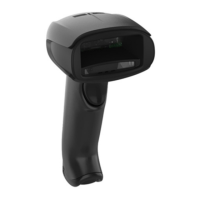
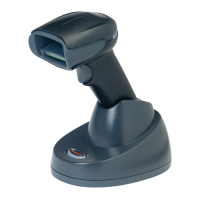
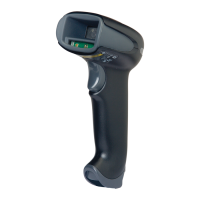
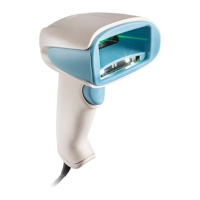
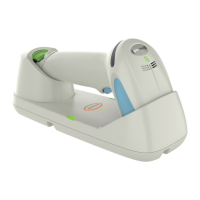
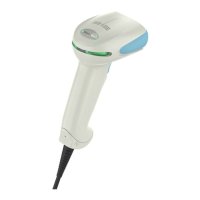
The Honeywell Xenon™ XP 1950h is a corded area-imaging scanner designed specifically for healthcare environments. This Quick Start Guide provides essential information for setting up and using the device, focusing on its core functions, various usage features, and maintenance considerations.
The primary function of the Xenon XP 1950h is to accurately and efficiently scan barcodes. It is an area-imaging scanner, meaning it captures an image of the barcode rather than just a single line, allowing for greater flexibility in scanning orientation. The "h" in its model name signifies its specialization for healthcare applications, suggesting features tailored for such settings, potentially including disinfectant-ready housing or quiet operation modes to minimize disturbance in patient care areas. The scanner is designed to be connected to a computer, facilitating data entry and management in various healthcare information systems.
The Xenon XP 1950h offers a range of usage features to enhance its versatility and ease of integration into different workflows.
Connectivity: The scanner supports multiple connection types, ensuring compatibility with a wide array of computer systems.
Power Supply: The device requires external power, which is typically supplied via a power adapter. It's important to note that the power supply must be ordered separately if not included with the scanner. Users are instructed to turn off the computer's power before connecting the scanner and then power up the computer once the scanner is fully connected, ensuring a proper setup.
Reading Techniques: The scanner employs a view finder that projects an aiming beam. This beam should be centered over the barcode for optimal reading, though the device is designed to read barcodes positioned in any direction, offering flexibility during scanning.
Default Settings and Configuration: The scanner comes with standard product defaults, which can be easily reset by scanning a specific barcode provided in the guide. For more advanced configurations, the device supports various programming barcodes.
Quiet Operations (Healthcare-Specific Feature): A key feature for healthcare environments is the ability to operate quietly, minimizing disturbance to resting patients.
Trigger Modes: The scanner offers different trigger modes to suit various operational preferences.
Data Formatting (Suffixes and Prefixes): To enhance data entry efficiency, the scanner allows for the addition of suffixes and prefixes to scanned data.
Keyboard Country Configuration: To ensure correct character input for different regions, the scanner supports various keyboard layouts. Users can scan appropriate country codes (e.g., USA, Denmark, Belgium, Finland, France, Great Britain, Germany/Austria, Italy, Norway, Spain, Switzerland) to program the keyboard layout for their specific country or language. This feature addresses national character replacements for symbols like #$@[]^'{|}~, with detailed character replacement charts available in the User Guide.
While the Quick Start Guide primarily focuses on initial setup and usage, it also touches upon maintenance and support aspects.
Cleaning: For information regarding cleaning the device, users are directed to refer to the comprehensive User Guide. This is particularly important for healthcare devices, which often require specific cleaning protocols to maintain hygiene and prevent contamination.
Software and Support:
Honeywell International Inc. reserves the right to make changes to specifications and information without prior notice, and users are advised to consult HII to confirm any updates. The company disclaims liability for technical or editorial errors, omissions, or any incidental or consequential damages arising from the use or performance of the device. It also disclaims responsibility for the selection and use of software and/or hardware to achieve intended results. The document itself contains proprietary information and is protected by copyright, with all rights reserved.
 General
| Environmental Sealing | IP41 |
|---|---|
| Ingress Protection Rating | IP41 |
| Type | Handheld |
| Scanning Technology | Area Imager |
| Connectivity | USB, RS-232, Keyboard Wedge |
| Scan Angle | Horizontal: 45°, Vertical: 30° |
| Field of View | Horizontal: 48°; Vertical: 30° |
| Symbol Contrast | 20% minimum |
| Decode Capability | 1D, 2D, PDF417 |
| Operating Temperature | -30°C to 50°C |
| Storage Temperature | -40°C to 70°C |
| Humidity | 5% to 95% relative humidity (non-condensing) |
| Drop Specification | 1.8 m drop to concrete |
| Light Levels | 0 to 100, 000 lux |
| Weight | 165 g |
| Power Source | 5V DC |
| Compliance | RoHS |
| Illumination | LED |
| Cable Length | 2.4 m |
| Scanning Range | 0 mm to 1, 270 mm |


 To Next Page