l Automatically turn Wi-Fi on and off: Depending on the Wi-Fi networks you have connected to
previously, Wi-Fi will be automatically enabled or disabled in specic locations. This will prevent your
device from constantly searching for new networks.
l Assess the quality of available networks: Evaluate currently available network hotspots and
prevent your device from automatically connecting to networks with no Internet connection.
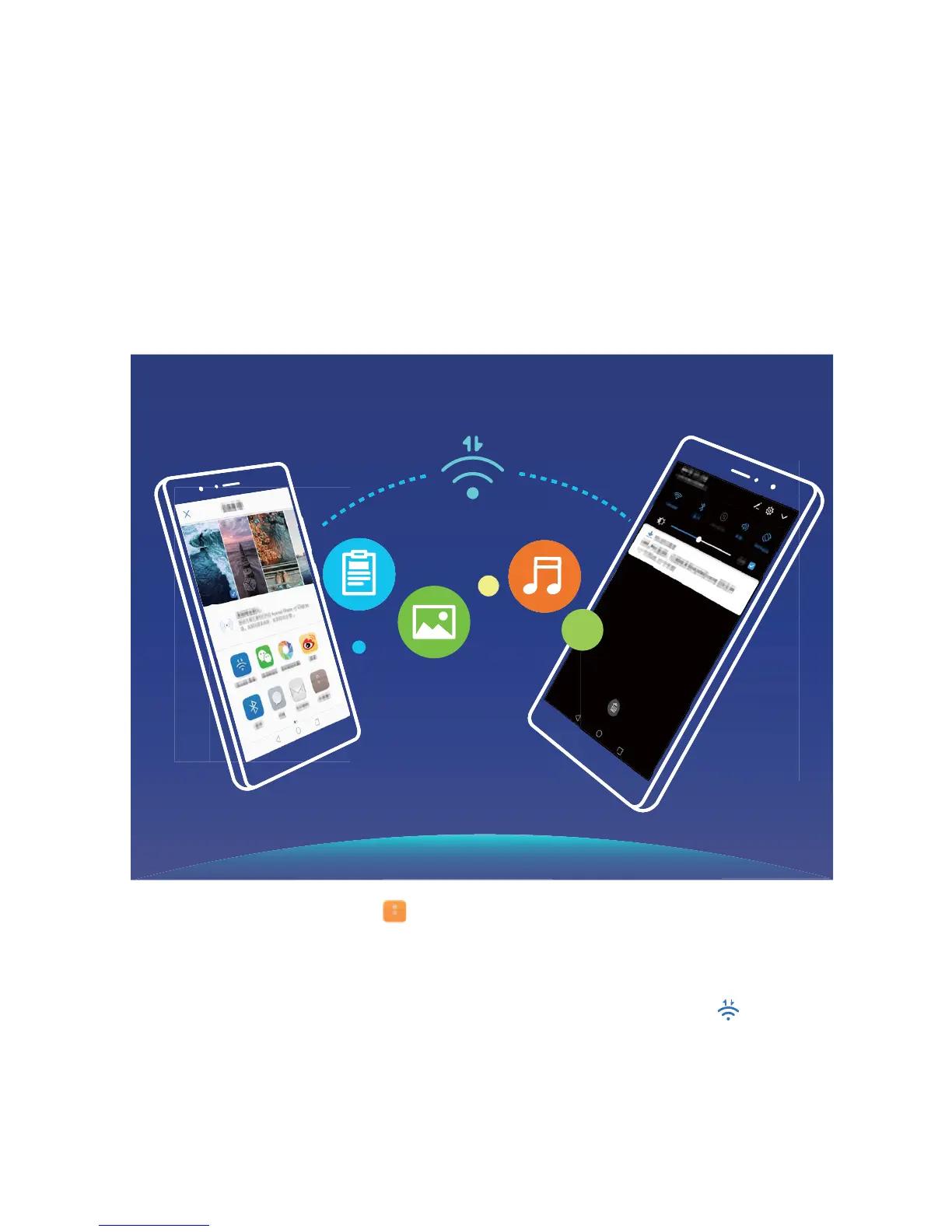
Transfer Data Using Wi-Fi Direct
Wi-Fi Direct allows you to rapidly transfer data between Huawei devices. Wi-Fi Direct is faster than
Bluetooth and does not require devices to be paired. It is better suited to transferring large les over
short distances.
Send les with Wi-Fi Direct: Open Files, touch and hold a le you want to send, and go to
More > Share > Wi-Fi Direct. When another device is detected, touch its name to establish the
connection and begin le transfer.
Receive
les with Wi-Fi direct: Enable Wi-Fi. In the Wi-Fi settings screen, touch to enable
detection. When you receive an incoming le prompt, touch Accept to begin the transfer. The
received le will be saved under Files in the Wi-Fi Direct folder by default.
Wi-Fi and Network
99


 To Next Page