Screen Resolution
Use Smart Screen Resolution
Go to Settings > Display & brightness > Screen resolution, and enable Smart
Resolution. Your device will automatically adjust the screen resolution according to the
current running status.
Set the Screen Resolution
Go to Settings > Display & brightness > Screen resolution, and select a screen
resolution according to your preferences. A higher screen resolution will result in a clearer
display, but will consume more power.
Full Screen
Apply Full Screen Display
• Most apps installed on your device will automatically adapt to display correctly in full
screen.
• For apps that don't, go to
Settings > Display & brightness > More display settings >
Full-Screen Display, and toggle on their switches. Enabling Full-Screen Display may cause
some apps to display incorrectly, for instance, by being improperly stretched.
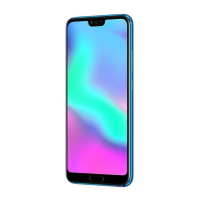
Show the Notch
1 Go to Settings > Display & brightness > More display settings > Notch, and select
Default.
2 If you want to show or hide the notch for a specic app, touch Custom, select the app,
then select one of the following options:
• Auto
• Show notch
• Hide notch
Hide the Notch
Go to
Settings > Display & brightness > More display settings > Notch, and select
Hide notch.
Display Carrier Name and Network Speed in the Status Bar
You can check the carrier name and network speed with a single glance at the status bar.
Go to Settings > Display & brightness > More display settings, and enable or disable
Display carrier name and Display network speed according to your preferences.
Settings
111


 To Next Page
 Loading...