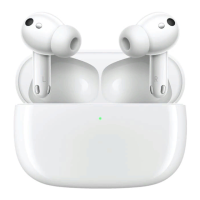
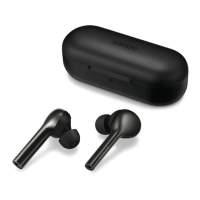
If the devices have been paired before, the earbuds will be automatically reconnected and a
power level interface will pop up on the phone/tablet.
Dual connections
Enable dual connections
After the earbuds are connected to your phone/tablet, you can enable the dual connections
in two ways:
Method 1: Turn on your phone/tablet (Magic UI 6.0 and above), go to Settings > Bluetooth >
PAIRED DEVICES, tap the button to the right of the earbuds name, select More settings,
and turn on Dual-connect.
Method 2: Update the earbuds and the HONOR AI Space app to the latest version, open the
app, go to the details page of the earbuds, open the Dual-connect page, and turn on Dual-
connect.
Steps to connect
1 Enable the Dual-connect function, rest the earbuds in the case and keep the lid open,
press the function button for 2 seconds. When you see the white light blinking, indicating
the earbuds are in the pairing mode, search for the earbuds on device A and start pairing.
2 Keep the earbuds in the case and the lid open, press the function button again for 2
seconds to enter the pairing mode, and pair them with device B.
3 After device B is connected to the earbuds, the earbuds will automatically connect to
device A, thus connecting to two devices at the same time.
If one of the devices is a watch and is connected to another device, the earbuds will not be able to
connect to the watch.
Auto-reconnect
Auto-reconnect description
The earbuds can be used eectively for music and call up to 10 meters in an open and
distraction-free environment.
Beyond the eective distance, the earbuds will stutter, become silent, or be disconnected.
The earbuds will be automatically reconnected if returned to an eective distance (10m) in the
required time. If the reconnection does not happen, please restart your phone/tablet's
Bluetooth and reconnect the earbuds.
Pair and connect
7


 To Next Page