When using the computer, click > to sleep, shut down, or restart the computer.
Press and hold the power button for approximately 10 seconds to force shutdown the computer.
Force shutdowns may cause unsaved data to be lost. Use with caution.
Charging the computer
The computer will display a prompt when the battery is running low. If you see this prompt,
charge your computer as soon as possible or it will affect your normal use.
Charging the computer with a power adapter
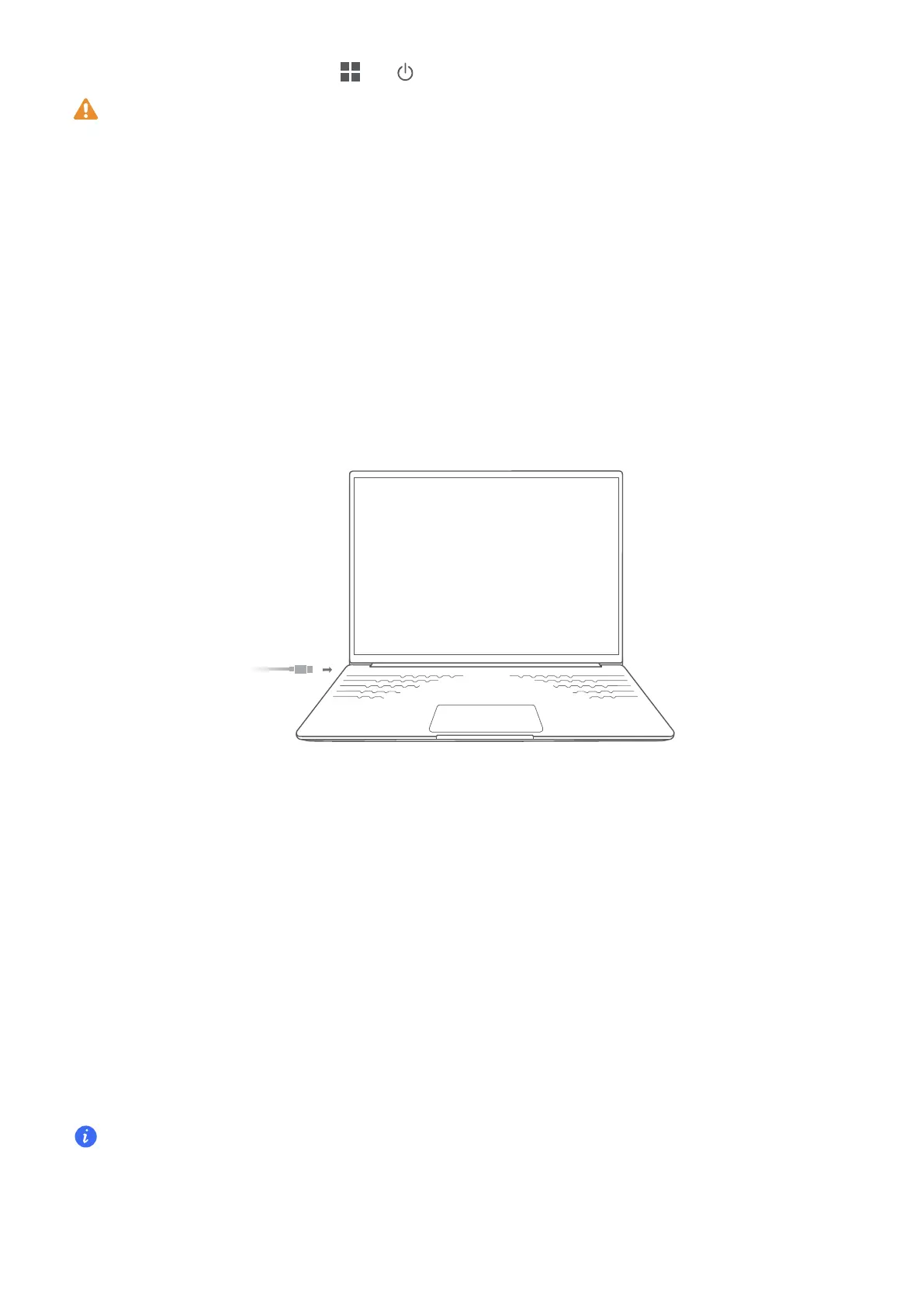
The computer features a non-removable rechargeable battery. Connect the power adapter and
charging cable to charge the computer. The battery charges more quickly when the computer is
powered off or in Sleep mode.
Safety information
• Charge the computer at room temperature in a well-ventilated, shaded area. Charging the
computer in hot environments may damage the internal components.
• Charging duration may vary based on the ambient temperature and battery use.
• It is normal for the computer to become warm after prolonged use or charging. If it becomes
hot to the touch, disable non-essential features and disconnect the charger.
• The battery is subject to wear over time. If the computer's standby time appears to have fallen,
do not attempt to replace the battery by yourself. Instead, take the computer and proof of
purchase to an authorized Honor Customer Service Center for assistance.
Keyboard
Keyboard keys may vary depending on your device model.
Shortcut keys
Press the Fn key, the indicator lights up, which means the F keys, such as F1 and F2, are now in
shortcut (hotkey) mode to perform common actions.
Get to know your computer
3


 To Next Page