Need help?
Do you have a question about the honor MagicBook 14 and is the answer not in the manual?
Details the physical components and layout of the computer.
Instructions for starting, shutting down, and waking the computer.
Guidance on connecting the power adapter and battery charging status.
Information on keyboard layout and shortcut key functions.
Explains touchpad functionality and common gestures for navigation.
Steps to customize touchpad behavior and preferences.
Guides for initial setup: network connection, Windows activation, and fingerprint enrollment.
Instructions on managing and updating system drivers for optimal performance.
Steps for transferring data between HONOR and non-HONOR devices.
Connecting phone to PC for file transfer, editing, and call handling.
Enabling and using HONOR Share for wireless file transfer between devices.
Covers additional useful features like fingerprint unlock, eye comfort, performance modes, and system restore.
Navigating the Start menu for apps, settings, and files.
Quickly accessing and changing system settings and features.
Setup and pairing instructions for the Honor Bluetooth mouse.
Safe use of device, avoiding interference with medical equipment, and traffic safety rules.
Protecting hearing with headsets, operating in safe environments, and avoiding flammables.
Recommendations for ideal operating conditions and precautions for children's safety.
Guidelines for safe use of accessories, chargers, and batteries.
Detailed safety instructions for handling, charging, and potential hazards of the built-in battery.
Instructions for device care, disposal, and compliance with hazardous substance regulations.
Details intellectual property rights, registered trademarks, and usage permissions.
Information on software, service limitations, and third-party software statements.
Manual disclaimers, import/export rules, privacy policy, and support contact.
This document is a user guide for an HONOR computer, providing instructions and information on its features, usage, and maintenance.
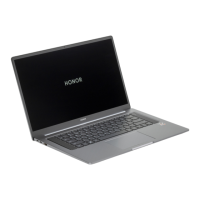
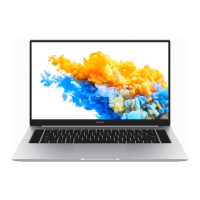
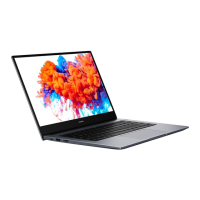
The guide starts by familiarizing users with the computer's appearance and basic components. It details the functions of various parts, including the camera, camera indicator, display, fingerprint power button, HONOR Magic-link icon, touchpad, microphone, USB-C port, charging indicator, headset jack, HDMI port, USB-A port, and speaker. For instance, the camera is used for photos and video chats, while the camera indicator lights up white when the camera is active. The fingerprint power button allows users to power on and unlock the computer with an enrolled fingerprint, eliminating the need for a password. The HONOR Magic-link icon, when tapped with an NFC-enabled Honor phone, activates the HONOR Magic-link feature. The touchpad offers mouse-like functionality for controlling the computer. The USB-C port is used for charging and connecting to external devices, and the charging indicator blinks white when charging and stays steady white when fully charged.
The guide also covers powering the computer on and off. For first-time use, connecting the power adapter will automatically power on the computer. To power on or wake the computer when it's off, users simply press the Power button. The document advises users to click the power icon to sleep, shut down, or restart the computer, and warns against force shutdowns (by holding the power button for 10 seconds) as they may lead to data loss.
Charging the computer is another essential topic. The computer will prompt users when the battery is low, urging them to charge it promptly. The computer has a non-removable rechargeable battery and charges faster when powered off or in Sleep mode. Safety information for charging includes charging in a well-ventilated, shaded area at room temperature, as hot environments can damage internal components. Charging duration varies with ambient temperature and battery use. It's normal for the computer to warm up during prolonged use or charging; if it becomes hot, users should disable non-essential features and disconnect the charger. The battery is subject to wear, and users are advised not to replace it themselves but to contact an authorized Honor Customer Service Center if standby time decreases.
The keyboard section explains shortcut keys. Pressing the Fn key activates shortcut (hotkey) mode, allowing F keys (F1-F12) to perform common actions like decreasing/increasing screen brightness, enabling/disabling the microphone or touchpad, turning off the camera, switching projection mode, muting/unmuting, opening PC Manager, opening the sidebar, and opening the screenshot tool. To switch back to function key mode, users press Fn again. The guide also mentions using Fn+Del/Ins for insert/overwrite functions and provides instructions to set F keys to work as function keys by default via PC Manager settings. New Windows 11 keyboard shortcuts are listed, such as Win+a for the action center, Win+n for the notification center, Win+w for the widgets panel, and Win+z for quick access to snap layout (when a window is in the foreground).
The touchpad section describes common gestures for controlling the computer, including single-finger tap for left-click, double-tap for double-click, single-finger slide to move the cursor, pressing the left/right touchpad buttons for left/right-click, two-finger tap for right-click, two-finger slide for scrolling, two-finger pinch/stretch for zoom, three-finger tap to open search, three-finger slide up to see all open windows, three-finger slide down to show the desktop, three-finger slide left/right to switch between open windows, and four-finger tap to open the notification center. Users can modify touchpad settings by navigating to Settings > Bluetooth and other devices > Touchpad, where they can enable/disable the touchpad, automatically enable/disable it when a mouse is connected, change scroll direction, and configure gestures.
The guide outlines the initial setup steps for the computer. Step 1 involves connecting to a network by clicking the Wi-Fi icon in the lower right corner of the desktop, selecting a Wi-Fi network, and following the prompts. Step 2 covers activating Windows, which happens automatically upon first internet connection. Users can check activation status in Settings > System > Activation. If activation fails, restarting, reconnecting to the network, or trying a different network is suggested. Step 3 details enrolling a fingerprint for unlocking the computer. If skipped during initial setup, users can go to Settings > Account > Sign-in options > Fingerprint recognition. Tips include ensuring clean, dry fingertips and noting that up to 10 fingerprints can be enrolled per user. Step 4 focuses on updating drivers via PC Manager to improve stability and performance.
Several key features are highlighted, starting with HONOR Device Clone, which facilitates quick transfer of images, videos, and files from an old computer to a new HONOR PC. It supports old computers running Windows 7/10/11. The process involves enabling Bluetooth and WLAN on both computers, connecting them to the same network, and using HONOR PC Manager (or the HONOR Device Clone app for non-Honor devices) to initiate the transfer. Users confirm connection codes and select data to clone.
Phone Collaboration allows users to connect their PC and phone to enhance work efficiency. This enables controlling the phone on the laptop with the keyboard and mouse, and sharing/editing files across systems. Connection methods include OneHop (via NFC) or a USB cable. For OneHop, users ensure the computer supports the HONOR Share sensor (or has the Magic-link label), turn on WLAN, Bluetooth, and HONOR PC Manager on the computer, enable NFC on the phone, and then tap the phone's NFC area against the computer's sensor. For cable connection, users connect the devices with a USB cable, open HONOR PC Manager, and select Multi-Screen Collaboration > Phone Collaboration > Other ways to connect > Connect. Disconnecting involves using HONOR PC Manager, swiping down the phone's notification panel, or removing the USB cable. File transfer and editing features are also detailed, allowing users to drag and drop files (images, videos, documents, text) between the mirrored phone window on the PC and the computer's applications. The guide also mentions opening multiple phone apps (up to 3) on the computer and answering video calls (e.g., WeChat, QQ) via the laptop, with options to switch audio/video output between phone and PC.
HONOR Share enables fast wireless transfers of images, videos, documents, and other files between HONOR Share-enabled devices using Bluetooth for discovery and direct Wi-Fi for transfer, without mobile data. To enable it, users can go to HONOR PC Manager > HONOR Share and ensure "Discoverable to other devices" is on, or click the HONOR Share icon on the taskbar. From the phone, users swipe down the status bar, long-press HONOR Share, and turn it on. Transferring files between computers involves enabling HONOR Share on receiving PCs, then dragging files to device icons in HONOR PC Manager or right-clicking to share. For PC-to-phone transfers, Bluetooth is enabled on both, HONOR Share is enabled on the PC, and the phone's notification panel is used to enable HONOR Share. Files are then sent from the PC by right-clicking and selecting HONOR Share or dragging to device icons. For phone-to-PC transfers, Bluetooth is enabled on both, HONOR Share is enabled on the phone, and files are long-pressed on the phone to share via HONOR Share.
"More Tips" includes unlocking with fingerprint ID (setting up via Windows Key > Settings > Account > Login Options > Fingerprint ID), copying text from images (via HONOR PC Manager's capture tool or image viewer), and recording the computer screen using a connected phone (by tapping the phone's NFC area against the computer's sensor). The screen recording feature is noted to work only for Intel-powered computers.
Eye Comfort mode is described as a feature to reduce blue light radiation and adjust the screen to a warmer tone for eye protection, especially during prolonged use at night. It can be turned on/off by right-clicking the desktop and going to More Options > Display Manager. A yellowish tint in this mode is normal, and the feature requires HONOR PC Manager.
Performance mode is introduced to deliver enhanced device performance, though it may lead to increased fan noise, higher heat, and decreased battery life in high-consumption scenarios. It's recommended to use this mode when the PC is connected to a power source and the battery is above 20%. Users can activate it by pressing Fn+P (after pressing Fn) or by opening HONOR PC Manager and clicking System optimization. The mode automatically turns off if the power supply is disconnected, battery drops below 20%, or the computer enters standby, sleep, or restarts.
Finally, the guide covers restoring the PC to factory settings using the built-in F10 system-restore function. Users can access this wizard by long-pressing or clicking F10 during startup. A warning is given that this process will delete data on the C drive, emphasizing the need for prior backup of important files.
This section focuses on the optional Bluetooth mouse. It explains that the mouse connects wirelessly via Bluetooth and needs to be paired with the computer first. The components of the mouse are identified: left button, scroll wheel + middle button, right button, LED indicator (blinking red for low battery), and power/Bluetooth pairing switch. Instructions for installing an AA battery are provided, emphasizing correct polarity. To pair the mouse, users toggle the Bluetooth pairing switch at the bottom of the mouse for about 3 seconds until the indicator blinks. Then, on the computer, they navigate to Settings > Bluetooth & devices, click Add device, and select HONOR Mouse from the list.
This section clarifies that the user guide is for computers running Windows 11 and covers basic features. For more detailed information on Windows 11, users are directed to https://www.microsoft.com or the desktop settings. It also states that optional accessories and software may vary, and illustrations are for reference only. Indicators used throughout the guide are explained: 'i' for important information/tips, '!' for potential issues leading to damage/data loss, and a warning triangle for potential hazards resulting in serious personal injury.
This comprehensive section provides critical safety guidelines for device operation. It covers electronic device usage, advising against use where prohibited or if it causes danger/interference. Interference with medical equipment is addressed, urging adherence to hospital rules and maintaining a minimum distance of 15 cm from pacemakers. Protecting hearing when using a headset is emphasized, recommending low volumes to prevent damage and avoid distraction while driving.
Areas with flammables and explosives are discussed, prohibiting device use in such environments to prevent explosions or fires, and advising against storing the device with flammable materials. Traffic security guidelines stress observing local laws, avoiding device use while driving, concentrating on driving, and being aware of RF signals affecting motor vehicles. It also warns against placing the device over airbags.
The operating environment section advises avoiding dusty, damp, dirty, or magnetic environments, and not using the device during thunderstorms. Ideal operating temperatures (0°C to 35°C) and storage temperatures (-10°C to +45°C) are specified, with warnings against extreme heat/cold or direct sunlight. Users are told to protect the device from fire/electrical shock hazards, keep it away from heat sources, and stop using it if it overheats to prevent burns. It also warns against children/pets biting or sucking the device.
Accessories safety emphasizes using only approved power adapters, chargers, or batteries to prevent fire/explosion, and choosing accessories approved by the manufacturer. Charger safety advises installing socket-outlets near devices for easy access and unplugging the charger when not in use. It warns against dropping the charger, using damaged power cables, or touching the power cord/device with wet hands. Chargers must meet IEC62368-1/EN62368-1 requirements and be USB-IF compliant.
Battery safety is extensively covered, warning against connecting battery poles with conductors, exposing the battery to excessive heat/direct sunlight, or modifying/remanufacturing it. Users are advised to avoid contact with electrolyte if the battery leaks and to seek medical attention if contact occurs. If the battery deforms, changes color, or overheats, users should stop using the device and remove the battery. Batteries should not be put in fire, smashed, pierced, or exposed to high external pressure. Dropping the device/battery can cause damage. If standby time shortens, the battery should be replaced by an authorized service center, as it is built-in and not user-replaceable.
Cleaning and maintenance instructions include keeping the device dry, avoiding external heat sources for drying, and protecting it from extreme heat/cold. Users are advised against collisions, using chemical detergents, or placing magnetic stripe cards near the device. Dismantling or remanufacturing the device voids the warranty. If the screen is broken, users should stop using the device and contact a service center.
Disposal and recycling information indicates that products and batteries should be taken to separate waste collection points for proper recycling, and directs users to the website for more information. Reduction of hazardous substances confirms compliance with local rules like EU REACH, RoHS, and Batteries directives, with certification information available online. Restrictions in Norway mention that radio equipment use is not allowed within a 20 km radius of Ny-Ålesund, Svalbard.
This section provides measures to protect personal information and data. Users are advised to keep their device in a safe place, set a screen lock password, avoid opening messages/emails from strangers, and be cautious of security risk websites. For portable Wi-Fi hotspots or Bluetooth, setting passwords and turning them off when not in use is recommended. Installing security software and regularly scanning for viruses is also advised. The guide warns against using unauthorized third-party software for updates, recommending official updates from Honor. It also suggests obtaining third-party applications from legitimate sources and scanning them for viruses. Users should install security software or patches released by Honor or authorized third-party providers. The document notes that some applications may collect and transmit location or diagnostic information, which third-party providers may use to improve their products and services.
The legal notice states that the manual's content, including copyrighted software, is owned by Honor Device Co., Ltd. 2022. Users are prohibited from reproducing, distributing, modifying, or reverse engineering the software without approval. It clarifies that Bluetooth®, Wi-Fi®, HDMI, and Microsoft/Windows are registered trademarks of their respective owners. The notice also states that product features and accessories may vary based on software, network capacities, and service providers, and Honor reserves the right to change information without prior notice. A Third-Party Software Statement disclaims Honor's warranty or support for third-party software and applications, and warns that such services may be interrupted. Honor is not liable for the legality or quality of uploaded/downloaded third-party works. The DISCLAIMER states that all contents are provided "AS IS" without warranties, and Honor is not liable for special, incidental, or consequential damages. Maximum liability is limited to the purchase price of the product. Import and Export Regulations require customers to comply with all applicable laws. A Privacy Policy link is provided, and contact information for support is available online. Finally, it states that all pictures and illustrations are for reference only and do not constitute a warranty.
 General
| Color name | Space Gray |
|---|---|
| Form factor | Clamshell |
| Product type | Laptop |
| Product color | Gray |
| Housing material | Aluminum |
| Market positioning | Business |
| Panel type | LCD |
| LED backlight | Yes |
| Display diagonal | 14 \ |
| Native aspect ratio | 16:9 |
| Processor cache | 6 MB |
| Processor cores | 4 |
| Processor model | 3500U |
| Processor family | AMD Ryzen™ 5 |
| Processor frequency | 2.1 GHz |
| Processor manufacturer | AMD |
| Processor boost frequency | 3.7 GHz |
| Pre-installed software | Microsoft Office 365 |
| Operating system architecture | 64-bit |
| Internal memory | 8 GB |
| Internal memory type | DDR4-SDRAM |
| SSD capacity | The Solid State Drive's storage capacity in Gigabytes. |
| SSD interface | NVMe, PCI Express |
| Storage media | SSD |
| Total storage capacity | 256 GB |
| Discrete graphics card model | Not available |
| On-board graphics card model | AMD Radeon Vega 8 |
| On-board graphics card family | AMD Radeon Vega Graphics |
| Pointing device | Touchpad |
| Battery capacity | 56 Wh |
| Battery life (max) | 10.5 h |
| Wi-Fi standards | 802.11a, 802.11b, 802.11g, Wi-Fi 4 (802.11n), Wi-Fi 5 (802.11ac) |
| Bluetooth version | 5.0 |
| Top Wi-Fi standard | Wi-Fi 5 (802.11ac) |
| Mobile network connection | - |
| Charging port type | USB Type-C |
| USB 2.0 ports quantity | 1 |
| Certification | TÜV Rheinland |
 Weight and Dimensions
| Depth | 214.8 mm |
|---|---|
| Width | 322.5 mm |
| Height | 15.9 mm |
| Weight | 1380 g |

 To Next Page