Customize Notications to Your Liking
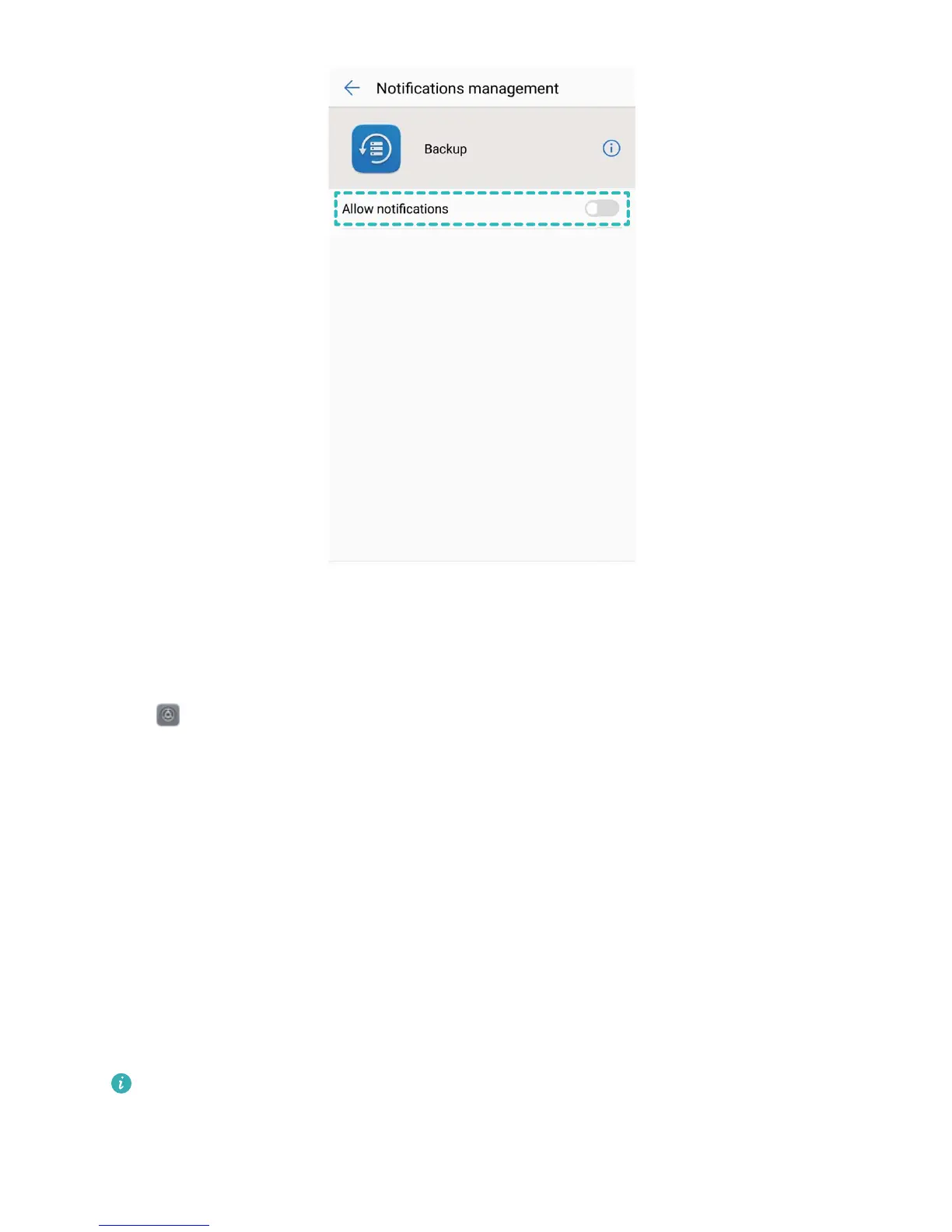
Not a fan of the default notication reminders? You can customize notication reminders so that you
get notications the way you want them.
Go to Settings, then go to Apps & notications > Notications & status bar. You can:
l Enable notications turn on screen: Enable Notications turn on screen. When your Phone
screen is off, it will turn on when a notication is received.
l
Set notication light to pulse: Enable Pulse notication light and the notication light will
icker when you receive new notications.
l Display more information in the status bar: Depending on your preferences, you can enable
Display carrier name and Display network speed. You can also set the Notication method
and choose how the Battery percentage is displayed.
Use Shortcuts to Access Frequently Used Features
Touch and hold an app icon to display a menu of frequently used features for quick access. You can
also touch and hold a feature and drag it to your home screen to create a shortcut.
If you touch and hold an app icon and a shortcut is not created, the app does not support home
screen shortcuts.
Home Screen
23



 To Next Page