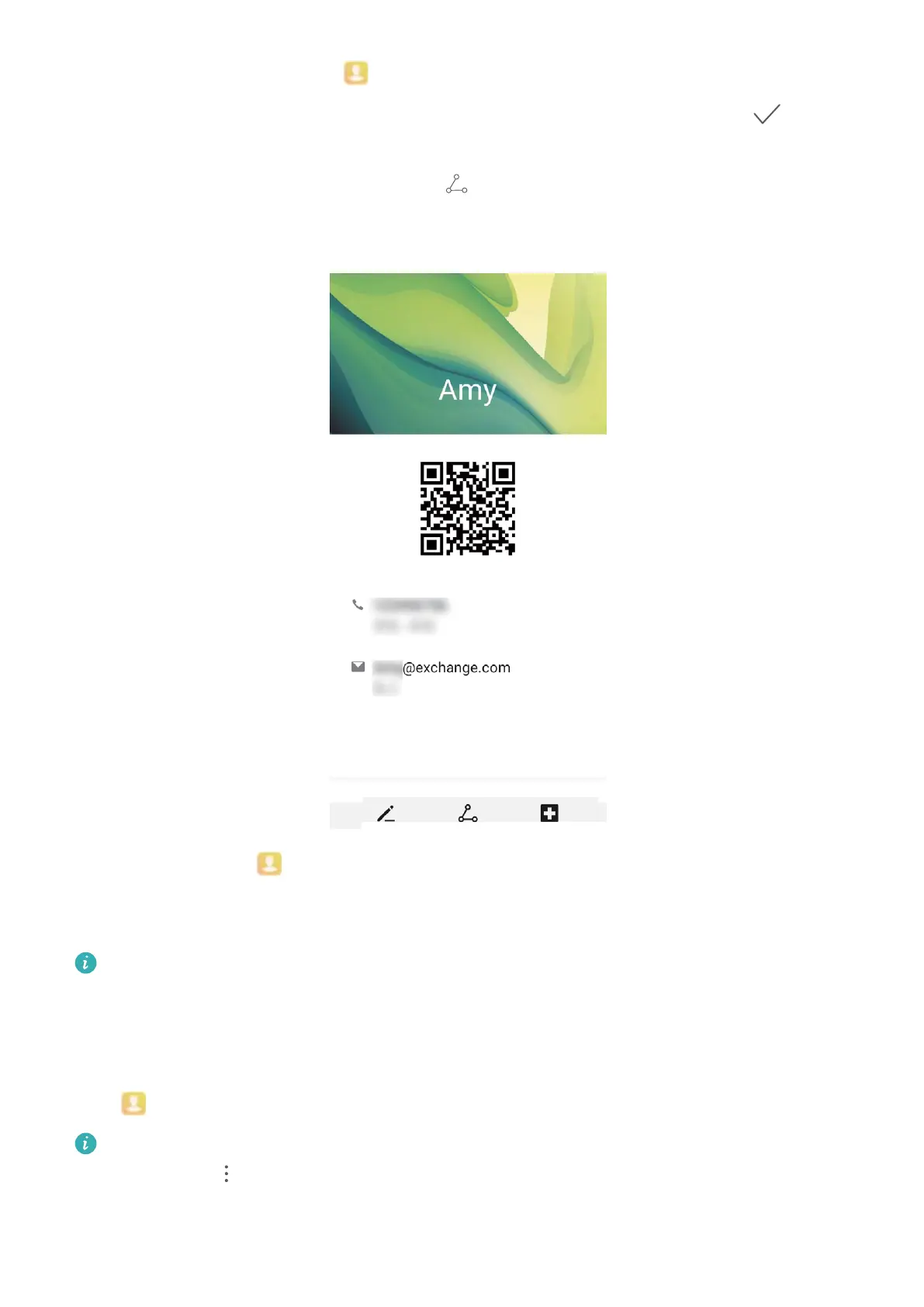
Share your business card: Open Contacts and touch My card to set your prole picture and
enter your name, work address, telephone number, and other information. Then touch and your
device will automatically generate your QR code business card. You can share your business card
directly using the QR code. Alternatively, touch , select a sharing method, and follow the
onscreen instructions to share.
Share contacts: Open Contacts, select the contact you want to share, and touch the QR code
icon in the upper right corner to share the contact using the QR code. You can also touch Share,
select a sharing method, and follow the onscreen instructions to complete the sharing process.
If the other party's device supports QR code analysis, they can directly take pictures of or scan QR
codes to add contacts.
Search Contacts
Open Contacts. You can use the following methods to search through your contacts:
For the best results, make sure you start with all the contacts displayed. On the contacts list
screen, go to > Settings > Display preferences, and touch All contacts.
l Drag the index on the side to quickly scroll through the list.
Contacts
35


 To Next Page