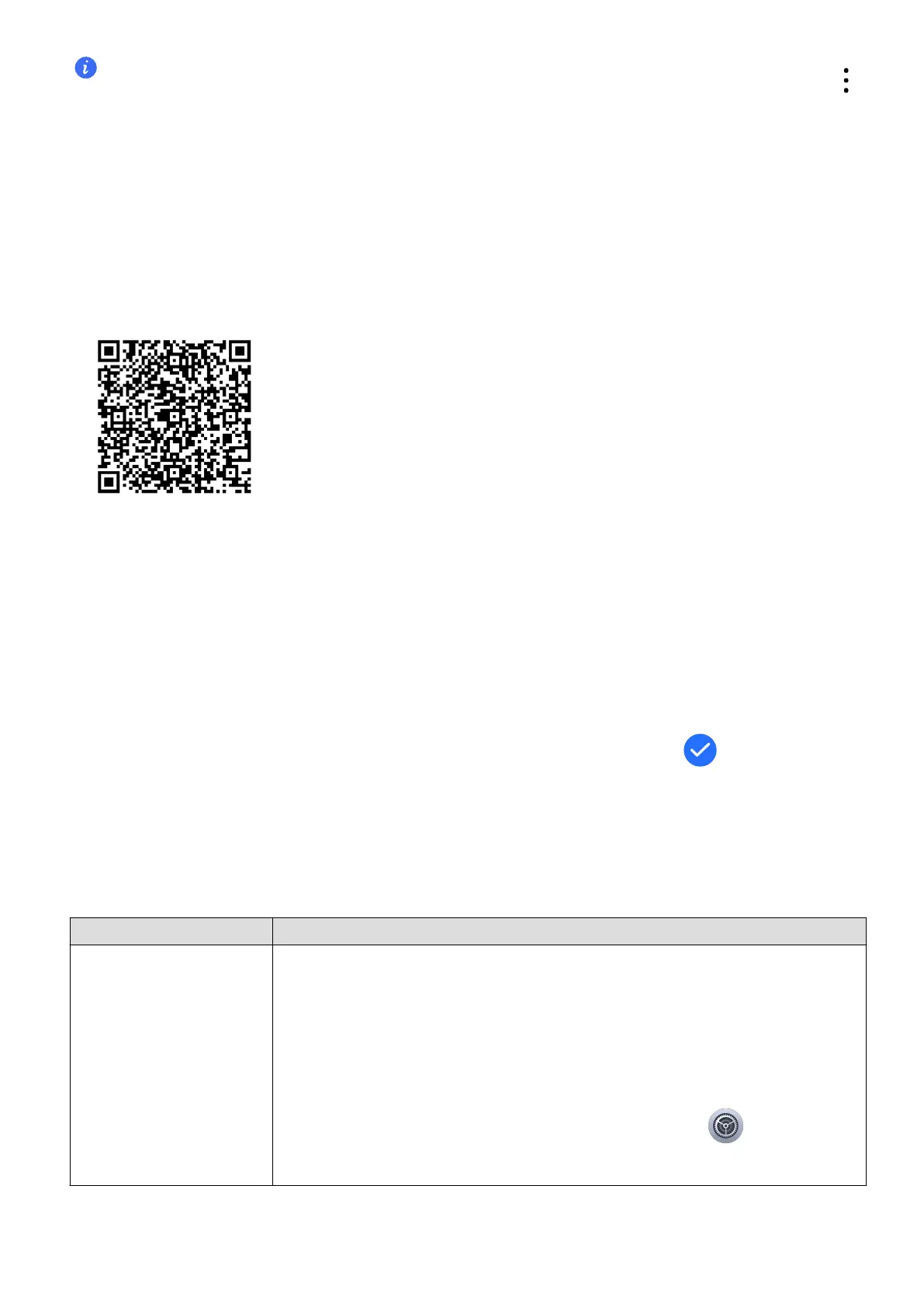
• When scanning for available devices and the target watch doesn't appear in the list, tap
> Scan, then scan the QR code on your watch and follow the instructions to pair it.
• Once paired successfully, your watch shows a "Pairing successful" image, then guides you to
dive into its features. If the pairing fails, you watch shows a "Pairing failed" image and
to the initial screen seen after turning it on.
For iOS users:
1 Install the HONOR Health app.
Scan the QR code to download and install the latest HONOR Health app.
2
Launch HONOR Health, tap Me > Log in to HONOR ID to log in with your HONOR ID
and password.
3
Power on your watch and set the language.
4
Bring your watch close to your phone, Open the HONOR Health app and go to Device >
Add device. Select the watch you wish to connect, and follow the on-screen
instructions to complete the pairing process.
5
For products, completing the Bluetooth pairing with your phone is
Follow the on-screen instructions in the Bluetooth settings menu to establish
connection. When a pairing request appears on your wearable, tap
on the screen
and then the pairing on your phone to the setup.
Learning About Button
Common buttons
Operation
Functions
Rotate the button • In the view, rotate to zoom in and out apps on the app list
screen.
• In the three-column view or single-column view, rotate to scroll
through apps on the app list screen.
• On an app screen, rotate to scroll down or up the screen.
You can set the home screen style by selecting > Watch
face & home > Home style.
Get Familiar
4


 To Next Page