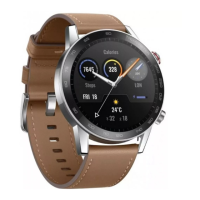
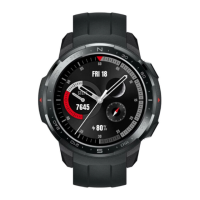
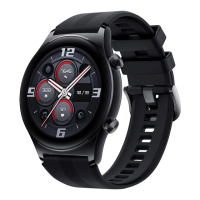
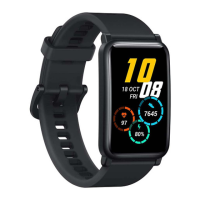
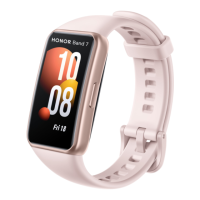
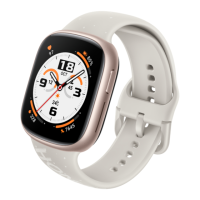
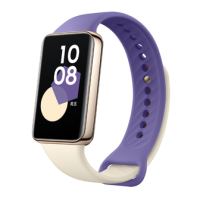
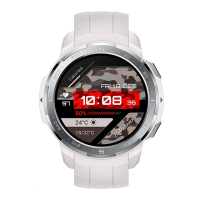
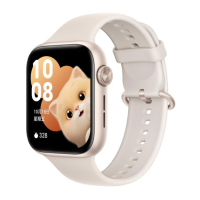
The HONOR MagicWatch 2 is a versatile smartwatch designed to assist users with fitness tracking, health management, and various handy features, all while providing a user-friendly interface.
Function Description
The primary function of the HONOR MagicWatch 2 is to serve as a personal health and fitness companion. It tracks daily activities, monitors heart rate, analyzes sleep patterns, and offers guided breathing exercises. The watch also supports multiple workout modes, including pre-installed running courses, and can record workout routes using its built-in GPS. Beyond health and fitness, it provides smart notifications, allows users to manage calls and contacts, and offers music playback control. Additional features include a stopwatch, timer, alarm, flashlight, air pressure app, compass, and weather reports.
Usage Features
Getting Started:
To begin, users wear the watch on their wrist, ensuring the heart rate monitoring area is on top of the wrist and the watch is securely fastened, neither too loose nor too tight. The strap can be adjusted for comfort or replaced. Pairing the watch with a phone is essential for full functionality. For Android users, the Health app is downloaded via QR code, permissions are granted, and the device is added under "Smart watches." iOS users follow a similar process, also ensuring Bluetooth is enabled in phone settings. Once paired, the watch syncs time and language settings from the phone.
Powering On/Off and Restarting:
To power on, press and hold the Up button. The watch also powers on automatically when charged. To power off, press and hold the Up button and select "Power off," or navigate through Settings > System > Power off. Restarting follows a similar path via Settings > System > Restart. A force restart can be performed by holding the Up button for at least 16 seconds.
Charging:
The watch is charged using its dedicated charging cradle, connected via a USB Type-C port to a power adapter. Users align the watch contacts with the cradle, and a charging icon appears. A full charge takes approximately two hours. It's recommended to charge in a dry, well-ventilated environment, ensuring the charging port and metal parts are clean and dry.
Interface and Navigation:
The watch features a highly responsive color touchscreen.
- Up Button: Pressing it wakes the screen, accesses the app list, or returns to the home screen. Pressing and holding it powers on/off or restarts the watch. During a workout, it locks/unlocks, mutes, or ends the workout.
- Down Button: Pressing it opens the workout app or a customized feature. During a workout, it switches screens.
- Gestures:
- Touch: Selects and confirms.
- Touch and Hold (Home Screen): Changes the watch face.
- Swipe Up (Home Screen): Views notifications.
- Swipe Down (Home Screen): Views the shortcut menu.
- Swipe Left/Right: Views heart rate, workout data, and weather information.
- Swipe Right: Returns to the previous screen.
- Wake Screen: Press the Up button or raise/rotate the wrist inwards (if "Raise to wake" is enabled in the Health app).
- Turn Off Screen: Lower/rotate the wrist outwards. The screen automatically turns off after 5 seconds of inactivity (or 15 seconds if an operation was performed).
Customization:
The Down button can be customized to open a specific app. Users can adjust screen brightness (Auto, Level 1-5) and vibration strength (Strong, Soft, Off) through the Settings menu.
Workout Modes:
The watch offers various workout modes and pre-installed running courses.
- Starting a Workout: From the home screen, navigate to "Workout," select a mode, and tap the Start icon. Settings for targets, reminders, and display can be configured before starting. During a workout, users can customize displayed data by touching and holding the screen.
- During Workout: The Up button pauses or ends a workout, while the Down button switches screens to view different data.
- Smart Companion: For outdoor runs, enabling "Smart companion" provides real-time voice guidance on strength, duration, and heart rate.
- Workout Status: The "Workout status" app displays fitness variation and training load over seven days, helping users review and modify workout plans. It tracks training load (High, Low, Optimal) and VO2max variations, which are best tracked with regular outdoor runs.
- Tracking Daily Activities: The motion sensor tracks steps, calories burned, activity intensity, and active hours. Data can be viewed on the watch under "Activity records" or in the Health app.
- Recording Workout Routes: Built-in GPS records routes for outdoor activities like running, walking, cycling, and climbing, even when disconnected from the phone.
- Syncing and Sharing Data: Fitness data can be synced to the Health app and shared with third-party apps via Me > Settings > Data sharing.
Health Management:
- Activity Records (Three Rings):
- Steps: Proportion of steps to a target count (default 10,000).
- Moderate to High Intensity Activity: Duration in minutes (default 30 minutes).
- Active Hours: Hours stood up for at least 1 minute.
- Heart Rate Monitoring:
- Measurement: From the home screen, go to "Heart rate" to measure current heart rate. Swipe right to pause.
- Continuous Heart Rate Monitoring: Enable in the Health app to measure real-time heart rate. "Smart mode" measures every 10 minutes for low/moderate intensity, once a second for high intensity. "Real-time mode" measures once a second for any intensity.
- During Workout: Displays real-time heart rate and zone, with alerts if the heart rate exceeds the upper limit. Heart rate zones can be calculated based on "Maximum heart rate percentage" or "HRR percentage" (configured in Health app settings).
- Resting Heart Rate: Measured in a quiet, relaxed state, ideally upon waking. Continuous monitoring in the Health app enables automatic measurement.
- Heart Rate Warning: The watch vibrates if heart rate exceeds a set upper limit for over 10 seconds during a workout. Resting heart rate alerts can also be set in the Health app.
- Tracking Sleep: The watch automatically detects sleep, including light, deep, and REM sleep, and wake-up times. Data is synced to the Health app for detailed analysis. Enabling "TruSleep™" provides advanced sleep quality analysis and suggestions. When sleeping, the watch disables "Always-on screen," message reminders, incoming call notifications, and "Raise wrist to wake" to prevent disturbance.
- Testing Stress Levels: Users can perform one-off or periodic stress tests. Calibration via a questionnaire in the Health app is required for the first use. Stress data, including graphs and levels, can be viewed on the watch or in the Health app. During a stress test, users should remain still and wear the watch correctly.
- Breathing Exercises: The watch offers guided breathing exercises with adjustable duration (1, 2, or 3 minutes) and rhythm (Fast, Moderate, Slow).
- Measuring Blood Oxygen Levels (SpO2): From the app list, select "SpO2" to start a measurement. Users should remain still and ensure the band is tightly fastened, with the heart rate sensor in contact with the skin.
- Activity Reminder: When enabled, the watch vibrates hourly to remind users to move, promoting a balance of activity and rest. Reminders are sent from 8:00 to 12:00 and 14:00 to 20:00.
Handy Features:
- Notifications and Messages: After pairing, enable notifications in the Health app for desired apps. The watch vibrates for new messages (up to 10 unread messages stored). Messages can be viewed by swiping up/down. Messages can be deleted individually or all at once.
- Favorite Contacts: In the Health app, users can add up to 10 favorite contacts, sort them, or remove them. These contacts can be called directly from the watch.
- Answering/Rejecting Calls: When connected to a phone, the watch vibrates and displays caller information. Users can answer or reject calls. For the 42mm model, Bluetooth earbuds are needed for calls.
- Call Log: The watch stores up to 30 call records, which can be viewed and used to call back contacts. Call logs can be cleared.
- Playing Music: (Android only) Music can be added to the watch via the Health app (Manage music > Add songs). Users can play music from the watch, control playback (switch songs, adjust volume, change mode), and even control music playing on their phone. Bluetooth earbuds are needed for listening to music from the watch.
- Stopwatch/Timer: Both features are accessible from the app list. The stopwatch allows start, reset, and exit. The timer offers preset countdown modes (1, 3, 5, 10, 15, 30 minutes, 1, 2 hours) and a customizable timer.
- Alarm: Users can set Smart alarms (wakes during light sleep) or Event alarms (at a specific time) via the watch or the Health app. Alarms can be edited or deleted. When an alarm rings, users can snooze for 10 minutes or turn it off.
- Flashlight: Accessible from the app list, it turns the screen white for illumination.
- Air Pressure App: Displays current altitude and atmospheric pressure, along with a graph of daily changes.
- Compass: Accessible from the app list, it requires calibration and then displays a compass dial.
- Weather Reports: Weather information can be viewed on compatible watch faces, the weather screen (swipe right from home screen), or the Weather app. Requires the Health app to have "Weather reports" enabled and phone location access.
- Finding Your Phone: From the app list or shortcut menu, select "Find phone." The phone will play a ringtone (even in Silent mode) if within Bluetooth range.
Maintenance Features
Updating the Watch:
The watch can be updated via the Health app. Users can manually check for updates under Devices > Firmware update or enable "Auto-download update packages over Wi-Fi" in Devices > Firmware update > Settings. During an update, the watch disconnects from the phone.
Restoring to Factory Settings:
Users can restore the watch to factory settings either from the watch itself (Settings > System > Reset) or through the Health app (Devices > Restore factory settings). This action will remove all data from the watch, so caution is advised.
- Battery Level: Can be checked on the charging screen, by swiping down from the home screen, or in the Health app's device details.
- Bluetooth Name and MAC Address: Viewable under Settings > About on the watch, laser-engraved on the back of the watch, or in the Health app.
- Watch Version: Viewable under Settings > About on the watch.
- Watch SN (Serial Number): Viewable under Settings > About on the watch.
General Maintenance Advice:
- Charging Environment: Charge the watch in a dry and well-ventilated environment.
- Charging Port: Ensure the charging port and metal parts are clean and dry before charging to prevent short circuits. The charging cradle is not water-resistant.
- Temperature: Recommended ambient temperature for charging is between 0 and 45°C.
- Wearing: Wear the watch correctly and securely for accurate heart rate and stress measurements.
- Skin Discomfort: If skin discomfort occurs, remove the watch and consult a doctor. The watch uses non-toxic materials that have passed allergy tests.

 Need help?
 General
 Weight and Dimensions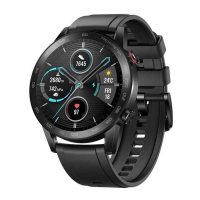

 To Next Page