More guides
Adjusting the ringtone
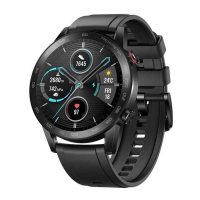
• This feature is only available on the HONOR MagicWatch 2 (46 mm) with Android 4.4 and later
version system phones.
• To use this feature, update the Health app to version 10.0.0.651 or later.
1. From the home screen of the watch press the Up button, swipe on the screen and go to
Settings > Volume, then slide to adjust ringtone volume.
2. If you have enabled Silent mode, your watch will only vibrate to inform you of incoming calls
and messages. Otherwise, your watch will ring and vibrate when receiving new calls or
messages.
The ringtone on your watch for incoming calls, alarms and notifications is the default sound and
cannot be customized.
Adjusting screen brightness
From the home screen press the Up button and go to Settings > Display > Brightness to
adjust the screen brightness. Brightness is set to Auto by default, which automatically adjusts
screen brightness based on your environment. Level 5 is the brightest setting and Level 1 is the
dimmest setting.
Setting the vibration strength
1. From the home screen press the Up button, then go to Settings > Vibration.
2. Swipe up or down on the screen and select Strong, Soft, or Off. Touch OK. Your watch will
then automatically return to the previous screen and vibrate with the strength that you set.
Enabling frequently used features
After connecting your watch to your phone through the Health app, you can enable features for
your watch in the app. Frequently used features include:
• TruSleep
TM
• Activity reminder
• Continuous heart rate monitoring
• Automatic stress test
• Notifications
• Weather reports
• Bluetooth disconnection reminder
25


 To Next Page