1 Open the Health app, touch Devices, touch the device name, and then touch Music.
2 Touch Manage music > Add songs, select the music as needed from the list, and touch √ in
the upper-right corner of the screen.
3 From the home screen press the Up button, swipe until you find Music, and then touch it.
4 Choose music that you have added in the Health app and then touch the play icon to play the
music.
• Music can be played through third-party social media apps, only MP3 and AAC (LC-AAC) files can
be added to the watch locally.
• You can also create a playlist by performing the following: Touch New playlist in the Health app
and then add the music that has been synced to your watch to the playlist.
• On the music playback screen of your watch, you can switch between songs, adjust the volume,
and select a playback mode, such as Play in order, Shuffle, Repeat the current song, and Repeat
list. Swipe up to view the music list, touch the Settings icon in the lower-right corner of the screen
to delete music, connect the watch to Bluetooth earphones, control the music playback on your
watch, or control music playback on your phone. Using your watch to control the music playback
on your phone is available only on Android phones.
• To use your watch to control music playing on your phone, open the Health app, touch Devices
and touch your device's name, touch Music and enable Control phone music.
• You can use your watch to control music playback in third-party music apps on your phone.
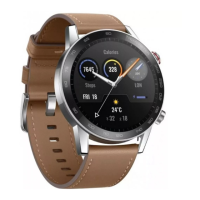
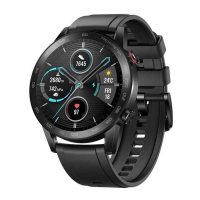
• To listen to music with your HONOR MagicWatch 2(42 mm), you need to connect Bluetooth
earbuds.
Using Stopwatch or Timer
Stopwatch
From the home screen press the Up button, swipe until you find Stopwatch, and then touch it.
Touch to start timing. Touch to reset the stopwatch. Swipe right on your watch screen
to exit Stopwatch.
Timer
From the home screen press the Up button, swipe until you find Timer, and then touch it. By
default, there are 8 available countdown modes: 1 minute, 3 minutes, 5 minutes, 10 minutes, 15
minutes, 30 minutes, 1 hour, and 2 hours. Choose a countdown mode depending on the
situation.
Touch to start the countdown, touch to pause the countdown, and touch to stop
the countdown.
Handy features
21


 To Next Page