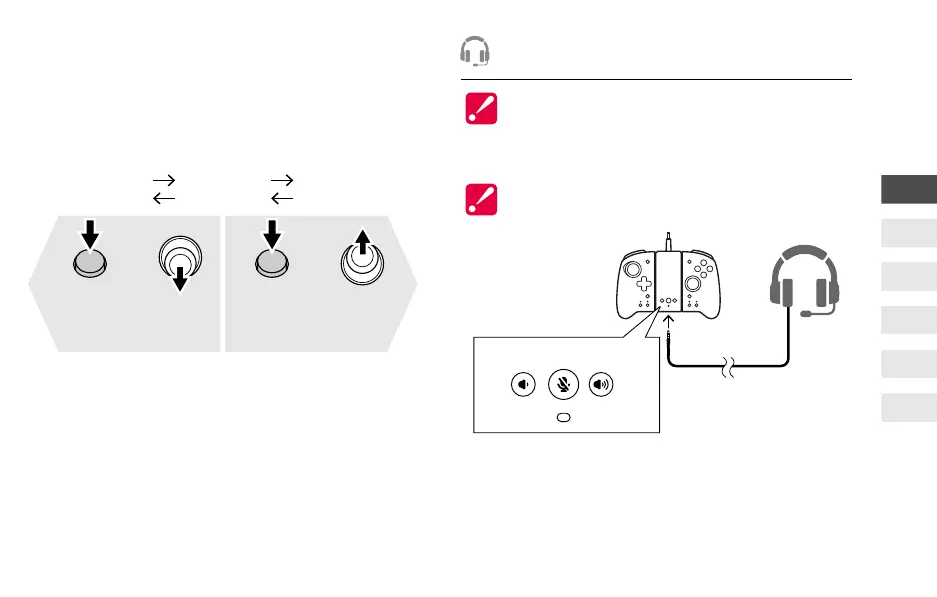
How to change Turbo Speed
You can adjust the Turbo mode
to 3 different speeds.
* When setting Turbo speed, Turbo LED (green) will lash at a rate
corresponding to the set Turbo speed.
* Turbo speed is set to 10 times/second by default.
* Analog Sticks must be returned to the neutral position before
changing to the next turbo speed.
Increase the speed
by one level
Decrease the speed
by one level
+
While pressing
TURBO
Button (L/R)
Stick
+
While pressing
TURBO
Button (L/R)
Stick
* Please use the TURBO Button (L) and the Left Stick when adjusting
the Turbo Speed on (L).
Please use the TURBO Button (R) and the Right Stick when adjusting
the Turbo Speed on (R).
Do not use high volume settings for an extended
period of time to avoid hearing loss.
Please turn down the volume on the
Nintendo Switch before connecting a headset,
as the sudden high volume may cause
discomfort to your ears.
* When connecting a headset directly to this product, voice chat can
be used if the software supports in-game voice chat function.
* If the software does not support voice chat function, our "Hori
Gaming Headset for Nintendo Switch" series can be used together with
the Nintendo Switch smartphone app "Nintendo Switch Online" to use
voice chat.
* Please check the instruction manual or contact the software publisher to
see if voice chat is supported in the game.
20
times/second
10
times/second
5
times/second
Headphone/Mic Jack
(Cannot be used on PC.)
No LED: Mic ON
Red: Mic OFF
Volume +Volume -
Mic
ON/OFF
EN
FR
DE
IT
ES
NL


 To Next Page