87
banners are not printing correctly
1.
Verify that the Out tray is in the up position.
The Out tray must remain up while you print the banner.
2.
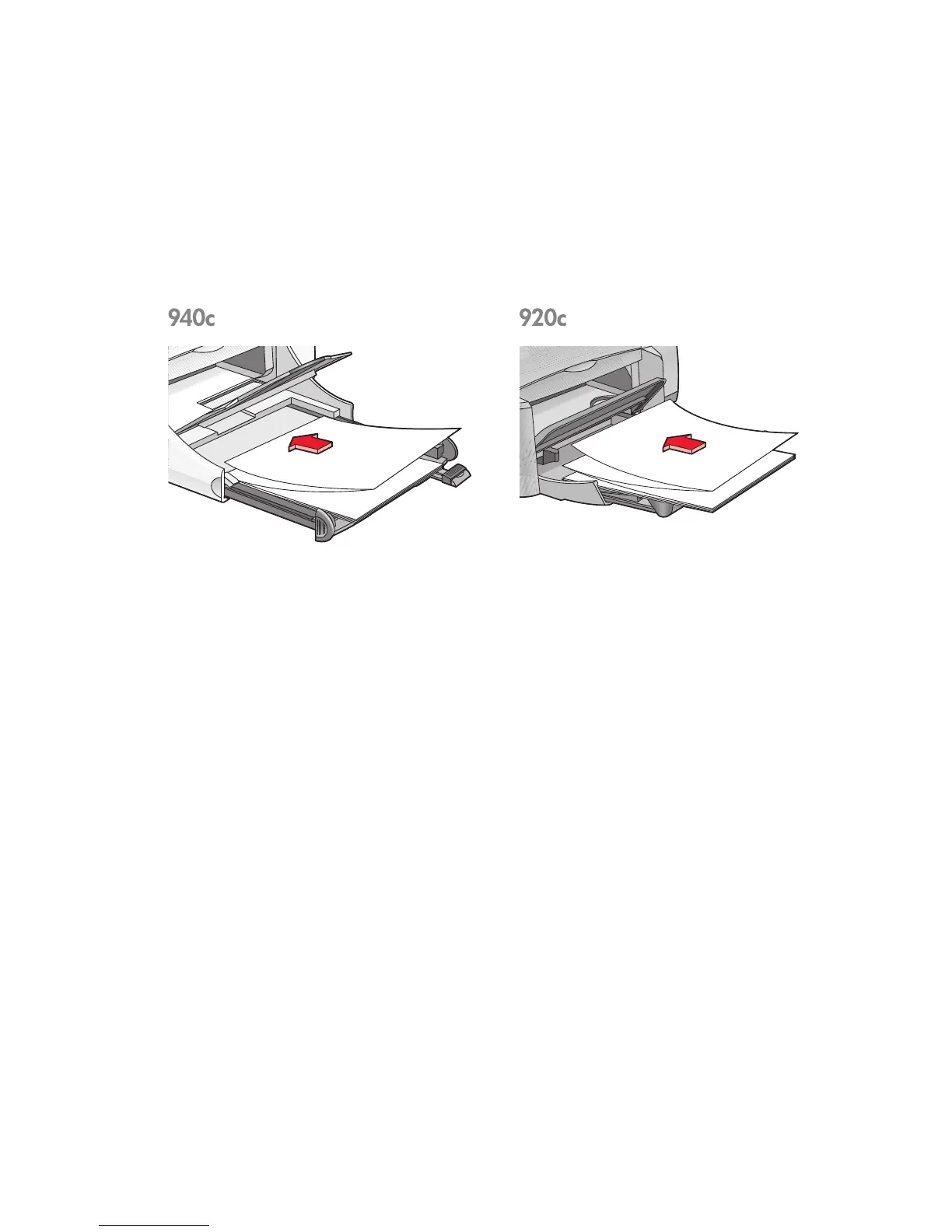
Put the banner paper in the In tray so that the unattached edge is at the
top of the stack.
3.
Insert the first edge of the banner paper into the In tray until it stops.
Confirm that the In tray is pushed in.
4.
Follow one of these paths to open the printer properties box, depending
on your software program:
• Click
File
>
Print
, then select
Properties
–or–
• Click
File
>
Print Setup
, then select
Properties
–or–
• Click
File
>
Print
>
Setup
, then select
Properties
.
5. Select the
Setup
tab:
• Confirm that
Banner Printing
is checked.
• Verify that either
Banner (Letter 8.5 x 11 in)
or
Banner (A4 210 x 297
mm)
is selected as the paper size.


 To Next Page
 Loading...
