18
Beyond the Basics
2
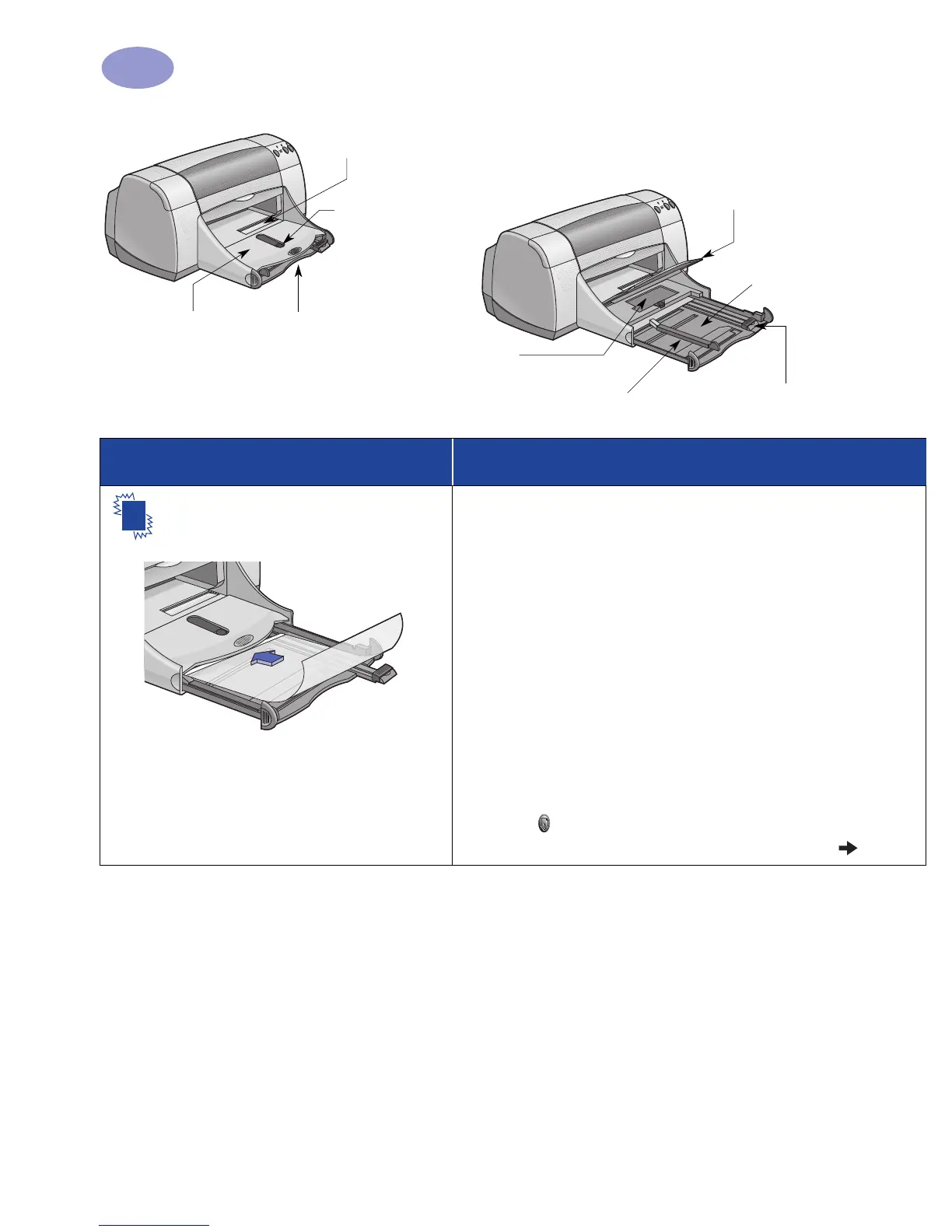
OUT tray down
Paper width guide
Photo Tray
IN tray pulled out
OUT tray up
Photo Tray Button
Single envelope slot
Paper length guide
IN tray pushed in
I want to print… I should…
Transparencies
1 Slide out both of the paper guides, and remove all
paper from the IN tray.
2 Fan the edges of the transparency sheets to
separate them, then align the edges.
3 Insert a stack of up to 25 transparency sheets, rough
side down and the adhesive strip towards the printer.
4 Slide the paper guides snugly against the
transparencies.
5 Make sure the IN tray is pushed in.
6 Choose the print settings that match the type and size
of the transparencies.
7 Print the transparencies.
8 The printer waits for transparencies to dry before
releasing them automatically. Press the Resume
Button to continue printing.


 To Next Page
 Loading...