22
Beyond the Basics
2
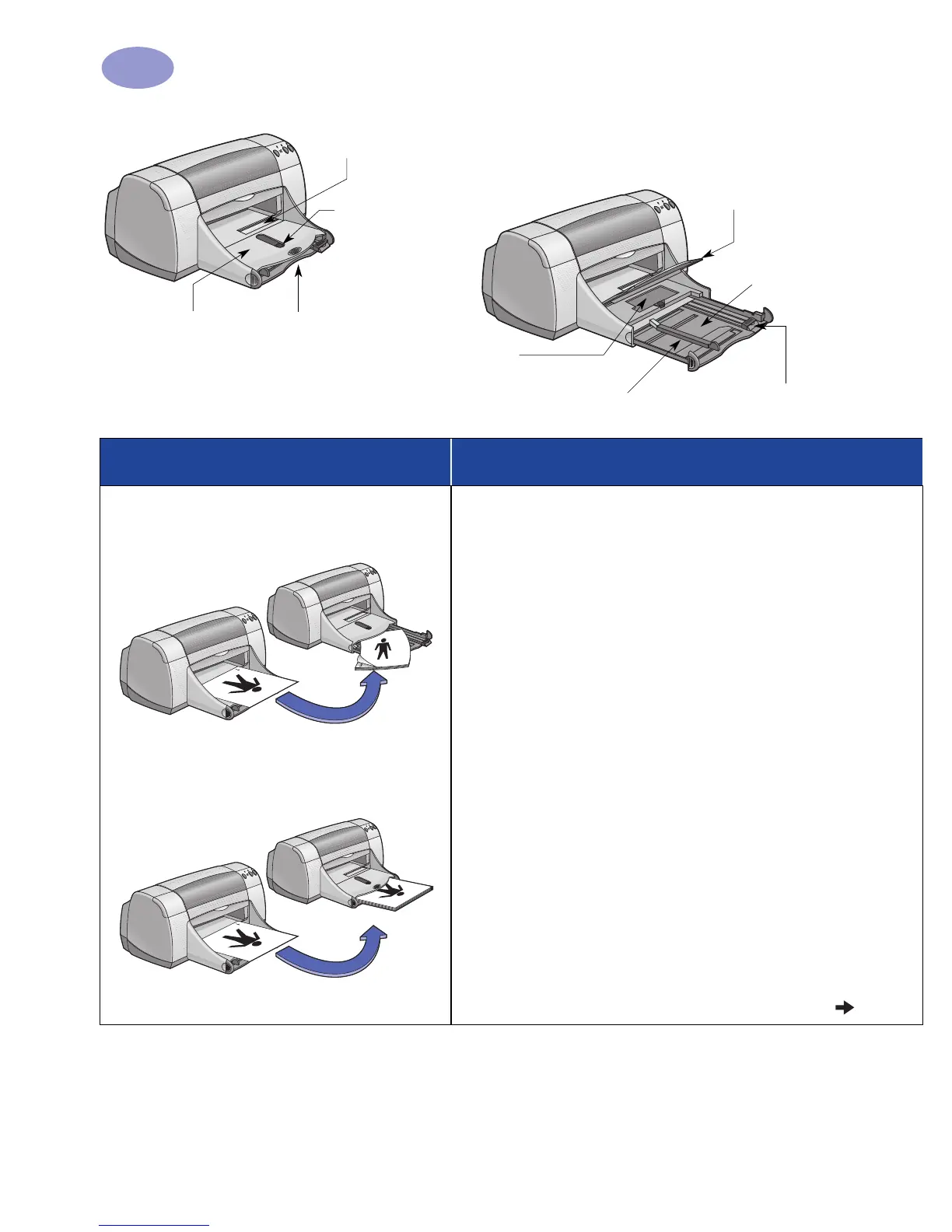
OUT tray down
Paper width guide
Photo Tray
IN tray pulled out
OUT tray up
Photo Tray Button
Single envelope slot
Paper length guide
IN tray pushed in
I want to print… I should…
Manual Two-Sided Printing
Book Binding
Tablet Binding
1 Load paper into the IN tray. Make sure there’s no
paper in the OUT tray.
2 Slide the paper guides snugly against the sheets.
3 Make sure the IN tray is pushed in.
4 Choose the print settings that match the type and size
of your paper.
5 In the Features tab, click Two-Sided Printing, then
select Book or Tablet.
6 Begin printing.
7 Carefully follow the reloading instructions
displayed on your computer screen.
8 When the paper is properly reloaded, click
Continue in the message box on your computer
screen.


 To Next Page
 Loading...