EasyManua.ls Logo

HP iPAQ - User Manual

HP iPAQ
38 pages
Print Icon
To Next Page IconTo Next Page
Loading...
1
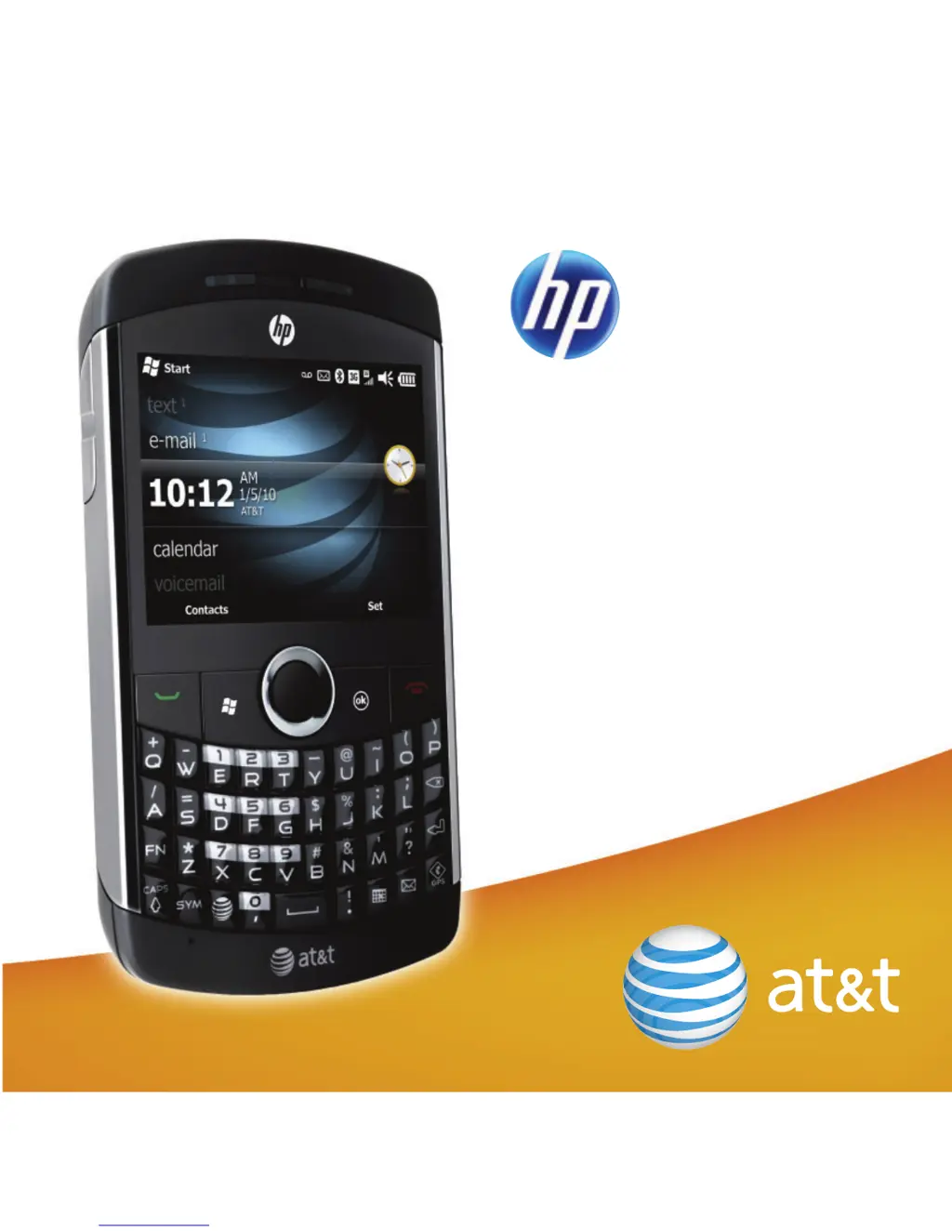
iPAQ Glisten
Quickstart

Other manuals for HP iPAQ

Questions and Answers

  • C
    Courtney AlexanderJul 26, 2025
    How to get GPS signal on HP Car Navigation system?
    • E
      Edward RobertsJul 26, 2025
      To establish a GPS signal on your HP Car Navigation system, ensure the receiver is powered on and sufficiently charged. Go outdoors to provide a clear view of the sky. Allow between 5 to 10 minutes for the GPS signal to be acquired. A flashing green LED indicates a valid GPS signal.
  • R
    Ronald SpearsAug 2, 2025
    How to check if my HP Car Navigation system GPS receiver is working?
    • P
      Patricia HolmesAug 2, 2025
      To ensure your HP Car Navigation system's GPS receiver is functioning correctly, check for a flashing blue light, indicating the Bluetooth radio is on. Also, verify the GPS receiver has a green light; a flashing green light confirms a valid GPS signal, while a solid green light means there is no valid GPS signal.
  • C
    Cathy WestAug 10, 2025
    Why does my HP Car Navigation system GPS receiver ask for a passkey?
    • J
      Jordan CastanedaAug 10, 2025
      If your HP Car Navigation system GPS receiver asks for a passkey, it's likely because the Bluetooth Manager is set to require one. The default passkey for the GPS receiver is 2003. To disable this requirement, tap on the Bluetooth icon, then Bluetooth Settings. Navigate to the Serial Port tab using the right arrow key at the bottom of the screen. Ensure the Authentication (Passkey) required check box is unchecked.
  • J
    John WhiteAug 17, 2025
    What to do if HP Car Navigation system GPS receiver won't connect to PocketPC?
    • H
      Heather HillAug 18, 2025
      If you're unable to connect your GPS receiver to your iPAQ PocketPC with your HP Car Navigation system, verify that the GPS receiver and iPAQ PocketPC are within 5-10 yards of each other. Ensure that the Bluetooth Radio on your iPAQ PocketPC is switched on by tapping the Bluetooth icon at the bottom right side of the Start screen. Also, confirm that your GPS receiver is switched on and charged; if the power LED is red, the GPS receiver is not charged.

Summary

Whats in the Box

Setting Up Your Phone

Remove Battery Cover

Instructions for removing the phone's battery cover.

Insert SIM and Memory Card

Guide for inserting SIM and optional microSD cards into the phone.

Insert Battery

Steps to insert the battery into the HP iPAQ Glisten.

Replace Battery Cover

Instructions on how to replace the battery cover.

Charging Your Phone

Exploring Your Phone

Turn On Your Phone

How to power on the HP iPAQ Glisten device.

Configure Your Phone Screen

Steps to align the phone screen for initial use.

Navigating the Today Screen

Status Icons

Keyboard and Input

Making Calls and Voicemail

Make a Phone Call

Instructions for making a phone call and checking wireless service.

Listen to Voicemail

Steps to listen to your voicemail.

Managing Contacts

Add Outlook Contact

Steps to add a new contact to Outlook.

Scheduling Appointments

Setting Your Alarm Clock

Text Messaging

Taking and Sending Pictures

Web Browsing

Email Management

Set Up Personal Email

Step-by-step guide to configure personal email accounts.

Set Up Corporate Email

Instructions for setting up corporate email via Exchange Server.

Wi-Fi Access

GPS Navigation

Bluetooth Headset Setup

Music and Video

Troubleshooting

Reset Your iPAQ

Instructions on how to reset the iPAQ device.

HP iPAQ Specifications

General IconGeneral
Operating SystemWindows Mobile
ProcessorIntel XScale
Memory64MB RAM
Display240 x 320 pixels, 3.5 inches
Storage32MB Flash
ExpansionSD card slot
ConnectivityInfrared
BatteryLithium-ion

Videos

How to Replace Your HP iPAQ RZ1710 Battery

How to Replace Your HP iPAQ RZ1715 Battery

How to Replace Your HP iPAQ RZ1717 Battery

How to Replace Your HP iPAQ RZ1700 Battery

Related product manuals