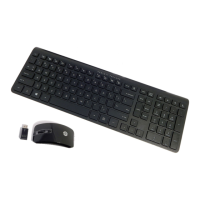
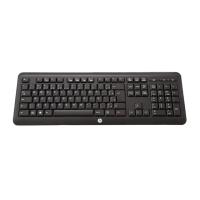
This document describes the HP 2.4G Wireless Keyboard, model KBRF1921, a peripheral designed for use with personal computers. The manual provides a quick guide to its setup, operation, and troubleshooting.
Function Description:
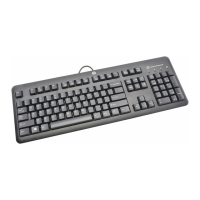
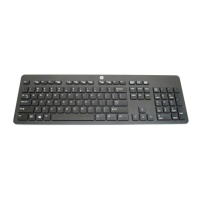
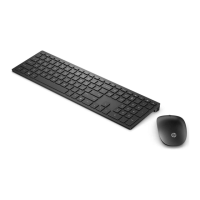
The HP KBRF1921 is a full-sized 2.4G wireless keyboard intended for general computer input. It connects to a computer via a USB adaptor (dongle) and operates wirelessly, offering flexibility and reducing cable clutter. The keyboard is designed to provide a standard typing experience with a familiar layout, including a numeric keypad and function keys. Its primary function is to translate user keystrokes into digital signals for computer processing.
Important Technical Specifications:
- Model: KBRF1921
- Connectivity: 2.4G Wireless
- Adaptor Model: MORFDIUO-D (USB Adaptor)
- Power Source: 2 x AAA Alkaline Batteries
- Operating System Compatibility: Windows® XP with Service Pack 1 or higher, Windows® Vista.
- Processor Requirement: Pentium processor or equivalent.
- Battery Indication:
- Full Battery (Power On): Green LED ON for approximately 3 seconds, then OFF.
- Low Battery (Power On): Red LED ON for approximately 3 seconds, then OFF.
- Extreme Low Battery (Power On): No LED indicator, keyboard will not work.
- Low Battery (During Operation): Red LED flashes once per second for 60 seconds when typing stops.
- Extreme Low Battery (During Operation): Power to the keyboard shuts down.
- Regulatory Compliance:
- FCC Statement: Complies with Part 15 of FCC Rules for Class B digital devices, ensuring reasonable protection against harmful interference in residential installations. Subject to two conditions: (1) device may not cause harmful interference, and (2) device must accept any interference received.
- FCC Radiation Exposure: Complies with FCC radiation exposure limits for uncontrolled environments.
- CE Statement: Declares conformity with essential requirements of Directive 1999/5/EC, including Article 3 Protection requirements for health and safety (Article 3.1a), electromagnetic compatibility (Article 3.1b) tested according to EN 301 489-1 and EN 301 489-3, and effective use of radio spectrum (Article 3.2) tested according to EN 300 440-2.
- IC Statement: Operation is subject to two conditions: (1) device may not cause interference and (2) device must accept any interference, including interference that may cause undesired operation of the device.
Usage Features:
- Wireless Convenience: Eliminates the need for a wired connection, providing freedom of movement and a tidy workspace.
- Easy Setup: The keyboard and USB adaptor automatically connect after the adaptor is plugged into the PC. A "Connect" button on the keyboard is available for initial setup or re-establishing connection with the adaptor.
- Standard Keyboard Layout: Features a full QWERTY layout, function keys (F1-F12), a numeric keypad, and navigation keys (Home, End, Page Up, Page Down, Insert, Delete), catering to a wide range of computing tasks.
- Multimedia Keys: Includes dedicated keys for common functions such as Search, Backspace, Print Screen, and potentially others (though not explicitly detailed, standard keyboard layouts often include these).
- Battery Status Indicator: Provides visual cues (Green/Red LED) for battery level, alerting the user to replace batteries when low.
- Standby Mode: The keyboard enters a standby mode to conserve battery life. Pressing any button will wake it up.
Maintenance Features:
- Battery Replacement: The keyboard is powered by two AAA alkaline batteries, which are user-replaceable. The battery compartment is easily accessible, and instructions specify correct electrode placement.
- Troubleshooting Guide: The manual includes a section to address common issues such as the keyboard not working or the pointer not moving.
- Connection Issues: Advices checking if the USB adaptor is correctly plugged into the computer's USB port. Recommends plugging directly into the computer's USB port if using a hub or multi-port connector to avoid interference.
- Software/Driver Issues: Suggests re-installing software and drivers if the keyboard pointer is not moving, after ensuring all setup procedures have been followed.
- Battery Issues: Emphasizes checking and replacing batteries if they are out of power.
- Battery Safety: Includes a CAUTION regarding the risk of explosion if batteries are replaced by an incorrect type and provides instructions for disposing of used batteries.
- Interference Management: The FCC statement provides guidance on how to correct potential radio or TV interference, such as reorienting the receiving antenna, increasing separation between equipment, or connecting to a different circuit. It also warns against unauthorized modifications to the equipment, which could void the user's authority to operate it.

 Need help?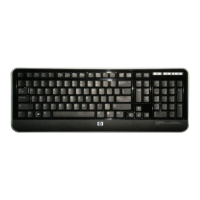

 To Next Page
 General