Where to look for jams
Jams can occur in these locations:
●
In the automatic document feeder (ADF)
●
In input areas
●
In output areas
●
Inside the product
Find and remove the jam by using the instructions on the following pages. If the location of the jam is
not obvious, first look inside the product.
Loose toner might remain in the product after a jam. This problem typically resolves itself after a few
sheets have been printed.
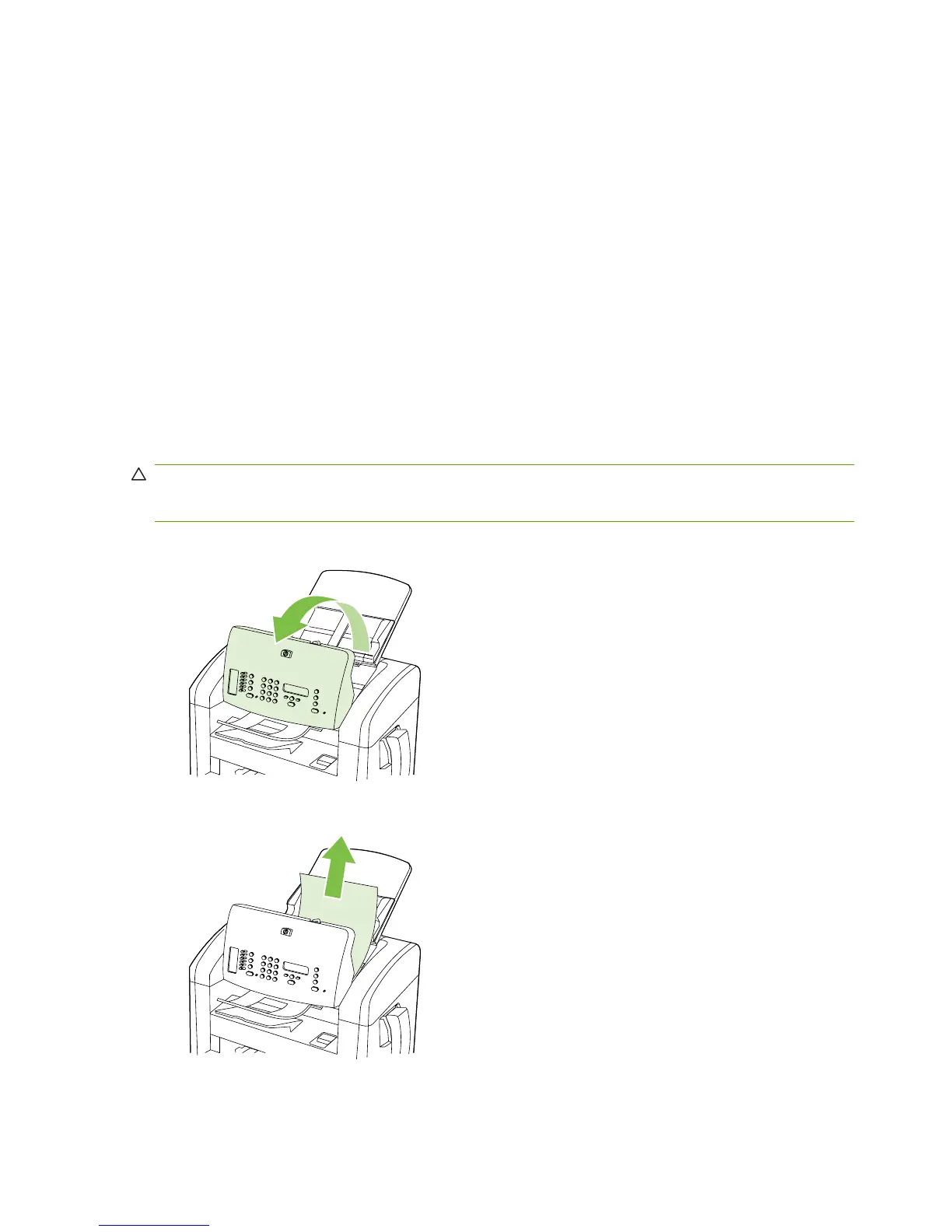
Clear jams from the ADF
Occasionally, media becomes jammed during a fax, copy, or scan job.
CAUTION: To prevent damage to the product, do not use an original that contains correction tape,
correction fluid, paper clips, or staples. Also, do not load photographs, small originals, or fragile originals
into the ADF.
1. Open the ADF lid.
2. Carefully remove jammed media. Gently try to remove the page without tearing it.
160 Chapter 7 Solve problems ENWW



 To Next Page