Solution 2: Make sure the paper is loaded correctly
Solution: Make sure that the paper is loaded correctly in the input tray.
For more information, see:
Load media
Cause: The paper was not loaded correctly.
If this did not solve the issue, try the next solution.
Solution 3: Check the print settings
Solution: Check the print settings.
• Check the paper type setting to make sure it matches the type of paper loaded in
the input tray.
• Check the print quality setting and make sure it is not set too low.
Print the image with a high print quality setting, such as Best or Maximum dpi.
Cause: The paper type or print quality settings were set incorrectly.
If this did not solve the issue, try the next solution.
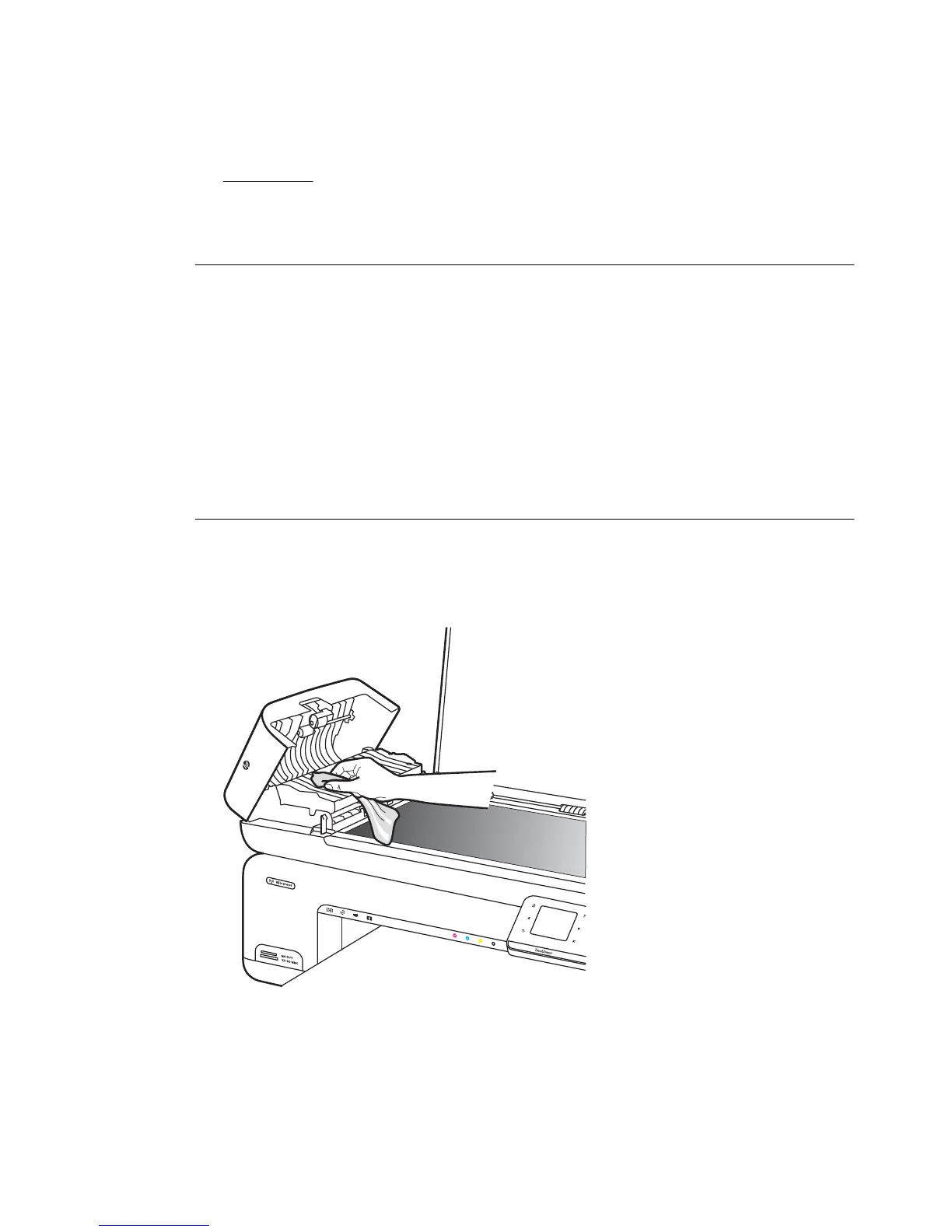
Solution 4: Clean the rollers
Solution: Clean the rollers.
Make sure you have the following materials available:
• A lint-free cloth, or any soft material that will not come apart or leave fibers.
• Distilled, filtered, or bottled water (tap water might contain contaminants that can
damage the ink cartridges).
Cause: The rollers were dirty and needed to be cleaned.
Print troubleshooting 97



 To Next Page