change paper settings for copying
21
hp psc 900 series
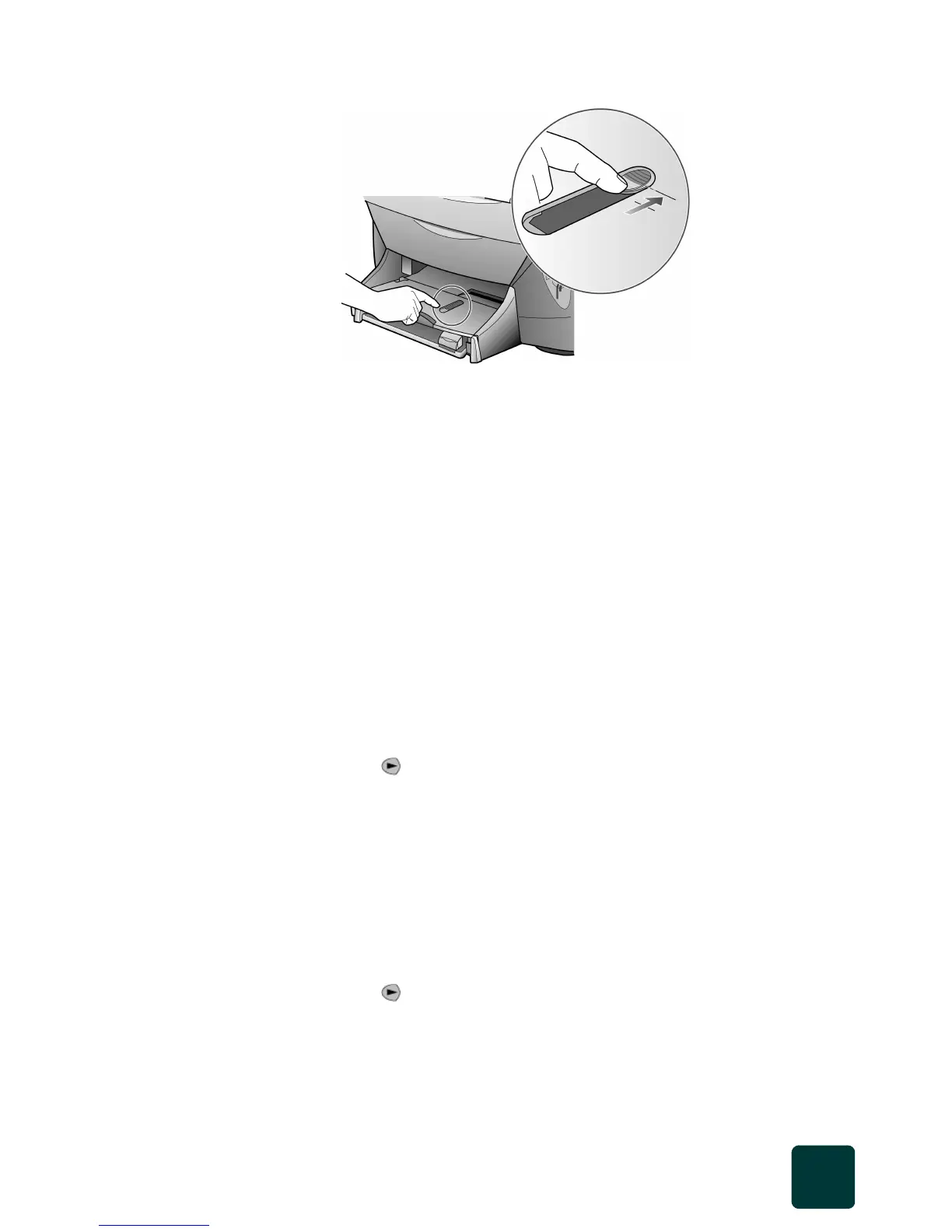
This ensures that the photo paper is loaded correctly and the photo
tray is engaged.
change paper settings for copying
We recommend that you change these settings when you load different
paper to ensure the best print quality.
You can change copy settings from the front panel or from the Director.
When you change settings using the front panel, the copy settings are reset
two minutes after the unit completes the copy.
HP recommends paper type settings according to the type of paper you're
using. For more information, see recommended paper-type settings
for copying in the onscreen User’s Guide.
To set the paper type and size for current and future copy jobs:
1 Press Scanner, then press Copy, if not already lit.
2 Press Options repeatedly until Paper Type appears.
3 Press until the desired paper type appears, then press Enter.
4 Press Black or Color.
set the paper size
For more information, see adjust paper settings for printing in the
onscreen User’s Guide.
1 Press Scanner and then press Copy.
2 Press Options repeatedly until Paper Size appears.
3 Press until the desired paper size appears.
4 Press Enter to choose the displayed paper size.
5 Press Black or Color.



 To Next Page