use the copy features
32
hp psc 900 series
4 Press Enter.
5 Press Black or Color.
print several
copies on one
page
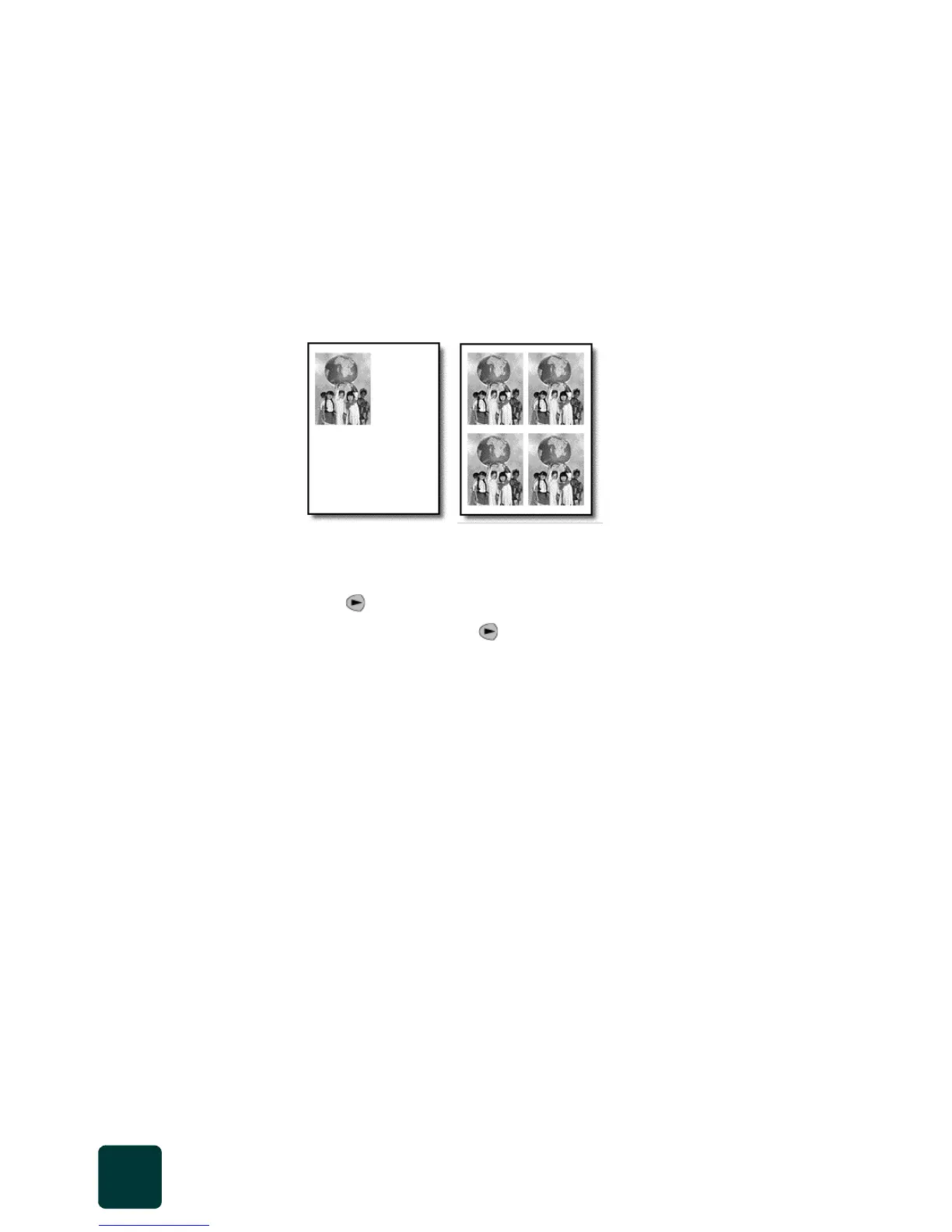
You can place multiple copies of an original on one page by selecting a
photo size and then selecting the number of copies you want.
There are several common photo sizes available under the Options menu.
After you select one of the available sizes, you are prompted to select the
number of copies that can be placed on a page.
1 Press Scanner, then press Copy, if not already lit.
2 Press Options repeatedly until Which Size? appears.
3 Press until the desired photo size appears.
4 Press Enter, then press to select the number of images that will fit
on a page.
5 Press Enter to select the number of photos you want to appear on a
page
6 Press Black or Color.
Tip! If the photo output is clipped, try turning the photo on
the glass and start the job again.
Original Copy



 To Next Page