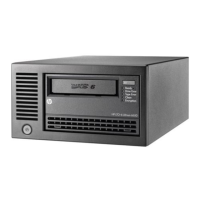
3 Using the RDX Removable Disk
Backup System
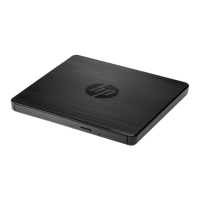
To load a cartridge:
Push the cartridge gently into the unit until it is locked into place with
a clicking sound.
To unload a cartridge:
Wait until the cartridge Activity LED is solid green and push the Eject
button. (Eject only works correctly if HP RDX Removable disk utility
is installed.)
4 Understanding the LEDs
Activity LED
• Blinking Green: Cartridge is connected to an RDX service (reading,
writing, seeking activity).
• On Amber: The drive has detected a cartridge fault condition.
Eject Button/Power LED
• Off: No power.
• On Green: The drive is ready for use.
• Blinking Green: The drive is ejecting the cartridge.
• On Amber: There is a fault with the drive.
• Blinking Amber: The drive is waiting for cartridge activity to
complete before ejecting.
5 Product information
Product documentation
Product documentation is available in the Storage section of the HP
Enterprise Information Library:
www.hp.com/go/storage/docs
To find information for this product:
1. In the Products and Solutions pane, select HP StoreEver Tape.
2. Selct the types of documents and your languages.
3. In the HP StoreEver Tape pane, select your product.
Other sources of information
• www.hp.com/storage/spock (for computer, OS and software
compatibility).
• www.hp.com/support/ (for latest product details).
Eject button/Power LE
© 2014 Hewlett-Packard Development Company, L.P.
www.hp.com
*484931-003*
484931-003



 To Next Page
 Loading...