
 Need help?
Do you have a question about the HP SimpleSave and is the answer not in the manual?
Contact HP for web support and latest updates.
Contact HP for email support via web link.
Contact HP for telephone support.
Lists the items included in the HP SimpleSave Desktop Hard Drive package.
Details system requirements for the HP SimpleSave Desktop Hard Drive.
Important safety guidelines for handling the drive during unpacking and installation.
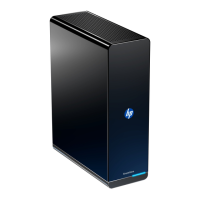
Describes the physical features of the HP SimpleSave Desktop Hard Drive.
Explains the function of the power/activity LED on the device.
Details the USB 2.0 connectivity and data transfer capabilities.
Overview of the backup software features and usage.
Instructions on how to reformat the drive for FAT32 compatibility.
Step-by-step guide on how to connect the HP SimpleSave drive to a computer.
Instructions on how to safely turn off and disconnect the drive to prevent data loss.
Solutions for when the drive is not recognized by the computer.
Explanation of the message regarding high-speed device on low-speed port.
Tips for improving data transfer rates with USB 2.0.
Guidance for issues with the HP SimpleSave backup software.
Steps for reinstalling the HP SimpleSave backup software.
Information about Write Cache Enable setting for data protection.
Requirement for administrator privileges for software installation.
Information regarding FCC, ICES, CE, GS, VCCI, and KCC compliance standards.
Instructions on how to obtain maintenance and service for the product.
Explains the terms and conditions of the product's limited warranty.
The HP SimpleSave Desktop Hard Drive is an external storage solution designed for quickly and easily backing up and transferring digital media files and other important data. This user manual provides comprehensive guidance on its setup, operation, and maintenance, ensuring a smooth experience for users.
The primary function of the HP SimpleSave Desktop Hard Drive is to provide a large-capacity external storage device for various types of files, including digital photos, music, video, recorded TV, gaming, and other data files. It connects to a computer via a USB 2.0 or USB 1.1 connector, offering flexibility in connectivity. The drive is preformatted with the NTFS file system, which supports media files larger than 4 GB, making it suitable for modern, large-file storage needs.
A key feature of this device is its integrated HP SimpleSave™ backup software. This software runs directly from the HP SimpleSave drive itself, eliminating the need for separate installation on the host computer. It simplifies the backup process, allowing users to easily back up all their specified file types. The software also facilitates the restoration of backed-up files, providing a complete data protection solution. One of its notable capabilities is automatic backup: it initiates backups whenever the computer is idle for 5 minutes, ensuring that data changes are regularly saved without user intervention. Furthermore, the HP SimpleSave backup software can be used to back up data from multiple computers, making it a versatile solution for households or small offices with several machines.
The drive is designed to be compatible with Microsoft® Windows® operating systems, specifically Windows® 7, Windows Vista®, and Windows XP. Users are advised to install the latest updates and service packs for their Windows operating system to ensure the highest performance and reliability of the drive and its software.
Setting up the HP SimpleSave Desktop Hard Drive is a straightforward process. After turning on the computer, users simply connect the drive's power cord and the USB cable to an available USB port on their computer. The first time the drive is connected, the computer may take up to a minute to configure it, displaying several installation messages. Subsequent connections will be faster as the computer will recognize the drive immediately. The HP SimpleSave Backup Software is designed to start automatically each time the drive is plugged in. If it does not start automatically, users can manually launch it by navigating to the HP SimpleSave drive in "Computer" (Windows Vista) or "My Computer" (Windows XP) and double-clicking the HP SimpleSave application icon.
The drive features an LED on its front panel, which serves as a power and activity indicator, providing visual feedback on the device's status. The USB 2.0 interface supports high-speed data transfer rates of up to 480 Mb/s. It is also backward-compatible with USB 1.1, though data transfer will occur at the slower USB 1.1 speed (up to 1.5 Mb/s) when connected to a USB 1.1 port.
For users who require the FAT32 file system (which limits single files to 4 GB), the manual provides instructions on how to reformat the drive. This process involves double-clicking "My Computer," selecting the Removable Disk icon, confirming the format, choosing "Full" format type, and clicking "Start." It's crucial to back up any existing files before reformatting, as this action erases all contents of the drive. The reformatting process can take over 60 minutes, and the drive should not be disconnected during this time.
Turning off or disconnecting the device is also designed to be safe and simple. The drive automatically powers off and on with the computer. However, to prevent data loss, it is important to close all active windows and applications before shutting down the drive. For disconnecting the drive without powering down the computer, users should right-click the "Safely Remove Hardware" icon in the system tray and select "Safely Remove Hardware." This ensures that the drive powers down properly before physical disconnection.
The HP SimpleSave Desktop Hard Drive is a precision instrument and requires careful handling to ensure its longevity and reliable performance. Users are advised to avoid dropping or jolting the device and to refrain from moving it while it is active. Proper ventilation is essential; therefore, users should not block the air slots located on the underside, top, or rear of the enclosure, nor should they stack objects on top of the device that could impede airflow.
Attempting to open the drive's case is strictly prohibited, as this action voids the warranty. Similarly, users should always properly disconnect cables or power cords through the operating system before physically removing them, as improper disconnection can lead to data loss or drive damage.
Troubleshooting guidance is provided for common issues. If the drive does not appear on the computer, users should check if the power LED is lit, ensure the USB cable is securely connected, try unplugging and re-plugging the USB cable after a 10-second wait, and check the Device Manager for USB port recognition. If a message indicates a high-speed device connected to a low-speed port (Windows XP), this is normal and simply means the drive is operating at USB 1.1 speeds. For slow data transfer rates with a USB 2.0 adapter card, users should ensure their USB 2.0 card drivers are current and properly installed.
If the HP SimpleSave backup software is not working, users are directed to consult the HP SimpleSave Backup Software User Manual located on the drive. For reinstalling the backup software or after reformatting the drive, the software can be downloaded from http://hpsupport.wdc.com. The manual also notes that Write Cache Enable is turned off for data protection, with more information available at http://hpsupport.wdc.com. Finally, for installing software, users may need administrator privileges depending on their operating system.
The product comes with a limited warranty, typically 2 years, which covers defects in material and workmanship under normal use. Warranty service can be obtained by contacting the dealer or visiting the product support website at http://hpsupport.wdc.com to obtain a Return Material Authorization (RMA). Unauthorized returns will be sent back at the user's expense. It is crucial to keep the original box and packaging materials for storing or shipping the HP Branded Product. The manufacturer is not liable for lost data, regardless of the cause, recovery of lost data, or data contained in any product placed in its possession. The warranty is voided by misuse, improper installation, alteration (including removing labels or opening external enclosures unless specified), accident, or mishandling. The manufacturer's sole warranty is repair or replacement of the product.
 General
| Interface | USB 2.0 |
|---|---|
| Rotational Speed | 5400 RPM |
| Capacity | 1 TB |
| Backup Software | HP SimpleSave Software |
| Compatibility | Windows XP, Windows Vista, Windows 7 |
| Form Factor | External |



 To Next Page