EasyManua.ls Logo

HP StoreEver MSL2024 - Service Manual

HP StoreEver MSL2024
220 pages
Print Icon
To Next Page IconTo Next Page
Loading...
HPE StoreEver MSL2024, MSL4048,
MSL8048, and MSL8096 Tape
Libraries
User and Service Guide
Abstract
This guide provides information on installing, configuring, upgrading, and troubleshooting the tape library. This guide is intended
for system administrators and other users who need physical and functional knowledge of the tape library.
Part Number: AK378-96087
Published: December 2015
Edition: 8

Table of Contents

Other manuals for HP StoreEver MSL2024

Questions and Answers

  • J
    Jordan ConleyAug 18, 2025
    What to do if my HP Storage device is not detected?
    • T
      Tiffany ShermanAug 18, 2025
      If your HP Storage device isn't being detected, verify that the HBA supports multiple LUNs and that this feature is enabled. Check for any conflicting SCSI IDs and ensure the device is powered on before the host computer. Confirm that the library doesn't have the drive offline or running a test. Ensure the device is attached to an LVDS SCSI host adapter/bus. The parallel SCSI cable might be too long, so try a shorter cable or remove other devices from the bus. Check that the device is fully powered up and not in an error state, and inspect the parallel SCSI connector and terminator for bent pins.
  • C
    Cody LopezAug 20, 2025
    What does '!' mean in HP StoreEver MSL2024 operator panel inventory display?
    • L
      Laura MilesAug 20, 2025
      If you see a “!” in the operator panel inventory display of your HP Storage device, export the data cartridge marked with the exclamation point. This indicates the cartridge is either damaged, incompatible with the drive, or the wrong type for the attempted operation.
  • A
    Ashley NelsonAug 23, 2025
    Why can't I write to or read from tape in my HP StoreEver MSL2024 device?
    • L
      Lori CoxAug 23, 2025
      If you cannot write to or read from tape in your HP Storage device, ensure the cartridge isn't a WORM cartridge that has already been used. Verify the cartridge is write-enabled and compatible with the drive model. Make sure you are using an Ultrium cartridge that has not been degaussed and hasn't been exposed to harsh conditions or physical damage. If the cartridge was created using a different backup application, you might need to perform an erase, format, or label operation. Retry the operation with a known good tape and consider cleaning the tape drive.
  • M
    Marissa WilliamsAug 26, 2025
    How to resolve HP StoreEver MSL2024 Storage changed drive SCSI ID, but the host server does not recognize the new ID?
    • C
      Chris SandersAug 26, 2025
      If the host server doesn't recognize the new SCSI ID on your HP Storage device, make sure that all parallel SCSI devices on the same bus have unique SCSI ID numbers. Only SCSI IDs 0 through 7 are available on a narrow (50 pin) bus. If the device is on a narrow bus and has a SCSI ID of 8 or greater, the host server will not detect the drive. If you must use SCSI IDs 8 or greater, use a wider bus. Reboot the host server.
  • K
    kadamsAug 28, 2025
    Why all power supply LEDs are off on HP StoreEver MSL2024 Storage (MSL4048, MSL8048, and MSL8096)?
    • J
      Jessica KennedyAug 28, 2025
      If all power supply LEDs are off on your HP Storage device (MSL4048, MSL8048, and MSL8096), check all power cord connections. Make sure the power button on the front panel has been pressed and the green READY LED on the front panel is lit. Also, ensure the outlet has power by trying another working outlet. If the issue persists, replace the power cord.
  • C
    Christie JohnsonAug 30, 2025
    What to do if HP StoreEver MSL2024 LCD displays an error code?
    • J
      juan90Aug 30, 2025
      If the LCD on your HP Storage device displays an error code, look up the error code, try to resolve the failure, and power cycle the device. On the MSL2024 OCP, press Enter to see the error message for the error code.
  • T
    Trevor GutierrezSep 1, 2025
    How to fix tape stuck in drive HP StoreEver MSL2024?
    • P
      Pamela RodriguezSep 1, 2025
      To remove a tape stuck in the drive of your HP Storage device, try these steps in order: 1. Attempt to unload the tape from your backup software. 2. Shut down the backup software and stop the operating system's removable storage services. From the OCP, attempt to unload or move the tape to a slot. 3. Power down the unit, disconnect the cable from the drive, power up the unit, and wait until the tape drive is idle or ready. From the OCP, attempt to unload or move the tape to a slot. 4. From the OCP, attempt a force eject or emergency unload operation. Inspect the tape cartridge for damage or misplaced labels, and discard any cartridges with issues.
  • L
    Linda BerrySep 3, 2025
    Why the Attention and Cleaning LEDs are lit on HP StoreEver MSL2024 Storage?
    • C
      Cathy SnowSep 4, 2025
      If both the Attention and Cleaning LEDs are lit on your HP Storage device, it's likely due to a dirty drive that cannot read a tape and marks the tape invalid. To resolve this: 1. View the inventory with the RMI. Note the slots that have tapes marked with !. 2. Remove any magazines that contain tapes marked with !. 3. Remove the tapes that were marked with !. 4. Inspect each removed tape for damage, check that the tape is compatible with the drive, and ensure that it is not past its usage life. Discard any tapes that are damaged or past their usage life. 5. Reload the magazines with tapes that have passed inspection and new tapes to replace cartridges that did not pass inspection. 6. Replace the magazines. 7. Clean the tape drive.
  • A
    acevedochristopherSep 6, 2025
    How to fix tape stuck in storage slot HP StoreEver MSL2024?
    • M
      Melissa LeeSep 6, 2025
      To remove a stuck tape from a storage slot in your HP Storage device, if the OCP or the RMI is still operational: 1. Move the tapes from the drives to the magazines using the Move Tape command. 2. Use the magazine removal process to release the magazine and remove it from the device. 3. Manually remove the cartridge from the magazine by inserting a finger in the hole at the back of the magazine. Some tapes need to be inserted and removed several times to condition them for free movement in and out of the magazine.
  • R
    Ryan ThompsonSep 8, 2025
    What to do if the cleaning LED is lit after using a cleaning cartridge on HP StoreEver MSL2024?
    • C
      christopher43Sep 8, 2025
      If the Cleaning LED is lit after using a cleaning cartridge on your HP Storage device, the cleaning cartridge has likely expired. A cleaning cartridge will expire after 50 cleaning cycles.

Summary

Features

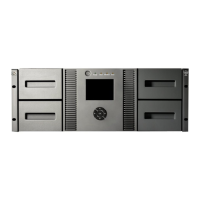
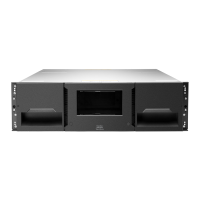
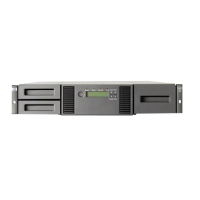
Front panel

Details the user interface components on the front of the tape library.

Back panel

Describes the rear panel connectors and ports for various connections.

Library options

Explains optional features like redundant power supplies, encryption kits, and library extenders.

Installing the tape library

Planning the FC configuration

Guides on planning Fibre Channel connections, speeds, and cable requirements.

Planning the SAS configuration

Outlines SAS interface requirements, HBA considerations, and cabling.

Planning the parallel SCSI configuration

Covers SCSI bus setup, HBA requirements, and SCSI ID addressing.

Preparing the host

Details steps for host computer preparation, including software, drivers, and diagnostic tools.

Choosing a location

Provides criteria for selecting an appropriate installation site for the tape library.

Tape cartridges and magazines

Tape cartridges

Information on tape cartridge types, compatibility, and usage guidelines.

Using and maintaining tape cartridges

Best practices for handling, cleaning, and preserving tape cartridge life.

Magazines

Details on removable magazines and their access procedures.

Operating the tape library

Using the RMI

Accessing the library remotely via a web browser interface for monitoring and control.

Using the MSL2024 OCP

Operating the library using the front panel's Operator Control Panel (OCP).

Using the MSL4048, MSL8048, and MSL8096 OCP

Operating the library using the front panel's Operator Control Panel (OCP) for larger models.

Troubleshooting

Fibre Channel connection problems

Diagnosing and resolving issues related to Fibre Channel connectivity.

Detection problems after installing a SAS drive

Troubleshooting steps for SAS drive detection issues after installation.

Operation problems

Addresses common operational issues like power, movement, and media problems.

Error codes

Explains how to find and interpret error codes displayed on the OCP, RMI, or L&TT.

Upgrading and servicing the tape library

Possible tools needed

Lists essential tools required for library servicing and upgrades.

Installing a new tape drive

Step-by-step guide for physically installing new tape drives into the library.

Removing and replacing a tape drive

Instructions for safely removing and replacing existing tape drives.

Removing and replacing a magazine

Procedures for removing and replacing tape cartridge magazines.

Installing a redundant power supply (MSL4048, MSL8048, and MSL8096 only)

Details on installing an optional redundant power supply for increased reliability.

Replacing the library controller (MSL4048, MSL8048, and MSL8096)

Steps for replacing the library controller component.

Support and other resources

Accessing Hewlett Packard Enterprise Support

Information on how to contact HPE support and access online resources.

Accessing updates

Guidance on how to find and download software and firmware updates.

Specifications

Library capacity

Details the form factor, slot counts, and drive capacities for different library models.

Supported interfaces

Lists the supported interfaces (FC, SAS) for different LTO generations.

Data storage capacity and transfer rate

Provides storage capacity and data transfer rates for various LTO drive generations.

Warranty and regulatory information

Warranty information

Provides links to HPE warranty information for various product lines.

Regulatory information

Includes markings and declarations related to regulatory compliance.

Electrostatic discharge

Preventing electrostatic damage

Precautions to avoid damage from static electricity when handling components.

Grounding methods

Recommended grounding techniques and tools for handling static-sensitive parts.

HP StoreEver MSL2024 Specifications

General IconGeneral
Dimensions (WxDxH)87 x 480 x 806 mm
Media typeTape Cartridge
Form factor2U
Product typeStorage auto loader & library
Standard interfacesSerial Attached SCSI (SAS)
Number of slots (max)24
Storage media types supportedLTO-7

Related product manuals