3
English
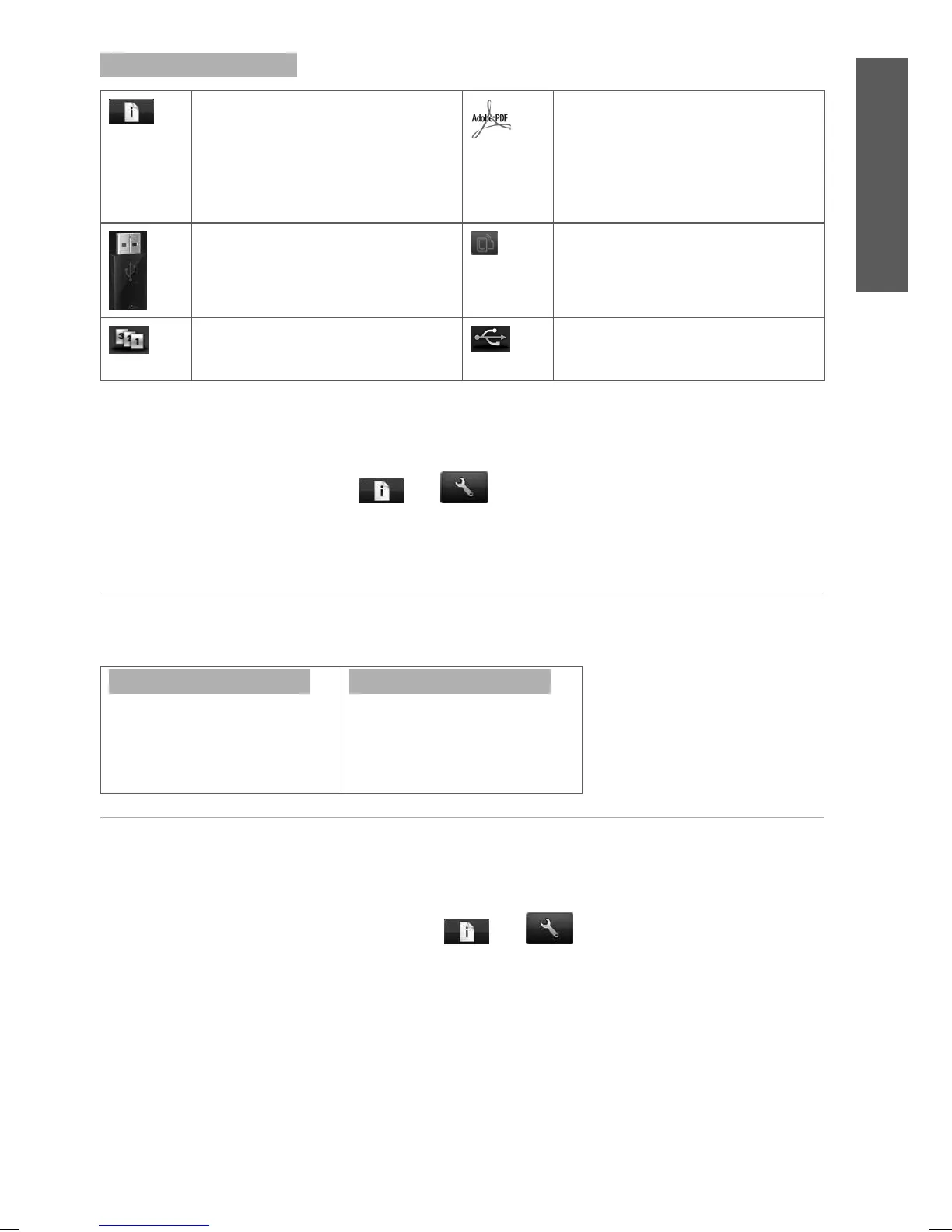
Home-screen dynamic icons
View information about printer status,
change printer settings, or initiate actions
such as loading paper or replacing ink
supplies. Beside the button is a message
showing the printer status or an alert.
Press this message to see a list of all
current alerts.
Indicates that a PostScript or PDF job is
printing. Pressing it has no eff ect.
Print a le from a USB ash drive. View Web Services status and display your
printer’s email address.
View and manage the print queue. A
smaller warning icon appears if there are
jobs on hold.
View information about the USB ash
drive(s). This icon appears only when one
or more USB ash drives are inserted.
If the printer is left idle for some time, it goes into sleep mode and switches off the front-panel display. To change the
time that elapses before sleep mode, press , then , then Setup > Front panel options > Sleep mode wait
time. You can choose various times between 1 and 240 minutes.
The printer wakes from sleep mode and switches on the front-panel display whenever there is some external interaction
with it.
Web Services
Your printer can be connected to the Web, providing various bene ts.
Automatic rmware updates
To keep the printer up to date
eff ortlessly.
Printing by email (HP ePrint)
If you can email it, you can print it.
Simply attach a PDF or other print-
ready le to an email message, and
send it to your printer’s dedicated
address.
Setup
To set up your product for Web Services, please follow these steps:
Make sure that your printer is correctly connected to the Internet.
Run the Connectivity Wizard: at the front panel, press , then , then Connectivity > Connectivity
wizard. If you cannot nd the Connectivity Wizard in the menu, update your rmware and then try again. If the Wizard
downloads new rmware, the printer may need to restart. When the Wizard displays your printer code and email
address, you are recommended to make a note of them.
Install the printer software (drivers and other software to enhance your experience) in your computer from the HP
Start-up Kit DVD, or from the Web. You can also nd documentation and support information on the DVD and on the
Web.
Enfocus Software - Customer Support



 To Next Page