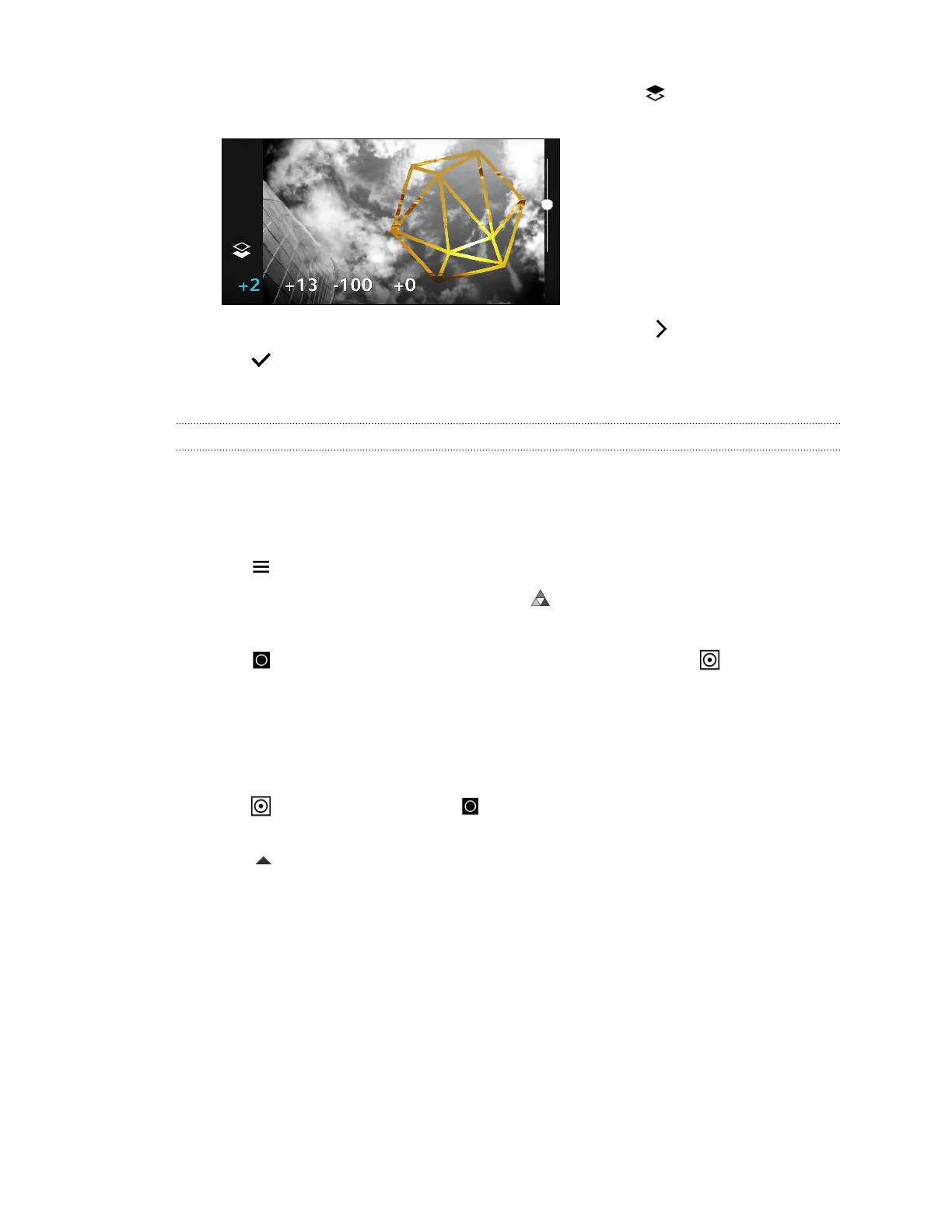
14. If you want to adjust your photo to blend with the image fill, tap to switch from the image
fill layer to the photo layer.
15. Tap a setting and drag the slider to adjust its values, and then tap .
16. Tap to save changes.
The edited photo is saved as a new photo. The original photo remains unedited.
Prismatic
Got a bright and colorful image? Use Prismatic effect for fresh crystal prism patterns.
1. From Photo Editor, choose the photo you want to edit.
See Choosing a photo to edit on page 87 to find out how.
2. Tap to open the slideout menu.
3. In the slideout menu that opens, tap Effects > .
4. Choose a prismatic pattern to apply to your photo.
5. Tap to switch to the shape layer. You should see the shape layer icon .
6. Drag the shape to move it.
7. Drag your fingers apart or together on the shape to adjust its size.
8. Press and hold the shape with two fingers, and then drag your fingers in a circular motion to
rotate it.
9. Tap to return to the image layer , and then drag your fingers apart or together on the
image to adjust its size.
10. Tap to open the toolbar.
98 Photo Editor



 To Next Page