18
e.g. www.mycompany.com:5688/fm/Htek
e.g. 218.2.83.110
Below are Instructions for FW upgrade via HTTP:
(1) You can download a free HTTP server from http://httpd.apache.org/ or use Microsoft
IIS web server. Then setup HTTP server.
(2) Unzip the firmware file and put the files under the root/fm directory of the HTTP server.
(3) Visiting “http://192.168.0.254/fm/fw924.rom on localhost by browser” to verify the
HTTP Server. If visiting “http://192.168.0.254/fm/fw924.rom on another computer is no
prompt to download fw924.rom file, please check the firewall (Suggest to close the
firewall).
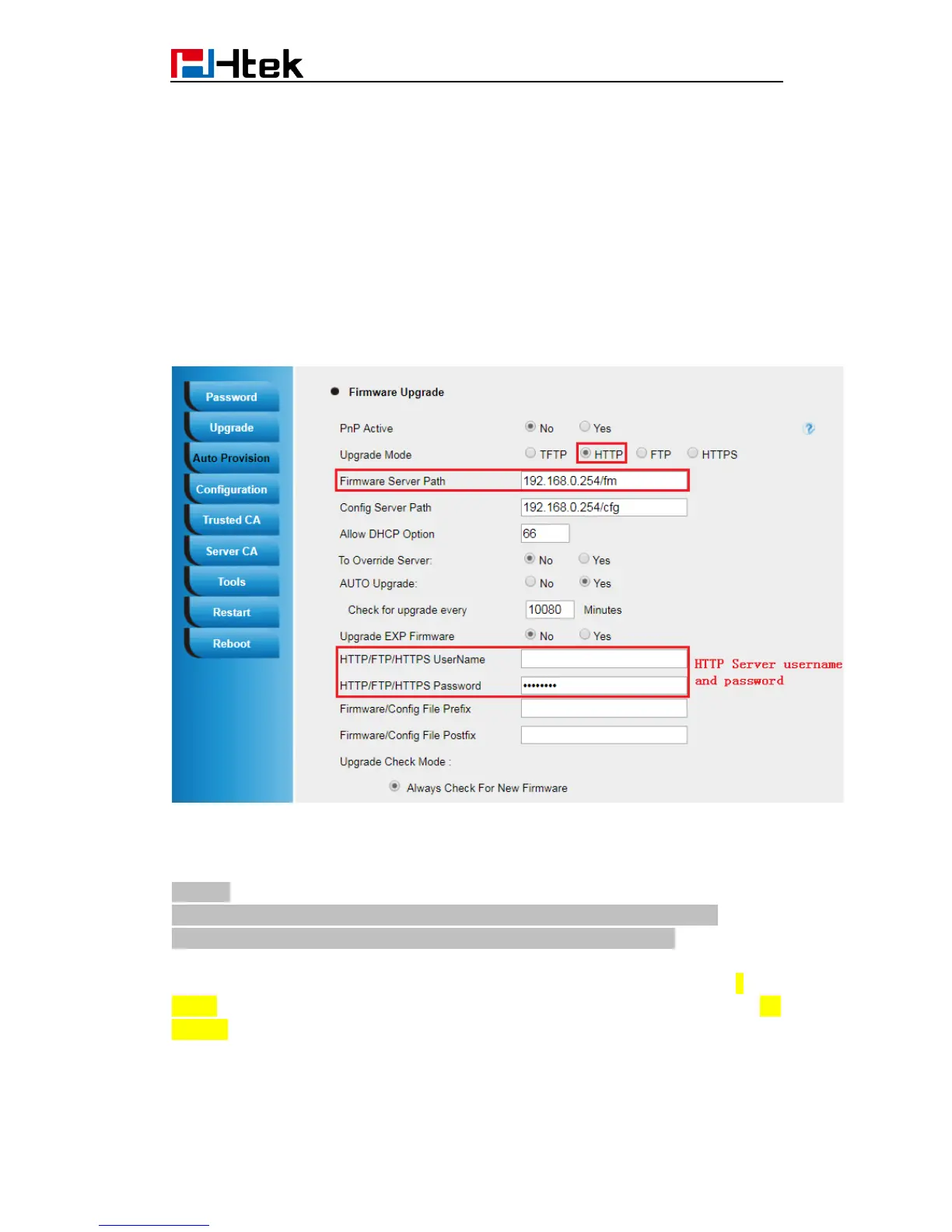
(4) Change the setting of UC9xx (192.168.0.254 is HTTP server):
Click “SaveSet”.
(5) Restart the UC9xx, IP Phone will restart and automatically get firmware files from
HTTP server.
NOTES:
(1) We recommend you to use Htek HTTP server, or you can also use your own
TFTP/HTTP/FTP/HTTPS server for upgrade and provisioning procedures.
(2) You need to update the settings and restart the IP Phone after “Firmware Server Path”
is set. If the configured firmware server is found and a new code image is available,
UC9xx IP Phone will attempt to retrieve the new image files by downloading them into the
UC9xx’s SDRAM. During this stage, the phones LEDs will blink more frequently until the
checking/downloading process is finished. Upon verification of checksum, the new code
image will be saved into the Flash. If TFTP/HTTP/FTP/HTTPS fails for any reason (e.g.
TFTP/HTTP/FTP/HTTPS server is not responding, there are no code image files available


 To Next Page
 Loading...