Need help?
Do you have a question about the Huawei B612-533 and is the answer not in the manual?
Guidelines for using the device safely and avoiding interference.
Precautions regarding pacemakers and hearing aids.
Warnings about using the device near flammable materials.
Recommendations for device placement and environmental conditions.
Safety advice for children using the device and its accessories.
This document provides a quick start guide for a router, detailing its functions, usage, and maintenance.
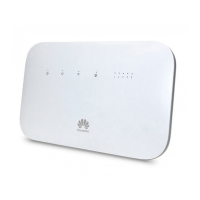
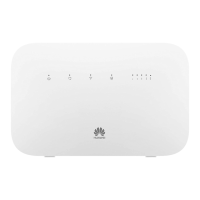
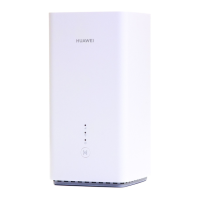
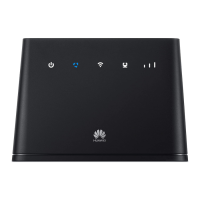
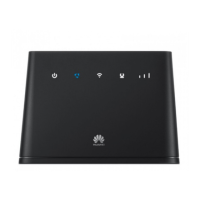
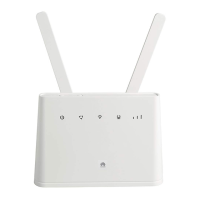
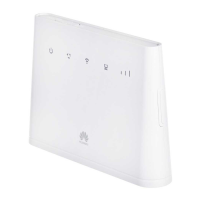
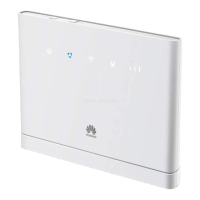
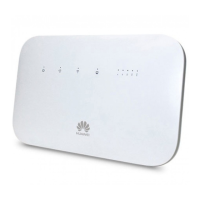
The router features several indicators and ports for various functions. On the front, there are indicators for power, network status, Wi-Fi®/WPS, LAN/WAN, and signal strength. The top of the device includes a power button and a WPS button, while the bottom houses the SIM card slot. The back of the router provides a power input, LAN/WAN ports, external antenna ports, a landline phone port, and a reset button.
To set up the router, ensure you use the correct SIM card type: mini-SIM (2FF), micro-SIM (3FF), or nano-SIM (4FF). Gently insert the SIM card into the slot until it clicks. To remove the SIM card, gently press it until it pops out. It is crucial not to insert or remove the SIM card while the router is running, as this may affect performance or damage the card. After inserting the SIM card, connect the power adapter to the router. The indicators will illuminate once the router successfully connects to a network. The network status indicator will show cyan, blue, or yellow for LTE/3G/2G connections, and white signal bars indicate signal strength. A red network status indicator means there is no network connection, and troubleshooting steps are provided in the FAQs.
Once the router is connected to a mobile data network, you can connect your computer or mobile phone to its Wi-Fi network to access the Internet. The default Wi-Fi network name (Wi-Fi Name) and password (Wi-Fi Password) are located on the label on the back of the router. When the Wi-Fi indicator is steady on, Wi-Fi is enabled. Wi-Fi can be enabled or disabled through the router's web-based management page. It is highly recommended to promptly change the default Wi-Fi network name and password on the web-based management page to prevent unauthorized access. After changing the password, you will need to reconnect to the router's Wi-Fi network using the new credentials.
The router can be managed via its web-based management page. The default IP address and password can be found on the label on the back of the router. More detailed information is available on the management page itself. For security, it is essential to change the default login password for the web-based management page to prevent unauthorized users from altering the router's settings. Additionally, the HUAWEI SmartHome app can be used to manage the router, and a QR code is provided for easy download of the app.
The router offers several optional configurations for enhanced connectivity. You can connect multiple devices, such as a computer or a landline phone, to the router to access the Internet or make telephone calls. The device also supports accessing the Internet through an Ethernet port. You can connect the router to a wall-mounted Ethernet port using an Ethernet cable. Before connecting, configure the relevant settings on the web-based management page. For specific details, it is advised to contact your carrier.
For improved signal reception, external antennas can be installed in addition to the built-in antenna. These antennas can be purchased from your carrier. If only one antenna is required, plug it into the designated socket. Before installing any external antennas, ensure the router is turned off and the power adapter is unplugged. External antennas are designed for indoor use only and should not be used during thunderstorms. Only use external antennas provided by your carrier.
The document includes a comprehensive FAQ section to address common issues. If you forget your Wi-Fi or login password, restoring the router to factory settings and using the default credentials is the solution. For network connection problems (red network status indicator), check if the SIM card is correctly inserted, restore factory settings, or contact your carrier to ensure the SIM card is active. If Internet speed is slow, check the signal strength indicator and adjust the router's position for better reception, restart the router and your device, or check if you have exceeded your data traffic limit. To connect a WPS-enabled device, ensure Wi-Fi is enabled on the client and press and hold the WPS button on the router for one second. If you cannot access the web-based management page, ensure your computer is connected via Ethernet or Wi-Fi, set your computer to obtain an IP address and DNS server automatically, restart your browser, or restore factory settings. If the content on the management page is not up to date, clear your browser's cache and re-launch the page. For any other issues, restart the router, restore factory settings, or contact your carrier.
The legal notice section outlines copyright information, trademarks, and disclaimers. It states that the manual's content is copyrighted by Huawei Technologies Co., Ltd. 2019, and reproduction or transmission without prior consent is prohibited. It also clarifies that the product may include copyrighted software and that users should not reverse engineer or sublicense it unless permitted by law. Trademarks such as HUAWEI, Wi-Fi®, and LTE are acknowledged. The notice also mentions that some product features may depend on local network capacities and settings, and Huawei reserves the right to modify information without prior notice. The disclaimer states that the manual's contents are provided "AS IS" without warranties and limits Huawei's liability for damages. Import and export regulations require customers to comply with all applicable laws and obtain necessary governmental permits. A privacy policy link is provided to explain how personal information is used and protected.
The device supports automatic software updates to provide better service. By using the device, you agree that it will automatically obtain update information from Huawei or your carrier after connecting to the Internet. This process uses mobile data and requires access to the device's unique identifier (IMEI/SN) and service provider network ID (PLMN) to check for necessary updates. The automatic update feature is enabled by default, allowing the device to download and install critical updates. This function can be disabled from the settings menu on the web-based management page.
This section provides crucial safety information for operating the device. It advises against using the device where electronic device usage is prohibited or causes interference with medical equipment like pacemakers. For areas with flammables and explosives, the device should not be used or stored, as it increases the risk of explosion or fire. The operating environment should be free of dust, dampness, dirt, and strong magnetic fields. Before connecting or disconnecting cables, ensure the device is powered off and your hands are dry. The device should be placed on a stable surface and kept away from electronic appliances that generate strong magnetic or electric fields. During thunderstorms, power off the device and remove all cables. Ideal operating temperatures are 0 °C to 40 °C, and storage temperatures are -20 °C to +70 °C. The device and accessories should be kept in a well-ventilated, cool area away from direct sunlight and not covered. Avoid rain, moisture, and sources of heat or fire. Do not place objects like candles or water containers on the device. If any foreign object or liquid enters the device, power it off and contact a Huawei authorized service center. Device openings should not be blocked, with a minimum of 10 cm clearance for heat dissipation. If the device overheats, stop using it to prevent low-temperature burns. Avoid touching the device's antenna to maintain communication quality. Children and pets should not bite or suck the device or accessories. Observe local laws and regulations regarding privacy and legal rights. The device should be installed and operated with a minimum distance of 20 cm from your body. Maintain a distance of more than 25 cm from metal materials and more than 30 cm from other devices for good reception. Children should be supervised when using the device, as detachable parts can be choking hazards. Only use approved power adapters, chargers, or batteries to avoid fire or explosion risks. The power plug serves as a disconnect device and should be easily accessible. Unplug the power adapter when not in use. Do not drop or damage the power adapter. If the power cable is damaged, stop using it immediately. Do not touch the power cord or device with wet hands. If the power adapter is exposed to water, contact a Huawei authorized service center. Ensure the power adapter meets safety requirements. For cleaning and maintenance, keep the device dry and protect it from collision. Do not use external heat sources to dry it. Avoid extreme heat or cold. Avoid collisions. If not used for an extended period, power it off and remove all cables. If unusual smoke or sound occurs, stop using it and contact a service center. Do not trample or bend cables. Before cleaning, disconnect all cables. Do not use chemical detergents; use a soft, dry cloth. Do not place magnetic stripe cards near the device. Do not dismantle or remanufacture the device, as this voids the warranty. For environmental protection, dispose of the device and accessories according to local regulations.
 General
| Model | B612-533 |
|---|---|
| Download Speed | 300 Mbps |
| Upload Speed | 50 Mbps |
| Weight | 350 g |
| Supported Frequency Bands | B1/B3/B7/B8/B20/B38/B40/B41 |
| Wi-Fi Frequency Bands | 2.4 GHz |
| Telephone Port | 1 |
| Power Supply | 12V / 1A |
| LTE Category | Cat 6 |
| Wi-Fi Standard | 802.11ac |
| External Antenna Connector | 2 x SMA |

 To Next Page