EasyManua.ls Logo

Huawei B310 - User Manual

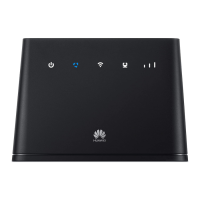
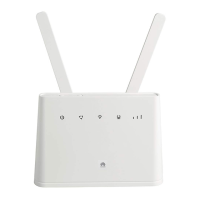
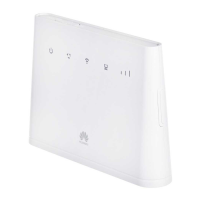
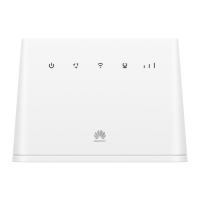
Huawei B310
100 pages
Print Icon
To Next Page IconTo Next Page
Loading...
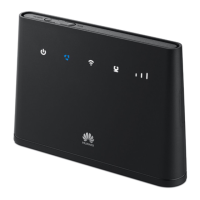
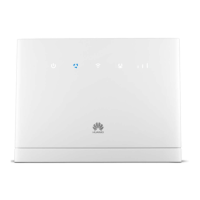
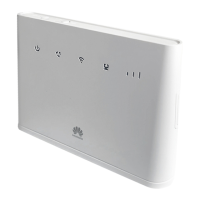
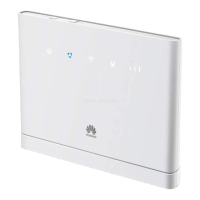
B310 LTE CPE
Quick Start

Questions and Answers

  • D
    Diana WhiteJul 27, 2025
    Why can't I access the Huawei B310 Network Router's web-based management page?
    • M
      michellefosterJul 27, 2025
      If you're having trouble accessing the router's web-based management page, here are a few things to try: * First, make sure your computer is connected to the router using either an Ethernet cable or Wi-Fi. * Next, verify that your computer is set to automatically obtain an IP address and DNS server address. * You can also try restarting your browser or using a different browser altogether. * If none of these steps work, you might need to restore the router to its factory settings.
  • K
    kennethmcknightAug 6, 2025
    Why is the indicator light on my Huawei B310 Network Router steady cyan, blue, or yellow, but the internet is off?
    • T
      Teresa GouldAug 7, 2025
      If the indicator light on your Huawei Network Router is steady cyan, blue, or yellow, but the internet is off, it suggests your mobile network may have poor reception. To resolve this, try moving the router to a location where the reception is better.
  • B
    Barbara PetersonAug 17, 2025
    What to do if the indicator is red on my Huawei Network Router after configuration?
    • S
      Sean RichardsonAug 17, 2025
      If the indicator light on your Huawei Network Router is red after you've finished configuring it, it could indicate a problem with network connectivity. Here's what to check: * First, ensure that you have a working SIM card and that it's properly inserted into the router. * Next, try moving the router to a location that's free from obstructions, ensuring it has a clear path to receive a mobile network signal. If the issue continues, it's recommended to contact your network service provider for assistance.

Summary

Product overview

Setup

Connecting to your routers Wi-Fi network

Configuring your router

Optional configurations

Connecting multiple devices

Connect devices like computers and phones to the router for internet access and calls.

Installing external antennas

Install external antennas to improve signal reception. Contact your service provider for purchase.

Accessing the Internet through an Ethernet port

Connect the router to a wall-mounted Ethernet port for internet access.

Downloading Huawei HiLink

Download the Huawei HiLink app via QR code to configure the router from your phone.

Additional information

Troubleshooting

Safety information

Disposal and recycling information

Information on proper disposal and recycling of electronic waste and batteries.

Reduction of hazardous substances

Compliance with local regulations on hazardous substances in electrical and electronic equipment.

EU regulatory conformance

Statement of conformity with essential requirements of Directive 2014/53/EU.

Restrictions in the 2.4 GHz band

Details specific restrictions for the 2.4 GHz band in Norway.

ErP Product Information

Declares product conformity with the Energy-related Products Directive (ErP).

Frequency Bands and Power

Information on operating frequency bands and maximum transmitted radio-frequency power.

Accessories and Software Information

Details optional accessories and product software version.

Huawei B310 Specifications

General IconGeneral
ModelHuawei B310
CategoryNetwork Router
4G LTEYes
Wi-Fi Standards802.11b/g/n
Wi-Fi SpeedUp to 300 Mbps
Max Download Speed150 Mbps
Max Upload Speed50 Mbps
USB PortNo
SIM Card SlotYes
Max Wi-Fi Users32
BatteryNo
Weight226 g
External AntennaYes

Related product manuals