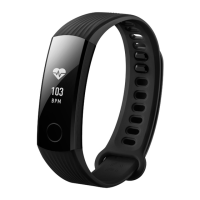
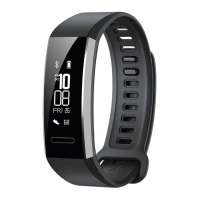
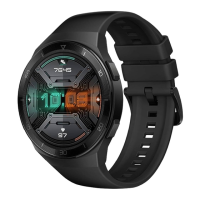
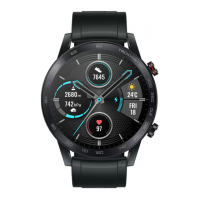
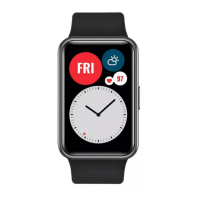
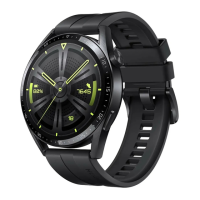
This document outlines the functions, usage, and maintenance of a wearable device, covering various aspects from initial setup to health management and exercise tracking.
Getting Started
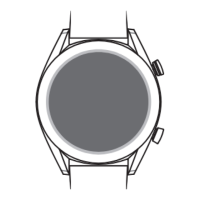
The device features a side button, charging contacts, a monitoring sensor area, and a quick release button. The side button has multiple functions: a single press turns on the screen (if off), takes you to the app list (from the home screen), or returns you to the home screen (from any other screen). Pressing and holding the side button powers the device on/off or restarts it.
Screen controls include:
- Touch: Chooses and confirms selections.
- Touch and hold: Changes the watch face from the home screen.
- Swipe down: Opens the shortcut menu from the home screen.
- Swipe up: Shows notifications from the home screen.
- Swipe left: Accesses watch feature cards from the home screen.
- Swipe right: Enters the HUAWEI Assistant·TODAY screen from the home screen, or returns to the previous screen from any app.
To turn on the screen, you can press the side button, raise your wrist (if enabled in Huawei Health app settings), or tap the screen (if enabled in device settings under Display & brightness). Screen brightness can be adjusted in Settings > Display & brightness > Brightness. To turn off the screen, lower or rotate your wrist outwards, or cover the screen with your palm. The watch will automatically sleep after a period of inactivity.
Pairing with a Phone
The device can be paired with both EMUI/Android phones and iPhones.
For EMUI/Android phones:
- Install/update the Huawei Health app.
- Open the app and log in with your HUAWEI ID.
- Power on the wearable, select a language, and start pairing.
- Place the device near your phone. In the Huawei Health app, touch the "Add device" icon, select your device, and touch LINK. Alternatively, scan the QR code on your device.
- Allow Bluetooth pairing when prompted in the Huawei Health app.
- On your wearable, touch √ to confirm the pairing request and follow on-screen instructions.
For non-HUAWEI phones, ensure the Huawei Health app is protected from being cleared from the background by adjusting system settings.
For iPhones:
- Install/update the HUAWEI Health app from the App Store.
- Open the app and log in with your HUAWEI ID.
- Power on the wearable, select a language, and start pairing.
- Place the device near your phone. In the HUAWEI Health app, touch the "Add device" icon, select your device, and touch LINK. Alternatively, scan the QR code on your device.
- On your wearable, touch √ to confirm the pairing request.
- When prompted in the HUAWEI Health app, touch Pair for Bluetooth pairing and Allow for notifications.
- Wait for the app to confirm successful pairing.
Setting Watch Faces
The device supports various watch face customization options:
- Style watch faces: Generate a watch face that matches your outfit by taking a photo or selecting one from your gallery. This feature is currently unavailable when paired with an iPhone.
- In the Huawei Health app, go to Watch faces > More > Mine > Style.
- Touch + and choose Take photo or Gallery.
- Select your favorite generated watch face and touch Save.
- Gallery watch faces: Create unique watch faces using your favorite photos.
- In the Huawei Health app, go to Watch faces > More > Mine, swipe up to On watch, and touch Gallery.
- Touch + and choose Take photo or Gallery.
- Touch √ and Save. You can customize Style and Layout. Multiple images can be uploaded, and you can switch between them by tapping the home screen.
To delete an image from Gallery watch faces, go to the Gallery watch face settings screen in the Huawei Health app and touch the Cross icon.
Managing Watch Faces
- Changing watch faces:
- Method 1: Touch and hold the home screen, then swipe left/right to select.
- Method 2: On the device, go to Settings > Watch face > Watch face, then swipe left/right to select.
- Method 3: In the Huawei Health app, go to Watch faces > More, select and install a watch face, or touch an installed one and Set as default.
- Deleting a watch face: In the Huawei Health app, go to Watch faces > More > Me > Edit, and touch the Cross icon.
Setting Custom Cards
Swipe left or right on the home screen to browse feature cards, which can be sorted and stored.
- Adding custom cards:
- Press the side button, go to Settings > Custom cards.
- Touch + and select cards like Sleep, Stress, and Heart rate.
- Swipe left/right on the home screen to view added cards.
- Moving/Deleting cards: Touch the Up arrow to move a card right, or the X to delete a card left.
Assistant
Managing Messages
New messages from your phone's status bar are synced to your wearable when the Huawei Health app is connected and message notifications are enabled.
- Enabling notifications:
- In the Huawei Health app, go to Notifications and toggle on Notifications.
- Toggle on switches for desired apps in the app list.
- Viewing unread messages: The device vibrates for new messages. Swipe up on the home screen to enter the message center.
- Replying to SMS messages: (Not supported on iPhones; only supported with the SIM card that received the message). Swipe up on the screen when receiving an SMS to select a quick reply.
- Customizing quick replies: (Not supported on iPhones).
- In the Huawei Health app, go to the Quick replies card.
- Touch Add reply to add, touch an existing reply to edit, or touch X to delete.
- Deleting unread messages: Swipe up on the home screen to enter the message center, then touch the trash icon at the bottom to clear all unread messages.
Setting Alarms
Alarms can be set on the device or via the Huawei Health app.
- On the device:
- Enter the app list, touch Alarm, then touch + to add.
- Set time, repetitions, and touch OK.
- Touch an existing alarm to modify or delete. Alarm names cannot be set on the device.
- Using the Huawei Health app:
- Open the app, go to Alarm.
- Touch Add to set time, name, and repeat cycle.
- For Android/EMUI, touch √; for iOS, touch Save.
- Return to the app home screen and swipe down to sync settings.
- Touch an existing alarm to modify.
Do Not Disturb Mode
When enabled, the device won't vibrate for calls/notifications (except alarms).
- Enabling/Disabling:
- Method 1: Swipe down from the watch face and touch the moon icon.
- Method 2: Enter the app list, go to Settings > Do Not Disturb > All day.
- Scheduling: In Settings > Do Not Disturb, enable Scheduled and set start/end times. To disable, turn off the set schedule.
Remote Shutter
(Requires HUAWEI phone with EMUI 8.1+ or iPhone with iOS 13.0+. For iPhone, open camera first. Huawei Health app must run in background.)
- Ensure device is connected via Bluetooth and Huawei Health app is running.
- On the device, open app list, find Remote shutter, and select it to launch phone camera.
- Touch the camera icon on the device to take photos. Swipe right or press side button to exit.
Controlling Music Playback
- In the Huawei Health app, go to Device settings and toggle on Music playback control.
- After playing a song on your phone, open the Music app on your device to pause/resume, switch tracks, and adjust volume.
Flashlight
The device flashlight has Common, Flash, and Color modes.
- Common mode: Press side button to app list or swipe down from home screen to shortcut menu, touch flashlight icon. Screen lights up. Touch again to turn off/on. Swipe right or press side button to exit.
- Flash/Color mode: On Flashlight screen, swipe up to settings to adjust color (8 standard colors, custom colors) and flashing frequency.
The flashlight stays on for five minutes by default. App icon color may vary.
Weather
- Enabling reports: In Huawei Health app, enable Weather reports and select temperature unit.
Weather info can be manually refreshed by swiping down on the Huawei Health app home screen or opening the Weather app on the device.
- Viewing weather:
- Through Weather app: Press side button, select Weather to view location, weather, temperature. Swipe up/down for more info.
- Through watch face: Switch to a watch face that displays weather.
Ensure GPS is enabled on phone, Huawei Health has location permission, and phone is in open area. Weather info may differ slightly from phone.
Health Management
Monitoring Sleep
The device records sleep duration and identifies deep sleep, light sleep, or awake states.
- Sleep settings:
- Open app list, select Sleep, swipe up, touch Sleep mode.
- Enable Auto, or touch Add time, set Bedtime, Wake up, Repeat, and OK.
When asleep, device won't vibrate for calls/notifications (except alarms) and disables Raise to wake.
- Enabling/Disabling HUAWEI TruSleep™: (Toggled on by default). In Huawei Health app, go to Health monitoring > HUAWEI TruSleep™ to toggle on/off. TruSleep™ accurately identifies sleep stages and offers analysis.
- Viewing sleep data:
- On device: Open app list, select Sleep to view night sleep/nap records.
- On phone: In Huawei Health > Health, touch Sleep card to view data by day, week, month, year.
Recorded data is cleared at 00:00 AM daily.
Pulse Wave Arrhythmia Analysis
Uses PPG sensor to screen for abnormal heart rhythms. (Available in certain markets; update device to latest version).
- Activating app:
- Download/update Huawei Health app.
- Open Huawei Health app, go to Health > Heart > Pulse wave arrhythmia analysis, and activate.
- Taking measurements on device:
- Wear device properly, arms flat, relaxed.
- Enter app list, select Pulse wave arrhythmia analysis, touch Measure.
- Keep still until measurement is complete. Touch info icon for result description.
- Enabling automatic measurements/reminders:
- In Huawei Health app, go to Health > Heart > Pulse wave arrhythmia analysis, touch three dots icon, touch Automatic measurement.
- Toggle on/off Automatic arrhythmia detection. Toggle on/off Arrhythmia alerts.
- Disabling service: In Huawei Health app, go to Health > Heart > Pulse wave arrhythmia analysis, touch three dots icon, go to About > Disable service.
- Possible results: Results may differ from ECG. Consult medical professional. To check result description, in Huawei Health app, go to Pulse wave arrhythmia analysis screen, touch three dots icon, touch Help. Results include: No abnormalities, Risk of premature beats, Risk of A-fib, Suspected premature beats, or Suspected A-fib.
Measuring Heart Rate
Heart rate measurements can be affected by external factors (low temperature, arm movement, tattoos). For accuracy, fasten device snugly one finger width above wrist bone, screen up, sensor in contact with skin, keep still.
- Individual measurement:
- In Huawei Health app, go to Health monitoring > Continuous heart rate monitoring, toggle off.
- On device, open app list, select Heart rate to initiate measurement.
- Continuous monitoring:
- In Huawei Health app, go to Health monitoring > Continuous heart rate monitoring, toggle on.
- To view heart rate: On device, open app list, select Heart rate. In Huawei Health app, go to Me > My data > Heart.
- Resting heart rate measurement: (Measured when awake, quiet, resting; best in morning after waking).
- In Huawei Health app, go to Health monitoring > Continuous heart rate monitoring, toggle on. Device automatically measures.
- To view: In Huawei Health app, go to Me > My data > Heart > Resting heart rate.
Resting heart rate data in app won't change if continuous monitoring is disabled. Data on device cleared at 00:00 AM. "--" indicates no measurement.
- High/Low heart rate alert: Device vibrates/alerts if resting heart rate is outside set limits for >10 mins after 30 mins of rest. Swipe right or press side button to clear.
- In Huawei Health app, go to Health monitoring > Continuous heart rate monitoring, toggle on.
- Touch High heart rate alert and/or Low heart rate alert to set limits.
- Measurement for workout: Device displays real-time heart rate/zone, alerts if rate exceeds upper limit.
To choose calculation method for heart rate zones: In Huawei Health app, go to Me > Settings > Workout settings > Exercise heart rate settings. Set Heart rate zones to Maximum heart rate percentage, HRR percentage, or LTHR percentage for runs; for other workouts, choose Maximum heart rate percentage or HRR percentage.
Real-time heart rate is displayed on screen during workout. If device is removed, measurement pauses but resumes when put back on. View graphs in workout records in Huawei Health app.
- High heart rate alert during workouts: Device vibrates/alerts if heart rate exceeds preset upper limit for a period during workout. Alert stays until rate drops or cleared by swiping right.
- iOS users: In HUAWEI Health, go to Me > Settings > Workout settings > Exercise heart rate settings, toggle on Heart rate warning, touch Heart rate limit, set upper limit.
- Android users: In Huawei Health, go to Me > Settings > Workout settings > Exercise heart rate settings, toggle on High heart rate, touch Heart rate limit, set upper limit.
These alerts are only for workouts, not daily usage.
Measuring SpO2
(Update device and Huawei Health app). For accuracy, fasten device snugly one finger width above wrist bone, sensor in contact with skin, no foreign objects.
- Individual measurement:
- Wear device properly, keep arm still.
- Open app list, find SpO2, touch.
- Keep still with screen facing up during measurement.
For optimal accuracy, wait 3-5 mins after putting on device before measuring. Measurements can be affected by external factors (low temperature, arm movement, tattoos). Results are for reference only, not medical use. Incoming call, alarm, or swiping right interrupts measurement.
- Automatic SpO2 measurements:
- In Huawei Health app, go to Health monitoring, toggle on Automatic SpO2. Device measures/records SpO2 at rest.
- Touch Low SpO2 alert to set lower limit for alerts while awake.
- Viewing SpO2 data: In Huawei Health app, select SpO2 card, select date.
Sleep Breathing Awareness
Detects breathing interruptions during sleep.
- Enabling app: (Connect watch to Huawei Health app).
- In Huawei Health app, go to Health screen, touch Sleep card, swipe up, touch Sleep breathing awareness.
- First-time use: Grant permissions, Allow, Agree. Go enable, toggle on Sleep breathing awareness.
- Wear watch to bed once enabled.
- Viewing data:
- In Huawei Health app, go to Health > Sleep, touch Sleep breathing awareness at bottom.
- Touch three dots icon, All data, select date.
- Enabling/Disabling: In Huawei Health app, go to Health > Sleep > Sleep breathing awareness, touch three dots icon, then Sleep breathing awareness, toggle on/off.
- Disabling service: In Huawei Health app, go to Health > Sleep > Sleep breathing awareness, touch three dots icon, About > Disable service.
Cycle Calendar
- Activating app:
- Link band with Huawei Health app. Go to Health > Cycle Calendar, agree to privacy, set period data, Get started.
- Activation notification pops up on band. Touch Open app to enter home screen, OK to return.
- Recording/viewing periods on band:
- Press side button, open app list, find Cycle Calendar.
- Touch Edit to enter Started and Ended period. Swipe up for Summary.
- Swipe left/right on monthly view for previous/next three cycles.
- Recording periods on Huawei Health app:
- Go to Health > Cycle Calendar, download feature package, complete data settings. If not found, touch Edit to add card.
- On Cycle Calendar screen, toggle on Period started or Period ended for specific dates.
Testing Stress Levels
- Testing stress levels: Wear device correctly, keep body still.
- Single stress test: In Huawei Health app, touch Stress card, touch Stress test. Touch Calibrate and follow instructions.
- Periodic stress test: In Huawei Health app, go to Health monitoring > Automatic stress test, toggle on, follow instructions to calibrate. Tests start automatically when worn.
Accuracy may be affected by caffeine, nicotine, alcohol, psychoactive drugs, heart disease, asthma, exercise, or incorrect wearing.
- Viewing stress data:
- On device: Enter app list, touch Stress to view daily stress change, bar chart, specific levels.
- In Huawei Health app: View latest stress scores/level on Stress card. Touch card for daily, weekly, monthly, yearly curves and advice.
Device is not a medical device; data is for reference only.
Exercise
Activity Records
(Update band to latest version). Activity rings track daily physical activity: Move (calories burned), Exercise (moderate/high-intensity workout duration), Stand (hours stood up for at least one minute).
- Setting goals:
- On phone: In Huawei Health > Health, touch Activity rings card, then three dots icon, Edit goals.
- On band: Navigate to Activity records, swipe left for This week's data, swipe right for today's statistics, swipe up for Today, swipe up again for Edit goals.
- Move: Measures calories burned (running, cycling, housework, walking).
- Exercise: Measures total duration of moderate/high-intensity workouts. WHO recommends 150 mins moderate or 75 mins high-intensity exercise per week.
- Stand: Measures hours stood up for at least one minute. Sitting too long is harmful.
This ring reminds you to stand up at least once per hour.
Starting an Individual Workout
- On device:
- Enter app list, touch Workout.
- Swipe up/down to select workout mode, or swipe up to Custom to add.
- Touch workout mode icon to start.
- During workout, press/hold side button to end. Alternatively, press side button to pause, touch play icon to resume, or touch stop icon to end.
- On Huawei Health app:
- Ensure device is linked, worn snugly. Open app, go to Exercise > Outdoor run (example), touch Run icon to start.
- In Huawei Health app, touch pause icon to pause, play icon to resume, or touch/hold stop icon to end. Device pauses/resumes/ends accordingly.
Workout data (duration, distance) displayed on both app and device. If duration/distance too short, record won't be saved. Data displayed in app after workout is collected from both phone and device.
Workout Records
- Viewing on device:
- Enter app list, touch Workout records.
- Select record to view details for different workout modes.
- Viewing on Huawei Health app: Go to Health > Exercise records, select record to view details.
- Deleting a workout record: In Huawei Health app, go to Health > Exercise records, touch/hold record and delete. Record remains on device.
Workout records are not permanently stored on device; oldest ones are cleared as new ones are generated. Synced records in Huawei Health app are not deleted.
Checking Running Ability Index (RAI)
RAI reflects endurance, technique, efficiency. Higher RAI means better performance.
- Before you start: Update device and Huawei Health app. RAI feature only available for runs >12 minutes in certain scenarios.
- Checking RAI:
- On device: Open app list, touch Workout status.
- On phone: In Huawei Health > Me > My data > Running Ability Index.
Viewing Training Status
On device, enter app list, touch Workout status, swipe up to view workout data: RAI, degree of recovery, training load, VO2Max.
- RAI: Comprehensive index for endurance, technique, efficiency.
- Degree of recovery: Time for body to return to 100%, considering fatigue and stress. Related to recovery time determined by intensity/duration.
- Training load: Based on total workout amount over last 7 days and fitness status. Available after heart rate tracked throughout workout.
- VO2Max: Maximum oxygen body can absorb/use during intense exercise. Indicator of aerobic ability.
More
Charging
Connect charging cradle metal contacts to back of band, place on flat surface. Connect cradle to power supply. Device screen lights up, displays battery level.
- Use HUAWEI charging cradle/adapter or compliant ones. Avoid slow charging/overheating. Purchase from official Huawei sales outlet.
- Cradle is not water-resistant. Keep charging port, contacts, device dry.
- Keep cradle surface clean. Place device correctly. Avoid metal objects on contacts.
- Device fully charged at 100%, stops charging. Remove from cradle.
- For long-term storage, charge battery every 2-3 months.
- Batteries have limited charge cycles. Replace at authorized Huawei Customer Service Center if life shortens.
- Do not charge/use in hazardous environment. Ensure no flammable/explosive items nearby. USB port free of liquid/foreign object. Keep cradle away from liquids/flammable materials. Do not touch metal contacts when connected to power supply.
- Cradle contains magnet. If repulsion occurs, switch direction. Check/clean before use.
- Do not expose cradle to high temperatures or strong electromagnetic interference.
Checking Battery Level
- Method 1: Swipe down from device home screen to shortcut menu.
- Method 2: Connect to power supply, check on charging screen.
- Method 3: View on device home screen if watch face displays it.
- Method 4: In Huawei Health app, navigate to device details screen.
- Low battery alert: Device vibrates/alerts below 10%, prompts charging.
Setting AOD Watch Face
Choose whether to see main watch face or AOD watch face when raising wrist.
- Open app list, go to Settings > Watch face, enable Always On Display.
- Select Raise to show AOD or Raise to show watch face.
Setting a PIN
Set a PIN for privacy. With Auto-lock enabled, device locks when taken off. Enter PIN to unlock. Screen won't lock if worn.
- Enabling PIN:
- Swipe down from home screen, go to Settings > PIN > Set PIN, follow instructions for 6-digit PIN.
- To enable Auto-lock: Swipe down from home screen, go to Settings > PIN > Auto-lock, enable Auto-lock.
If PIN forgotten, restore device to factory settings.
- Changing PIN: Swipe down from home screen, go to Settings > PIN > Change PIN.
- Disabling PIN: Swipe down from home screen, go to Settings > PIN > Disable PIN.
- Forgetting PIN: Restore device to factory settings.
Setting Time and Language
Time and language cannot be set on device. They sync automatically from phone when connected via Bluetooth. Changes on phone sync to device.
Water-Resistant and Dust-Resistant Level Definition and Usage Scenario Description
Device prevents water/dust from damaging interior components/mainboard.
- Test scenarios: Normal temperature 15-35°C, relative humidity 25-75%, atmospheric pressure 86-106 kPa.
- 5 ATM: Water resistance standard (ISO 22810:2010). Withstands simulated 50-meter static water pressure for 10 minutes. Not resistant to 50-meter deep water. Water resistance is not permanent, may deteriorate with wear/tear.
- Usage: Suitable for shallow waters (swimming pools, beach), exercise, rainy days, hand washing.
- Speaker: If soaked or worn in water, remove water stains or use drainage feature.
- Unsuitable scenarios: Scuba dives, platform dives, dives, high-pressure rinsing, high-pressure/fast-flowing water activities. Hot showers, hot springs, saunas (steam rooms), high-temperature/high-humidity environments.
- Straps: Leather/metal straps not water-resistant. Use other types for swimming/water activities.
- Damage from immersion in unsuitable scenarios is not covered by warranty.
- Dust/water resistance is not permanent, may deteriorate. Avoid: pressing buttons underwater, using ultrasonic cleaner/acidic/alkaline detergent, dropping device, disassembling, exposing to alkaline substances (soap, soapy water), perfumes, solvents, detergents, acids, pesticides, emulsions, sunscreens, moisturizers, hair dye. Do not charge when wet.
- Water/dust resistant features apply only to watch body. Strap, charging base, base are not water/dust resistant.
- Use product according to official Huawei website manual or Quick Start Guide. Free warranty not provided for damage from improper use.

 Need help?
 General

 To Next Page