6
Make a connection
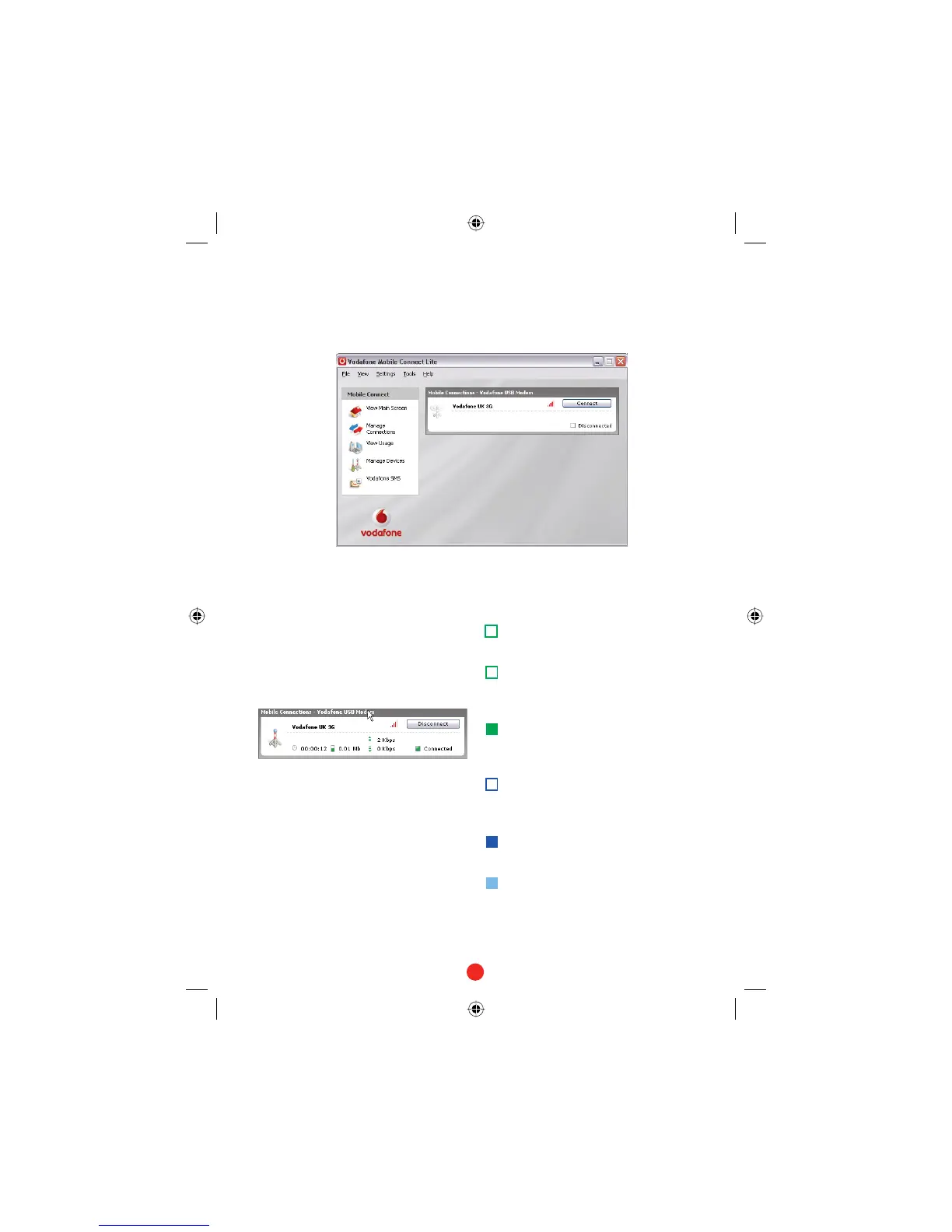
Simply click on the Connect button
to open a data connection. The main
window will now show your connection
status and other information.
You should now be able to use your
usual web browser and email programs.
To close the connection, click
Disconnect.
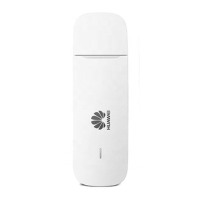
Modem status
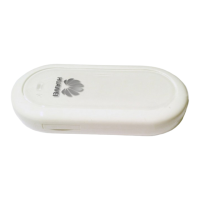
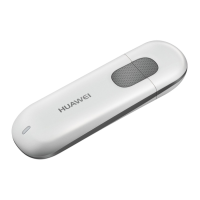
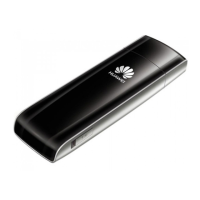
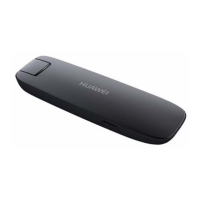
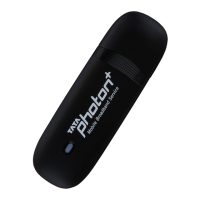
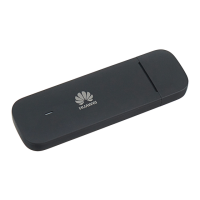
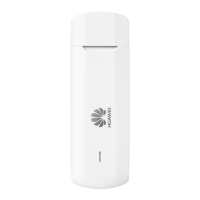
The red strip LED will show if data is
being transmitted. If it glows steadily
then no data is being transmitted. As
data is transmitted it will alternatively
glow and fade (breathing effect).
Your modem will also show the signal
status using the LED light on the side:
Green double blinking: Power on,
searching for network.
Green blinking: A GPRS network has
been found, and the modem is ready
to connect.
Green solid: Connected to a GPRS
network – data being sent and
received.
Blue blinking: A 3G network has
been found, and the modem is ready
to connect.
Blue solid: Connected to a 3G
network.
Light blue solid: Connected to a 3G
Broadband network.
QSG_VMCLite_v30_08-2007_e272_en-Sec2:6 Sec2:6QSG_VMCLite_v30_08-2007_e272_en-Sec2:6 Sec2:6 15/8/07 10:12:3615/8/07 10:12:36



 To Next Page