Viewing the Signal Strength
5
2
Installation
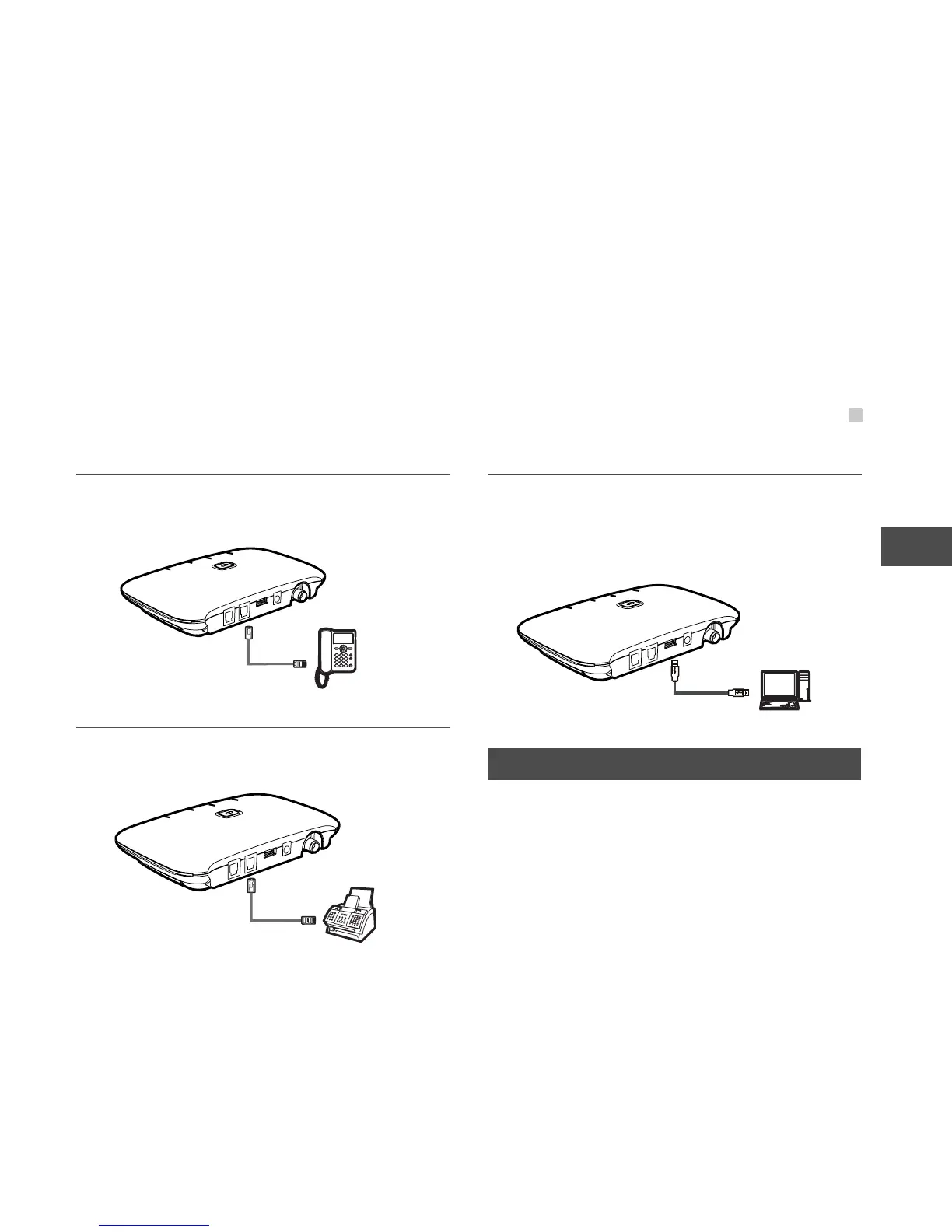
Connecting the FWT to a Telephone
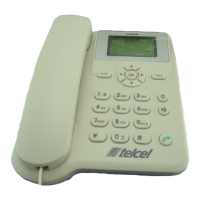
The FWT provides two telephone ports. They are in
parallel connection and use the same number.
Connecting the FWT to a Facsimile Set
If your FWT supports facsimile, please consult you
local agent
.
Connecting the FWT to a PC
After purchasing the data service suite, you can use
data services by connecting the FWT to a PC, and
maintain and debug the FWT on the PC. For details,
consult your local agent.
Viewing the Signal Strength
Power on the FWT and wait until some signal
strength indicators are on or until you can hear the
dial tone.
• If all signal strength indicators remain off for 5 minutes
and only the re-dial tone is heard. No signals can be
received.
• Turn the antenna but all signal LEDs still keep off. The
signal quality is very poor. If the dial tone can be heard
in some area, position the antenna towards it.





 To Next Page