4 BYOM
With Bring Your Own Meeting (BYOM), the microphone, speaker, and camera of
the large screen can be used as virtual peripherals for third-party meeting
software installed on computers or mobile phones.
When using third-party meeting software on a computer, you can use the
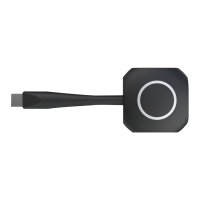
IdeaShare client on Windows to implement the BYOM function.
● BYOM applies only to the IdeaHub S2, IdeaHub S2 Pro, IdeaHub ES2, and IdeaHub ES2
Pro.
● To use BYOM, ensure that the following conditions are met:
● The BYOM function applies only to 64-bit Windows 10 and 11 computers of
version 2004 or later (running IdeaShare clients of V6.19.0.33 or later).
● Install BYOM driver is selected in IdeaShare client installation performed by the
administrator account.
● Multi-Device Collaboration is enabled under Settings > Smart Functions in the
lower right corner of the endpoint's home screen.
To use BYOM, perform the following steps:
Step 1
Congure the networks of the endpoint and computer by referring to 2
Conguration Operations.
Step 2 Open the IdeaShare client using an administrator account on your computer.
Step 3 Enter the projection code in the upper right corner of the endpoint to connect the
IdeaShare client to the endpoint.
Step 4 On the computer, use third-party meeting software to initiate or join a meeting.
Step 5 Congure the meeting software to use the microphone, speaker, and camera.
The methods for setting the microphone, speaker, and camera vary with the
meeting software. Figure 4-1 and Figure 4-2 are examples.
For the rst setting, you need to obtain the trust authorization from the large screen to use
the large screen's camera and microphone.
IdeaShare
User Guide 4 BYOM
Issue 01 (2023-03-30) Copyright © Huawei Technologies Co., Ltd. 12


 To Next Page