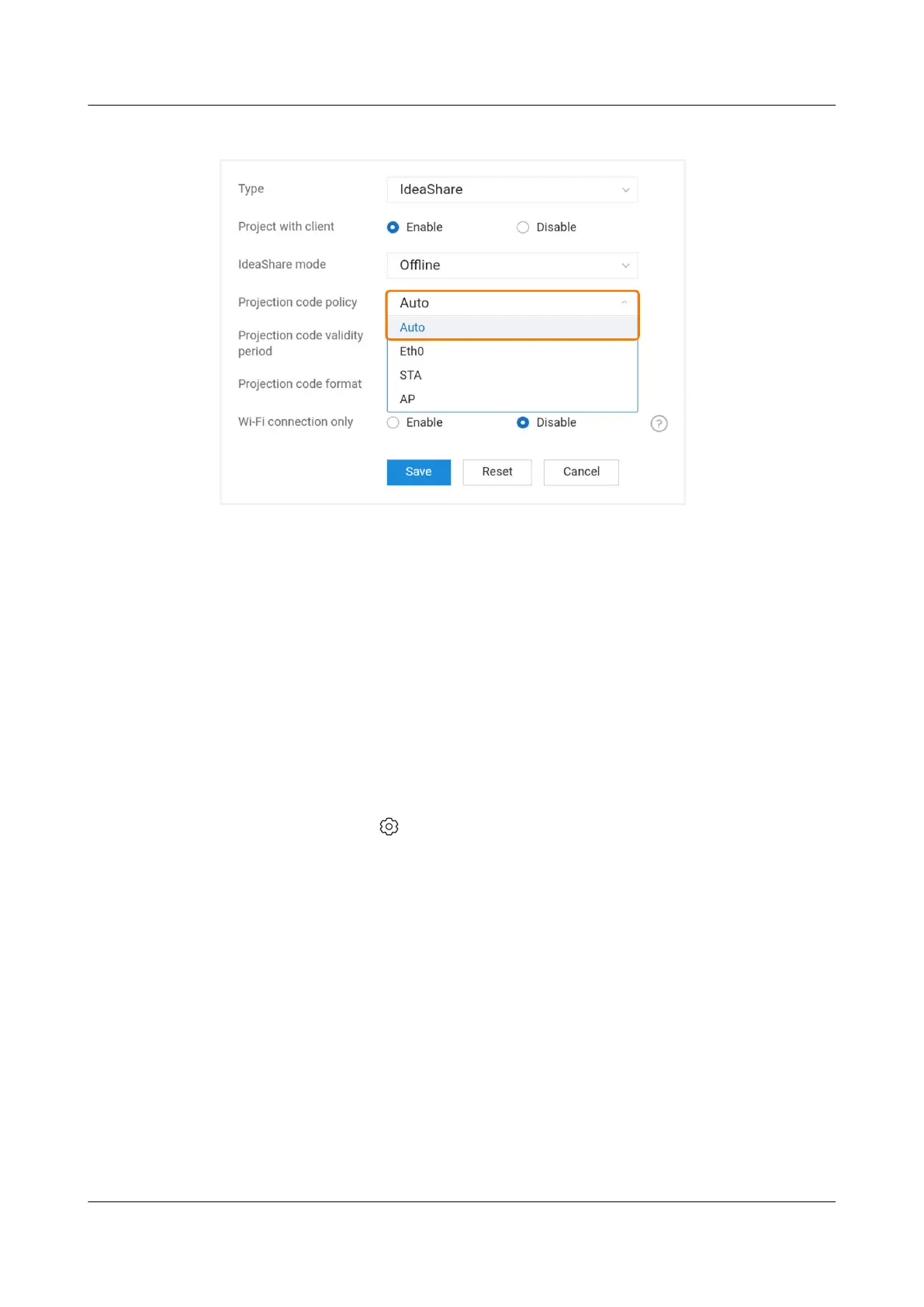
Figure 2-3 Projection code policy on the web interface
Step 2 Connect the computer or mobile phone to the network connected by the
endpoint, and check whether the network connection is normal.
----End
2.2 Manual Network Switchover
If the projection network or projection code policy is set to Auto but the projection
still fails, you can manually switch to the
specied projection network or
projection code policy.
Conguring the Projection Network on the Large Screen
Step 1 On the home screen of the large screen, tap Projection to access the projection
guide screen, choose > Advanced > Projection Network, and manually switch
to a proper projection network.
Step 2 Connect the computer or mobile phone to the network connected by the
endpoint.
----End
Conguring the Projection Network on the Web Interface
Step 1 Open the browser of the endpoint or computer, log in to the web interface (refer
to
Quick Conguration
or
Conguration Guide
for the login process), choose
Application > Wireless Projection > Parameter Conguration, and manually
switch to a proper projection network or projection code policy.
Step 2 Connect the computer or mobile phone to the network connected by the
endpoint.
----End
IdeaShare
User Guide 2 Conguration Operations
Issue 01 (2023-03-30) Copyright © Huawei Technologies Co., Ltd. 5


 To Next Page