l Automatically turn Wi-Fi on and off: Depending on the Wi-Fi networks you have connected to
previously, Wi-Fi will be automatically enabled or disabled in specic locations. This will prevent your
device from constantly searching for new networks.
l Assess the quality of available networks: Evaluate currently available network hotspots and
prevent your device from automatically connecting to networks with no Internet connection.
Connect to Wi-Fi
Connect to a Wi-Fi network to conserve your mobile data.
To prevent unauthorised access to your personal data and
nancial information, always exercise
caution when connecting to public Wi-Fi networks.
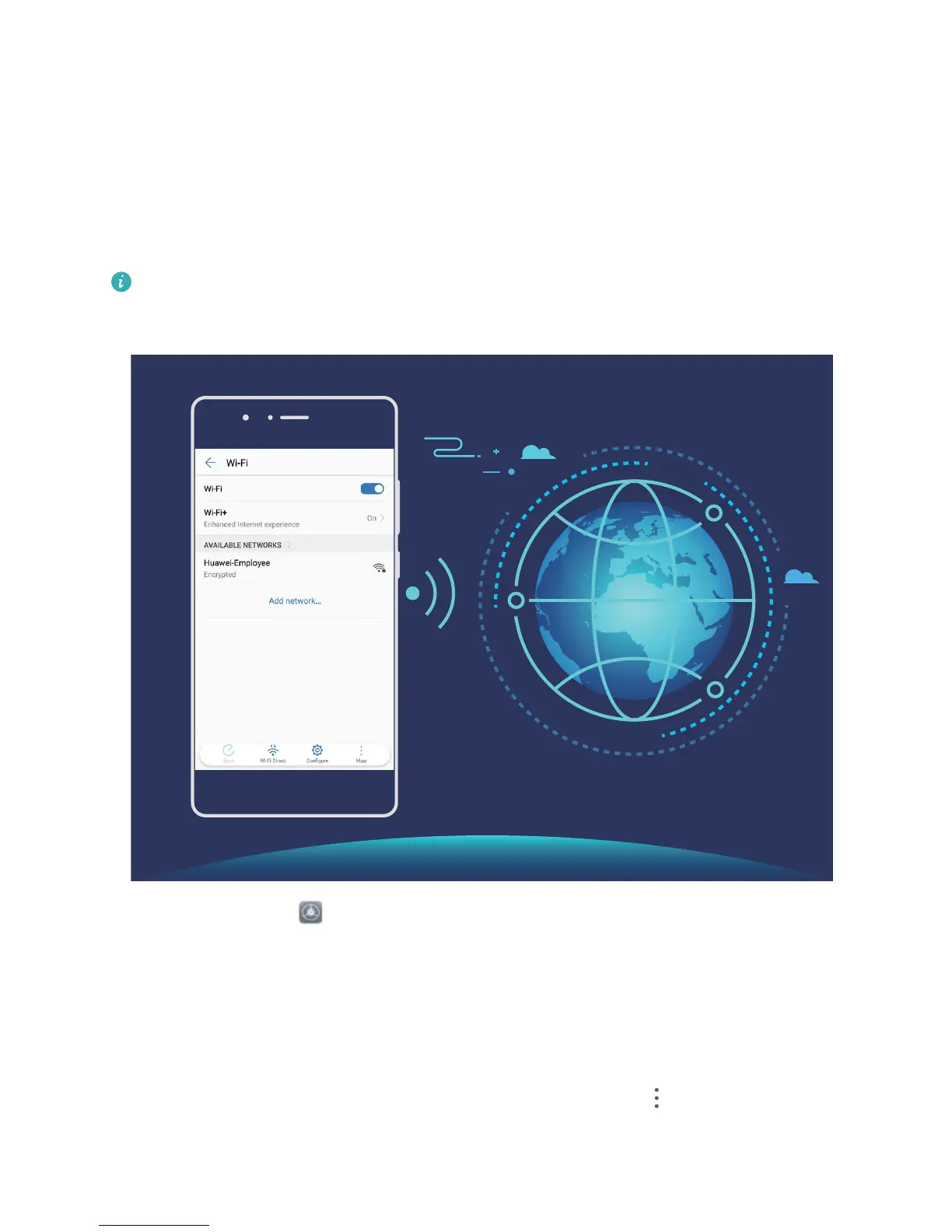
Connect to Wi-Fi: Open Settings, go to Wireless & networks > Wi-Fi and enable Wi-Fi. Select
the network you want to connect to. Depending on the network settings, you may have to enter a
password. Follow the onscreen instructions to complete authentication if required.
l Refresh a Wi-Fi hotspot: Touch Scan to search again for available wireless networks.
l Manually add a Wi-Fi hotspot: Scroll to the bottom of the menu, touch Add network…, and
follow the onscreen instructions to enter the network SSID and password.
Connect to a Wi-Fi network through WPS: In the Wi-Fi screen, go to > Advanced Wi-Fi
settings > WPS connection. Press the WPS button on your router to establish a connection.
Wi-Fi and Network
120



 To Next Page