EasyManua.ls Logo

Huawei R207 - User Manual

Huawei R207
19 pages
Print Icon
To Next Page IconTo Next Page
Loading...
Product Description
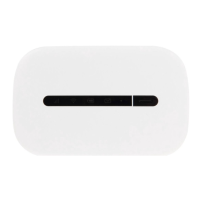
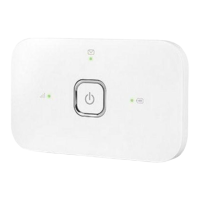
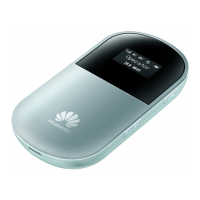
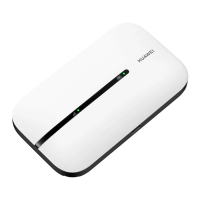
R207 Mobile WiFi Product Description
V100R001
Issue
02
Date
2014-04-21
HUAWEI TECHNOLOGIES CO., LTD.

Questions and Answers

  • D
    Dr. Francisco ShawSep 23, 2025
    What to do if Huawei TE30 has insufficient port resources due to multiple conferences?
    • C
      Clarence JenningsSep 23, 2025
      If port resources are insufficient due to multiple ongoing conferences, you need to wait until resources become available. Alternatively, reduce the number of sites attending the conference and then add sites as required after the conference has started successfully.
  • K
    Krista MartinezAug 23, 2025
    Why can't I call a remote site using the IP address on my Huawei Conference System?
    • T
      Taylor BrooksAug 23, 2025
      If you're unable to place a call to a remote site using the IP address on your Huawei Conference System, it could be due to incorrect NAT settings if your local endpoint is on a private network and the remote endpoint is on a public or different private network. Verify the NAT settings under Advanced Settings > Settings > Network > Firewall. Alternatively, the GK with which your local or remote endpoint is registered might not support placing calls using the IP address. In this case, disable the GK under Advanced Settings > Settings > Network > IP > H.323 at both the local and remote sites.
  • C
    Charles JonesAug 25, 2025
    How to improve blurry remote video quality on Huawei TE30 Conference System?
    • L
      lindsey16Aug 26, 2025
      If the remote video is unclear during a conference on your Huawei TE30 system, with artifacts, frozen images, or discontinuity, the issue could stem from several factors. It may be due to faults on the local video module, requiring the TE30 to be sent to the local distributor for maintenance. Check if the remote camera is set to focus automatically, rather than on a near or far scene. If the conference rate is below 256 kbit/s, ensure the audio protocol is set to G.728 to reduce audio bandwidth usage. High network traffic can also cause low video bandwidth; avoid conferences during peak network hours. Lastly, poor quality network connection devices may cause data loss; consider replacing these devices.
  • R
    ramirezwhitneyAug 27, 2025
    Why can't local and remote sites call each other using site numbers on Huawei Conference System?
    • A
      Anthony TurnerAug 27, 2025
      If the local and remote sites cannot call each other using site numbers on your Huawei Conference System, it may be because either the local or remote site is not registered with a GK. Verify the GK registration settings. Another reason could be that the local or remote endpoint is not connected to an IP network. Ensure that the IP network cable is properly connected and verify the IP network settings.
  • C
    Curtis GarciaAug 27, 2025
    What to do if Huawei TE30 Conference System display doesn't show video or UI?
    • E
      erinchambersAug 27, 2025
      If your Huawei TE30 Conference System display doesn't show the remote controlled UI or local video when powered on but not in a conference, first check if the display is powered on. If it is, ensure the correct video channel is selected using the remote control. Incorrect video settings on the TE30 or display, such as brightness set to 0, can also cause this; retain the default values for video parameters. Finally, verify that the video cable is securely connected between the TE30 and the display.
  • H
    hshieldsSep 17, 2025
    What to do if Huawei Conference System local address book records cannot be exported?
    • T
      Tracy SullivanSep 17, 2025
      If you're unable to export records from the local address book on your Huawei Conference System, the pop-up blocker is likely enabled on your browser. In Internet Explorer, go to Tools > Pop-up Blocker > Turn Off Pop-up Blocker. If using Firefox, go to Tools > Options. On the General tab, select Show the Downloads window when downloading a file. On the Privacy tab, select Accept cookies from sites, and then click OK to save the settings.
  • C
    Cindy RichardsonSep 14, 2025
    What to do if a predefined conference fails to start on Huawei TE30?
    • V
      Vanessa MorrisonSep 14, 2025
      If a predefined conference fails to initiate on your Huawei TE30, it could be because the TE30 is disconnected from the videoconferencing network. Check the network connection and fix any identified issues.
  • H
    hhughesSep 15, 2025
    Why is the Huawei Conference System web interface slow in Internet Explorer 6?
    • E
      Elizabeth LopezSep 15, 2025
      If the endpoint web interface responds slowly in Internet Explorer 6, it's likely that the JavaScript engine of Internet Explorer 6 is not upgraded, or the required patches are not installed. Install the necessary patches and consider installing Microsoft Windows Script 5.7.
  • C
    Courtney CochranSep 6, 2025
    Why does Huawei TE30 Conference System show local video but not remote controlled UI?
    • N
      Nathan OnealSep 6, 2025
      If the Huawei TE30 Conference System displays local video but not the remote controlled UI during a conference, ensure a display is connected to the output port of the remote controlled UI and verify the display's video settings. If the TE30 isn't responding to remote control operations, Telnet to the TE30. If you still can't operate it, the endpoint might be malfunctioning. Restart the TE30; if the problem continues, contact your local distributor for maintenance.
  • J
    jack35Sep 3, 2025
    Why can I only hear the local site during a Huawei TE30 conference?
    • B
      Barbara DennisSep 3, 2025
      If you can only hear the sound from the local site during a Huawei TE30 conference, it's possible that a loopback test is being performed at the local site. Stop all local and remote loopback tests.

Huawei R207 Specifications

General IconGeneral
ModelR207
Device TypeWireless Router
Wi-Fi Standard802.11 b/g/n
Frequency Band2.4 GHz
Maximum Wireless Speed150 Mbps
Max. Speed Downlink21.6 Mbps
Max. Speed Uplink5.76 Mbps
Ethernet Ports1
Antenna TypeInternal
Weight100 g
3G UMTS900/2100 MHz
2G GSM850/900/1800/1900 MHz
Battery1500 mAh
SecurityWEP, WPA, WPA2
Power Supply5V/1A
Supported Operating SystemsWindows, Mac, Linux
MicroSD card slotYes

Related product manuals