EasyManua.ls Logo

Huawei R207 - User Manual

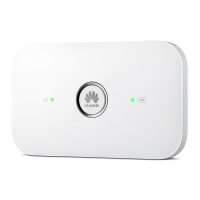
Huawei R207
19 pages
Print Icon
To Next Page IconTo Next Page
Loading...
Product Description
R207 Mobile WiFi Product Description
V100R001
Issue
02
Date
2014-04-21
HUAWEI TECHNOLOGIES CO., LTD.

Questions and Answers

  • N
    Nicole CallahanSep 7, 2025
    How to adjust bright or dark local video on Huawei TE30 Conference System?
    • D
      Denise DixonSep 7, 2025
      If the local video is too bright or too dark when the Huawei TE30 is not in a conference, it might be due to inappropriate video settings. Retain the default values for video parameters on both the TE30 and the display. If the issue persists, the camera may be faulty, and you should send the TE30 to the local distributor for maintenance.
  • E
    Emily HartmanAug 22, 2025
    How to fix Huawei Conference System endpoint failing to connect to the Internet?
    • N
      Nicole MunozAug 22, 2025
      If your Huawei Conference System endpoint can't connect to the internet, it might be due to outdated operating system or Internet Explorer patches. Install the latest patches for both. Also, check your Internet Explorer security settings. If the security level is too high, or your endpoint's IP address isn't on the trusted sites list, adjust the settings. To do this, go to Tools > Internet Options > Security > Trusted sites > Sites in Internet Explorer, add your TE30 IP address, and click OK.
  • V
    Vanessa YoungSep 5, 2025
    Why is the local video in black and white on my Huawei TE30 Conference System?
    • R
      rachelalexanderSep 5, 2025
      If the local video on your Huawei TE30 Conference System is in black and white or blinking, the mode of the video output port might be set incorrectly. Ensure that the mode of the video output port and the cable in use match each other. Also, check that the cable is connected correctly and replace it if necessary.
  • J
    jack35Sep 3, 2025
    Why can I only hear the local site during a Huawei TE30 conference?
    • B
      Barbara DennisSep 3, 2025
      If you can only hear the sound from the local site during a Huawei TE30 conference, it's possible that a loopback test is being performed at the local site. Stop all local and remote loopback tests.
  • J
    Jill MaxwellSep 2, 2025
    What causes Huawei TE30 to fail GK registration after startup?
    • A
      amy66Sep 2, 2025
      If your Huawei TE30 fails to register with the GK after startup, the parameters used for GK registration might be incorrect. Check the GK address, encryption password, and user name. To correct these settings, navigate to Advanced Settings > Settings > Network > IP > H.323 on the endpoint web interface and make the necessary corrections.
  • K
    Kaylee JacobsSep 1, 2025
    How to fix a local VGA display not showing computer desktop connected to Huawei TE30?
    • M
      Molly WhiteSep 1, 2025
      If your local VGA display isn't showing the computer desktop when connected to the Huawei TE30, it might be due to the VGA display's limited capability. Set the resolution and refresh rate of the local output to those supported by the VGA display. The TE30 only supports certain combinations of resolutions and refresh rates, so ensure the computer's VGA input settings are compatible.
  • D
    David ReeseAug 30, 2025
    Why is there no audio from the local display during a Huawei TE30 Conference System conference?
    • J
      jwatersAug 30, 2025
      If there's no audio from the local display during a Huawei TE30 conference, it could be that the chair site has muted the speaker of the local site. Restore the volume to its default value. If audio is output properly when the audio test is performed, the problem exists at the remote site. The microphone at the remote site may have been muted, or no sound pickup device is connected to the audio source input port.
  • J
    Joshua RileyAug 29, 2025
    Why does my Huawei TE30 Conference System show local video but not remote video during a conference?
    • J
      Joshua SmithAug 29, 2025
      If your Huawei TE30 Conference System displays local video but not remote video during a conference, first check if a local or remote loopback test is in progress and stop all tests. If the video bandwidth [frame rate] is set to 0, no video will be sent from the remote site; contact the remote site administrator. If the remote video appears as a blue screen, the remote site might be hiding its video by sending a blue screen; contact the remote site administrator. Also, verify that the video output port is set to display the remote video.
  • C
    Curtis GarciaAug 27, 2025
    What to do if Huawei TE30 Conference System display doesn't show video or UI?
    • E
      erinchambersAug 27, 2025
      If your Huawei TE30 Conference System display doesn't show the remote controlled UI or local video when powered on but not in a conference, first check if the display is powered on. If it is, ensure the correct video channel is selected using the remote control. Incorrect video settings on the TE30 or display, such as brightness set to 0, can also cause this; retain the default values for video parameters. Finally, verify that the video cable is securely connected between the TE30 and the display.
  • R
    ramirezwhitneyAug 27, 2025
    Why can't local and remote sites call each other using site numbers on Huawei Conference System?
    • A
      Anthony TurnerAug 27, 2025
      If the local and remote sites cannot call each other using site numbers on your Huawei Conference System, it may be because either the local or remote site is not registered with a GK. Verify the GK registration settings. Another reason could be that the local or remote endpoint is not connected to an IP network. Ensure that the IP network cable is properly connected and verify the IP network settings.

Huawei R207 Specifications

General IconGeneral
ModelR207
Device TypeWireless Router
Wi-Fi Standard802.11 b/g/n
Frequency Band2.4 GHz
Maximum Wireless Speed150 Mbps
Max. Speed Downlink21.6 Mbps
Max. Speed Uplink5.76 Mbps
Ethernet Ports1
Antenna TypeInternal
Weight100 g
3G UMTS900/2100 MHz
2G GSM850/900/1800/1900 MHz
Battery1500 mAh
SecurityWEP, WPA, WPA2
Power Supply5V/1A
Supported Operating SystemsWindows, Mac, Linux
MicroSD card slotYes

Related product manuals