Operations During a Video Call
13
Call Service
3
• Recording started /recording stopped: to record or
stop recording the conversation.
• Other Applications: To access he Contacts screen,
the Messaging screen, the Calls screen or the
Calendar screen.
• Answer/Reject: Your phone allows you to handle
two calls simultaneously. During a call, if there is a
new incoming call, select Options > Answer to
answer it or select Options > Reject to reject it.
• Swap: To swap between calls during a 3-party call.
• Conference call/Private call: To switch to the con-
ference call during a 3-party call or to talk with a
party privately during a conference call.
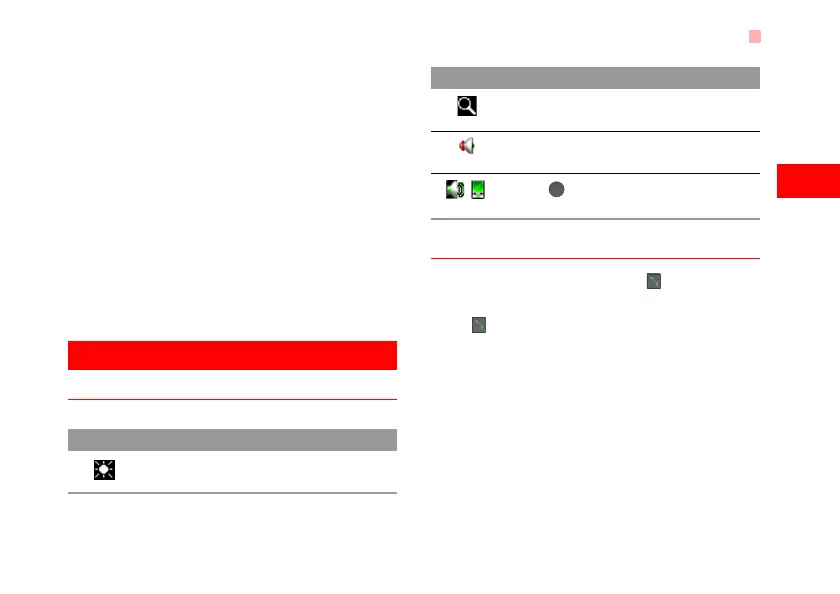
Operations During a Video Call
Icon Description
Operations
During a video call, you can press to hold the call
and send a preset file to the other party. You can
press again to resume the call. Before you use
the function, you can preset a file in settings/video
call/Send image.
During a video call, you can select Options to per-
form the following operations.
• Camera: To forbid or allow the video from your side.
• Audio: To forbid or allow the audio from your side.
• External view/Internal view: To switch between the
main lens and the assistant lens.
• Picture mode: To switch display.
Icon Description
Press up or down scroll key to adjust the
brightness.
Press the left or right scroll key to zoom
in or zoom out.
Press the volume keys to adjust the vol-
ume.
/
Press to switch between the loud-
speaker mode and the earpiece mode.
Icon Description
U5700.book Page 13 Tuesday, September 4, 2007 11:48 AM



 To Next Page