
 Need help?
Do you have a question about the Huion Kamvas Series and is the answer not in the manual?
Guide on holding the pen, positioning the cursor, clicking, moving objects, and using side buttons for annotation.
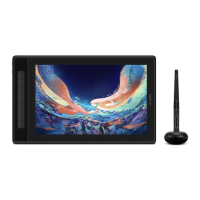
Details the power button and 4 customizable press keys on the display's left side for efficient operation.
Explains the touch bar for zooming and customization on the display's left side.
Instructions on accessing the OSD menu using the Function Button and navigating with designated function keys.
Procedure to exit the OSD menu, restoring function keys to their shortcut roles.
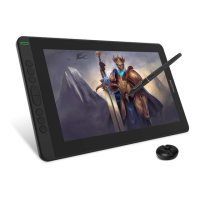
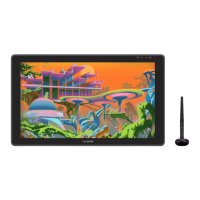
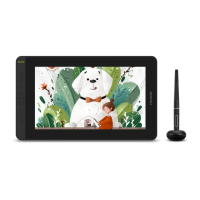
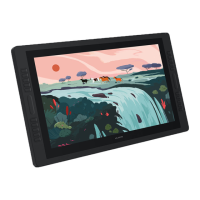
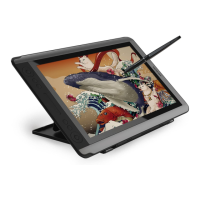
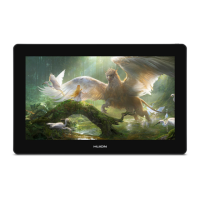
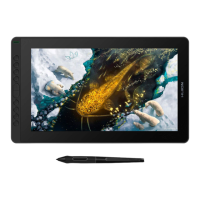
The Huion Kamvas Annotation Display is a versatile pen display designed to enhance PC-based lessons and presentations, particularly within educational settings like Chaffey College classrooms. Its primary function is to enable presenters to interact directly with digital content, facilitating a more dynamic and engaging teaching or presentation experience. This device allows users to illustrate concepts, mark up images, take notes, highlight important information, and answer questions in real-time, directly on the display.
The Huion Kamvas operates as an annotation display, meaning it mirrors or extends a computer's display, allowing users to draw, write, and interact with on-screen content using a specialized pen. This capability transforms static presentations into interactive whiteboards, where the presenter can dynamically add information, emphasize key points, and respond to audience queries with visual aids. The device is particularly suited for video presentations, where annotations can be overlaid directly onto the video feed, making complex topics easier to understand.
The device is designed for ease of use, with several features contributing to a smooth and intuitive user experience.
Display Setup: To begin, the user simply presses the power button to turn the Huion Kamvas ON/OFF. The display is typically set to mirror "Display 2" of the connected computer. In setups with only one computer display, the Kamvas will mirror that single display. This mirroring function ensures that whatever is visible on the main computer screen is also visible on the Kamvas, allowing for direct interaction.
Application Interaction: Once powered on and mirroring the desired display, users can open their preferred application (e.g., presentation software, drawing application, document viewer) and drag it onto "Display 2" (which is mirrored on the Kamvas). If only one display is present, the application is simply opened. This allows for direct annotation within the chosen software.
Pen Usage: The core of the Kamvas's interaction lies with its battery-free pen.
Display Controls: The Kamvas itself incorporates several physical controls to enhance usability.
OSD Function (On-Screen Display): The device includes an OSD menu for advanced configuration.
While the manual does not explicitly detail maintenance features, it provides a crucial piece of advice regarding pen care:
In summary, the Huion Kamvas Annotation Display is a user-friendly tool designed to bring interactivity to digital presentations. Its intuitive pen-based interaction, customizable controls, and straightforward setup make it an effective device for educators and presenters looking to create more engaging and dynamic learning environments.
 General
| Pen Pressure Levels | 8192 |
|---|---|
| Color Gamut | 120% sRGB (varies by model) |
| Tilt Recognition | ±60 degrees |
| Connection | USB-C (varies by model) |
| Active Area | Varies by model |
| Display Resolution | 1920 x 1080 (varies by model) |
| Connectivity | USB-C (varies by model) |
| OS Compatibility | Windows, macOS |
| Pen Technology | Battery-free Electromagnetic Resonance |
| Resolution (LPI) | 5080 LPI |


 To Next Page