7
M A C
APEX/SOLIX: HELIX
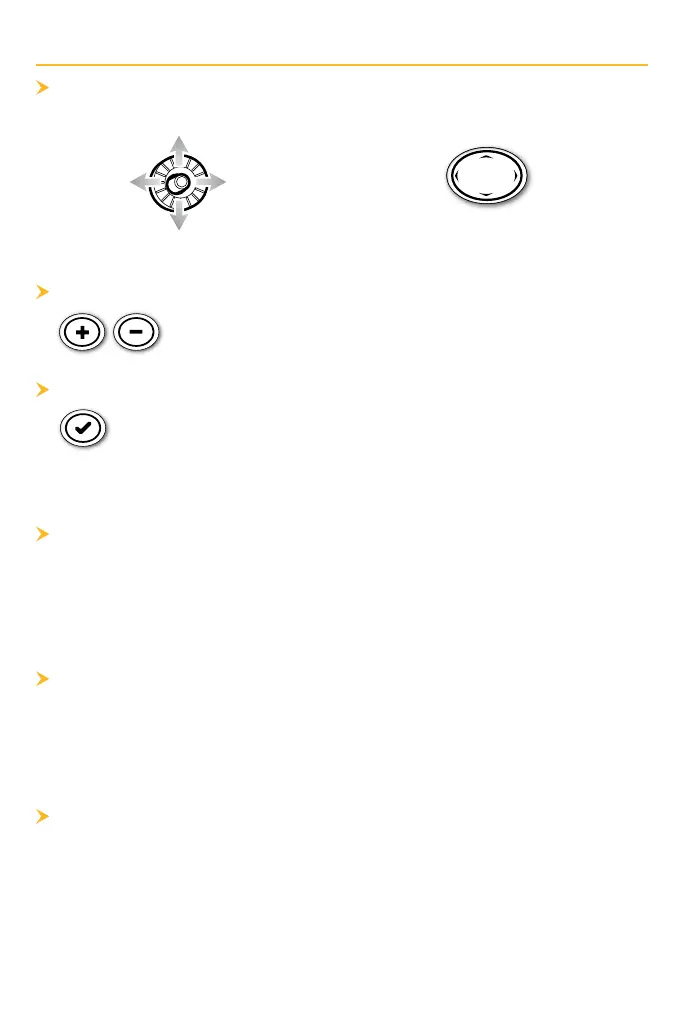
Move the Joystick.
Press any arrow on the
4-Way Cursor Control key.
S M C
Zoom in (+) and Zoom out (-) to see more of the chart
display (contour lines, depth colors, etc.).
V M I
Move the cursor to an icon (buoy, marker, etc.), contour line, or
position on the chart, and press the CHECK/INFO key. If you
have an APEX or SOLIX control head, press the CHECK/INFO key
a second time or select Map Info from the Info Menu.
D H C L
Hide Contour Lines to see more details on the chart.
APEX/SOLIX: Chart X-Press Menu > Chart Options > Depth/Contours
HELIX: Main Menu > HB Chart tab > Depth/Contours
C C O
Select your display preference: North-Up, Head-Up, Course-Up, etc.
APEX/SOLIX: Chart X-Press Menu > Chart Options > General > Orientation
HELIX: Main Menu > Chart tab > Chart Orientation
S Y M
Search the area for ports, tide stations and current stations. If you have
an APEX or SOLIX, you can also search for other points of interest,
services, and the nearest waypoints, routes, and tracks.
APEX/SOLIX: Chart X-Press Menu > Info > Find Nearest
HELIX:
Without an active cursor on the screen, press the CHECK/INFO key.






 To Next Page