G. STATION PROGRAMMING 27
G.04 Store Speed Dial / One Touch Dial (Programming Required)
Speed Dial automatically dials the stored telephone numbers.
There are two types of Speed Dial: Personal (Extension) and System.
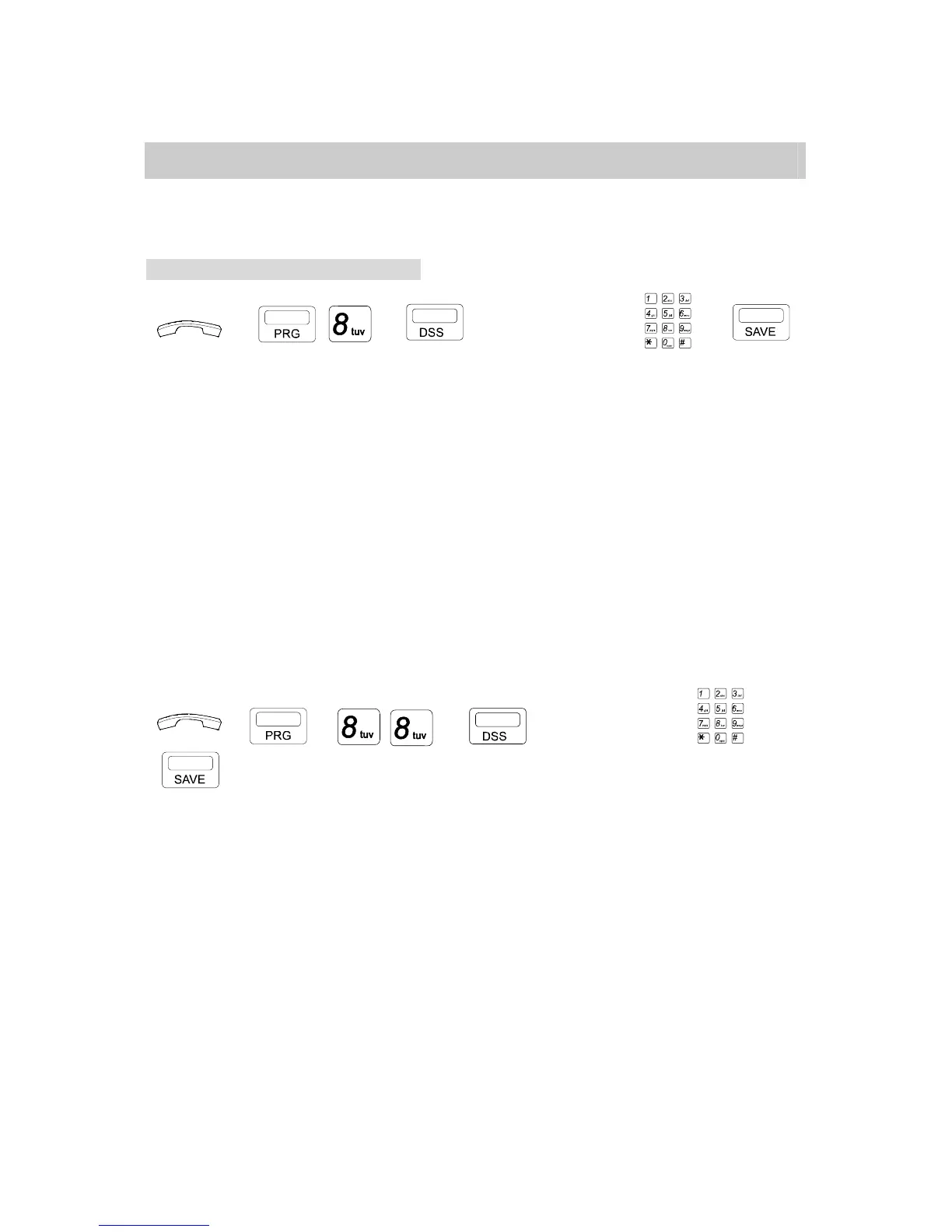
To store Personal Speed Dial numbers:
1. For non-operator Extension:
→ , , → or numeric (0 to 9) → →
. Press [PRG] key then Dial [8].
. Press a programmed DSS key (1-10)
or Dial the Speed Access Code (0 – 9).
. Dial desired outside telephone number (Max.30 digits).
. Press [SAVE] key.
Special Note: You will be prompted to enter a ring frequency level. This used for Caller ID
applications. If you would like the number you are storing to ring at your phone at a specific
ring frequency, then enter that frequency here and press save. For example, you program your
home number in DSS location 1 on your telephone. If you want your phone to ring at a specific
and unique frequency when someone from your home calls your office, then enter a unique
frequency. Valid settings are 1 through 8. If you do not want to use this feature, simply press
save at the Set Ring Frequency prompt.
2. For Operator:
→ → , → or numeric (0 to 9) → →
. Press [PRG] key then Dial [8], [8].
. Press a programmed DSS key (1-10)
or Dial the Speed Access Code (0 – 9).
. Dial desired outside telephone number (Max.30 digits).
. Press [SAVE] key.
Special Note: You will be prompted to enter a ring frequency level. This used for Caller ID
applications. If you would like the number you are storing to ring at your phone at a specific
ring frequency, then enter that frequency here and press save. For example, you program your
home number in DSS location 1 on your telephone. If you want your phone to ring at a specific
and unique frequency when someone from your home calls your office, then enter a unique
frequency. Valid settings are 1 through 8. If you do not want to use this feature, simply press
save at the Set Ring Frequency prompt.


 To Next Page
 Loading...